Known Participant
May 29, 2025
Answered

rotating object on path

  • May 29, 2025
  • 6 replies
  • 1148 views

I had read the solution to this topic but I can't find it anymore.

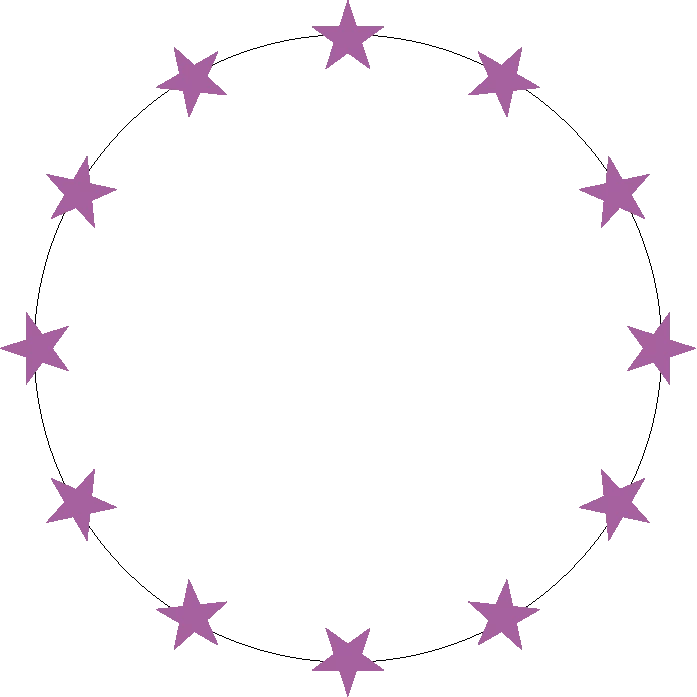
How do I rotate the stars so they are all straight like EU flag ?


Correct answer Jacob Bugge

Milko,


When starting over using a Blend, you can do as in your other thread over here,

https://community.adobe.com/t5/illustrator-discussions/blended-object-spine/td-p/15346884


Remember to keep Orientation as Align to Page: with Align to Path you will get the undesired rotation.


6 replies

kphotopage
Legend
May 30, 2025
renél80416020
Inspiring
May 30, 2025

Oui bien,

avec Réinitialiser l'instance de symbole

renél80416020
Inspiring
May 30, 2025

Bonjour,

Utiliser un dégradé de formes à 11 étapes, puis couper le cercle en un des points d'encrage...

René

Brad @ Roaring Mouse
Community Expert
Community Expert
May 30, 2025

Select your existing path and under Type > Type on Path options, select Stair Step. Change the other options to adjust to your desired result:

Known Participant
May 30, 2025

I like the solution you proposed @Brad @ Roaring Mouse .
I understand that you mean to use a font like zapf dingbats, use the necessary character (for example the star) and then the text function on the path.
but in this case how do you solve the homogeneous distribution of all the stars on the path?
I tried with full justification but I don't easily get the desired result.


I don't mean to say it's impossible, it's just a little more cumbersome

Jacob Bugge
Community Expert
Community Expert
May 29, 2025

Milko,


Another thought:


If you look at the rotated stars, their visual/geometric centres are a wee bit within the circle.


This is because the centre of the bounding box is above the visual/geometric centre when straight for stars with an odd number of points.


When you turn them or create them straight, the whole set will be the same wee bit below the circle.


In order to avoid that (and also to have rotated stars visually on the circle), you can create a nostroke/nofill circle with a diameter twice the radius of the original star and snap its top Anchor Point to the top Anchor Point of the original star and Group them, then create the rotated set from that.


Jacob Bugge
Community Expert
Jacob BuggeCommunity ExpertCorrect answer
Community Expert
May 29, 2025

Milko,


When starting over using a Blend, you can do as in your other thread over here,

https://community.adobe.com/t5/illustrator-discussions/blended-object-spine/td-p/15346884


Remember to keep Orientation as Align to Page: with Align to Path you will get the undesired rotation.


Jacob Bugge
Community Expert
Community Expert
May 29, 2025

Milko,


Starting from what you have, you can rotate each of them, or you can start over using a Blend to create them all straight as desired.


When rotating each, you can:


1) Select all but the top one You can use the Lasso Tool or ShiftClickDrag them, then use Object>Transform>Transform Each with a rotation of 360/12 = 30 degrees;

2) Repeat 1) excluding the first one to the right; you can do that in the expanded Layers Palette, within the Group if they are Grouped, by ShiftClicking it to unselect it (it will probably be at the bottom ofthe row of selected objects;

3) Repeat 2) until you have rotated them all.


If you have a number of objects that need to be rotated by a less nice angle, you can just inset 369/number to get accurate rotations throughout.