

Question
Save as PDF and preserve Transparency
Hello,
I've got a question about saving as PDF and Transparency.
According to help article here "PDF 1.4 and later (when Preserve Illustrator Editing Capabilities option is selected)" should preserve transparency, however, that doesn't work for me.
I've got the Creative Cloud Ai version.
Here is what I have:
1. Some lines with stroke specified.
2. Top line has got a stroke specified + the fill that is set to 0% transparency and transformed to a shape.
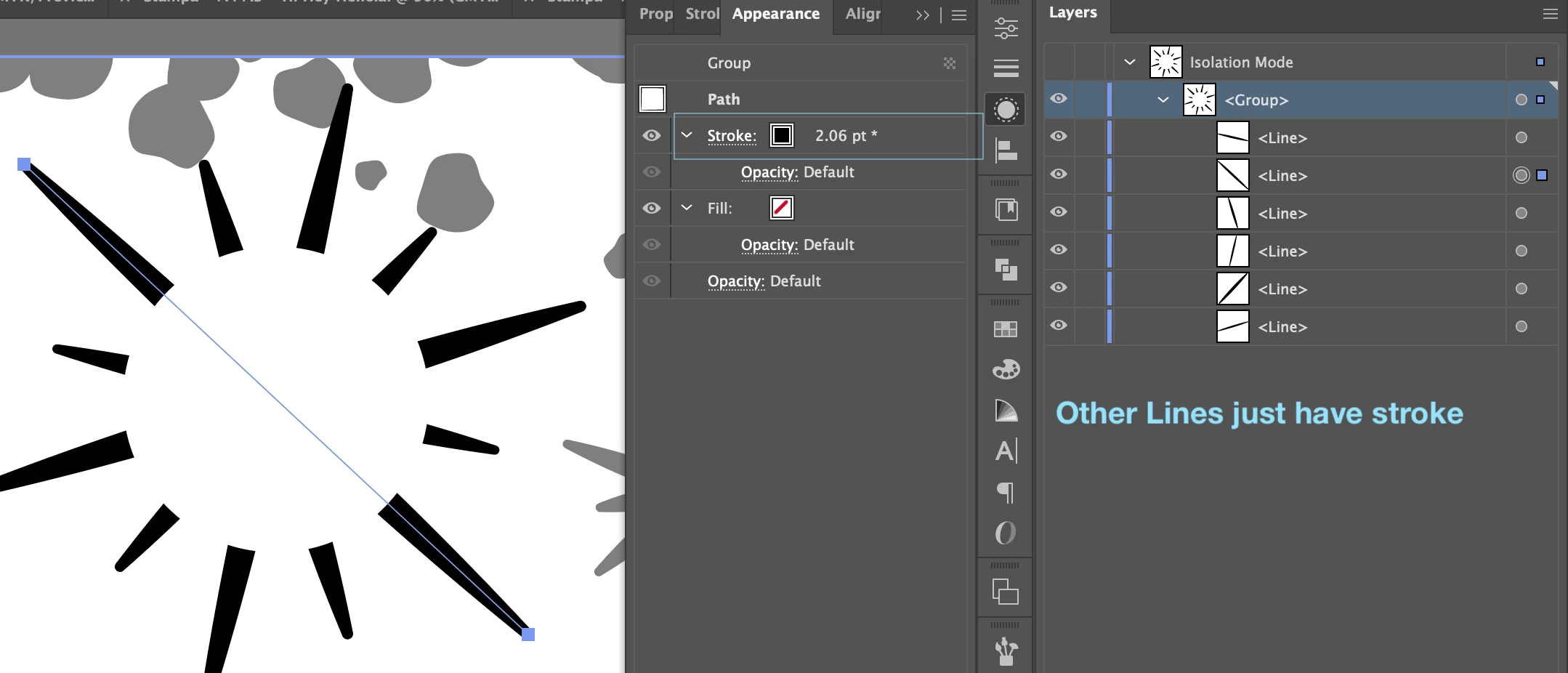
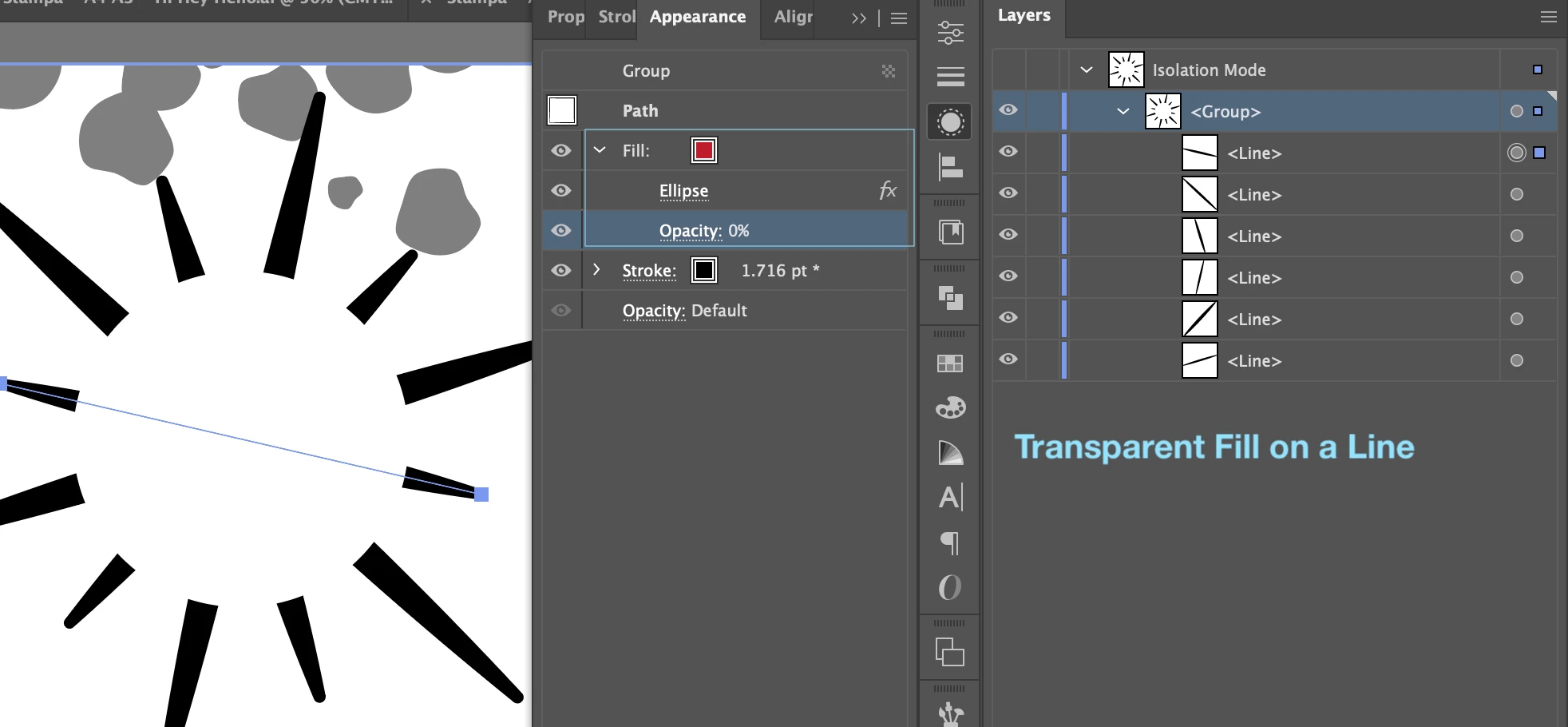
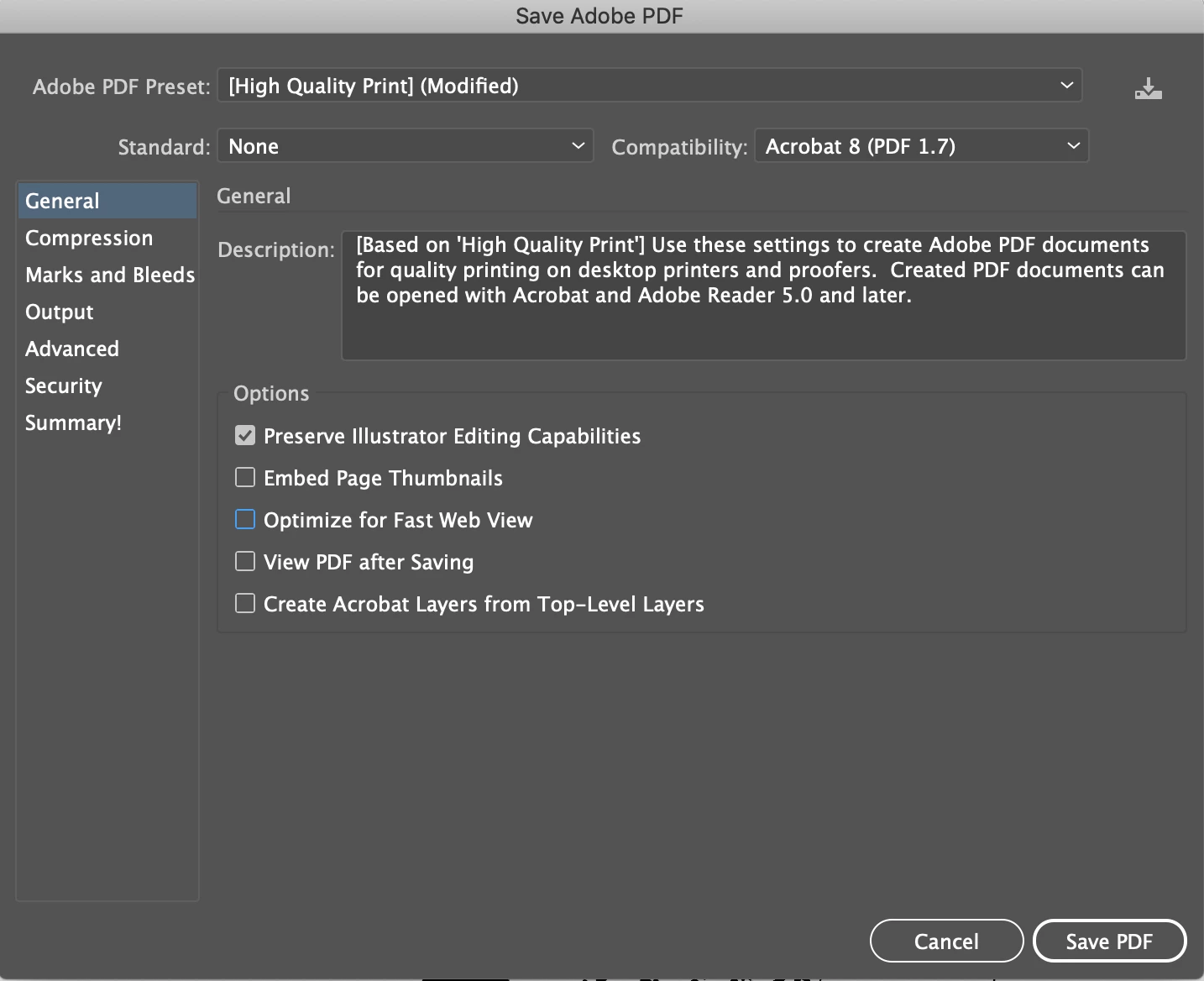
I save as the latest PDF, as High Quality print, with the option "Preserve Illustrator Editing Capabilities" selected.
No transparency preserved.
Obviously, it would be so handy to understand and to know how to set this up correctly so that I can save as High Quality print PDF as that's what the printers ask for.
As a workaround, I thought I'd expand the appearance on those objects and it should work. But not quiet...
1. Lines that had strokes now have a fill, that's ok.
2. A line that had a stroke + transparent fill is now converted to =>
- a Compound Path - with the fill but that has its overall opacity set to 0%, so that's still transparency
- a path with a fill - which is ok
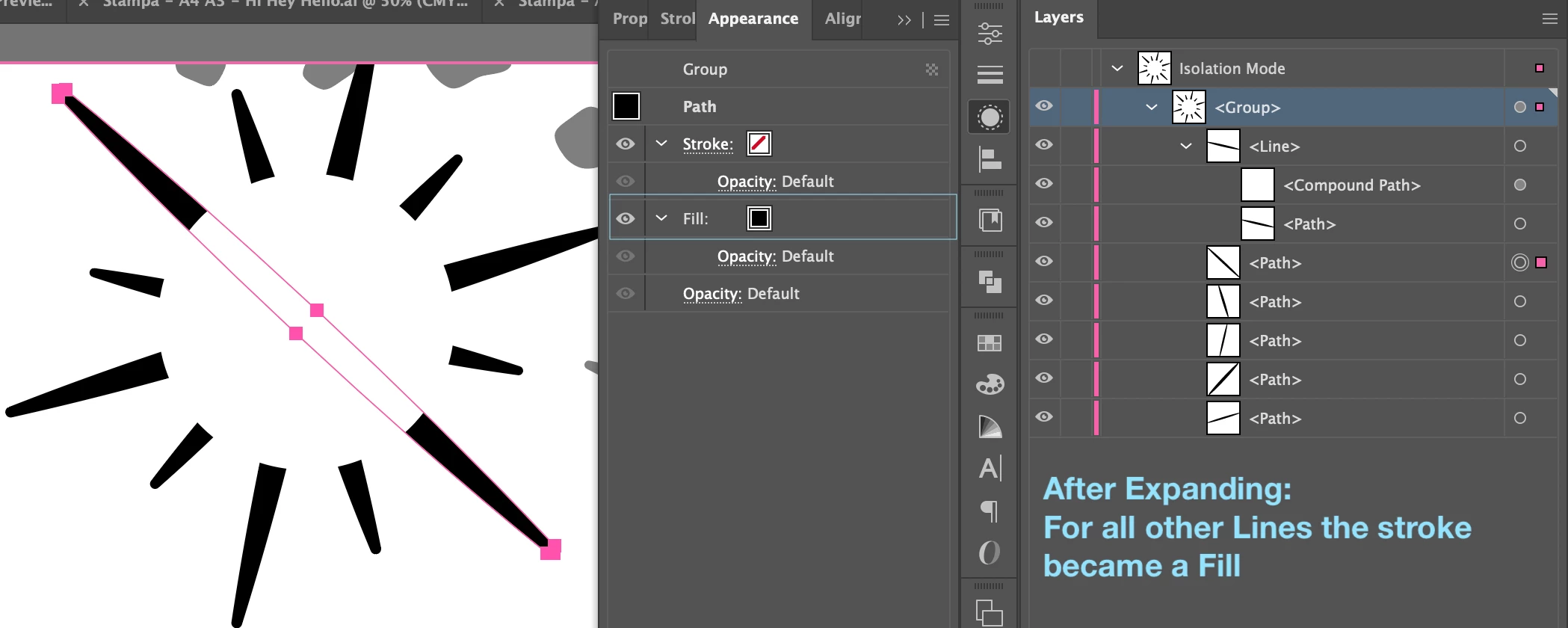
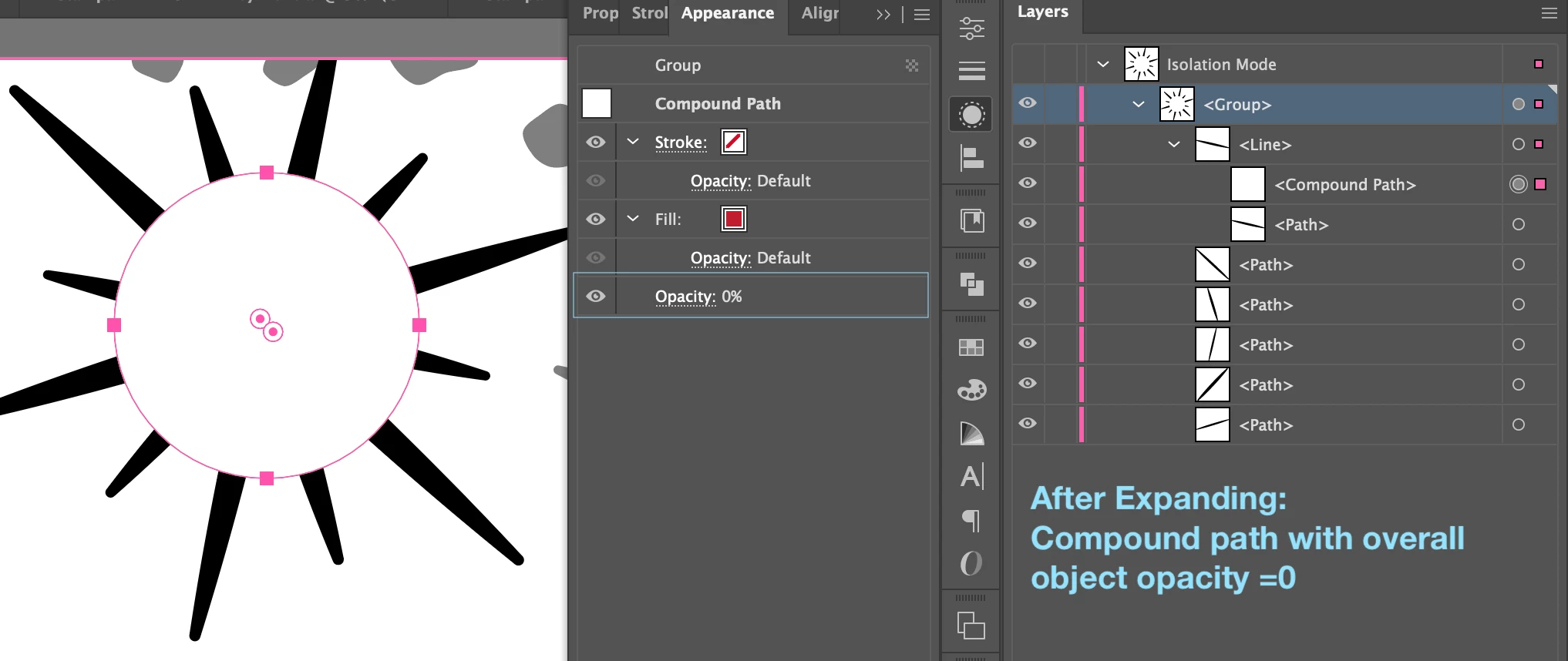
So even after expanding I still end up with transparency that I can not see when saving as PDF.
So my questions are:
1. Is it at all possible to save as a High Quality print PDF preserving the transparency.
2. If not, how to correctly expand and manipulate the art work that I can "cut out" the transparent areas.
I hope this makes sense.
Thank you very much!
Dasha
 AdChoices