Thank you for your kind reply.
I have an object with 12 integrated paths (an illustration with gradients and interlocking paths - not shapes - see attachments), one of which has Gaussian Blur effect applied. Let's say I want to increase the size of this collection of paths to 200% original size, and have the Gaussian Blur Effect also increased at 200%.
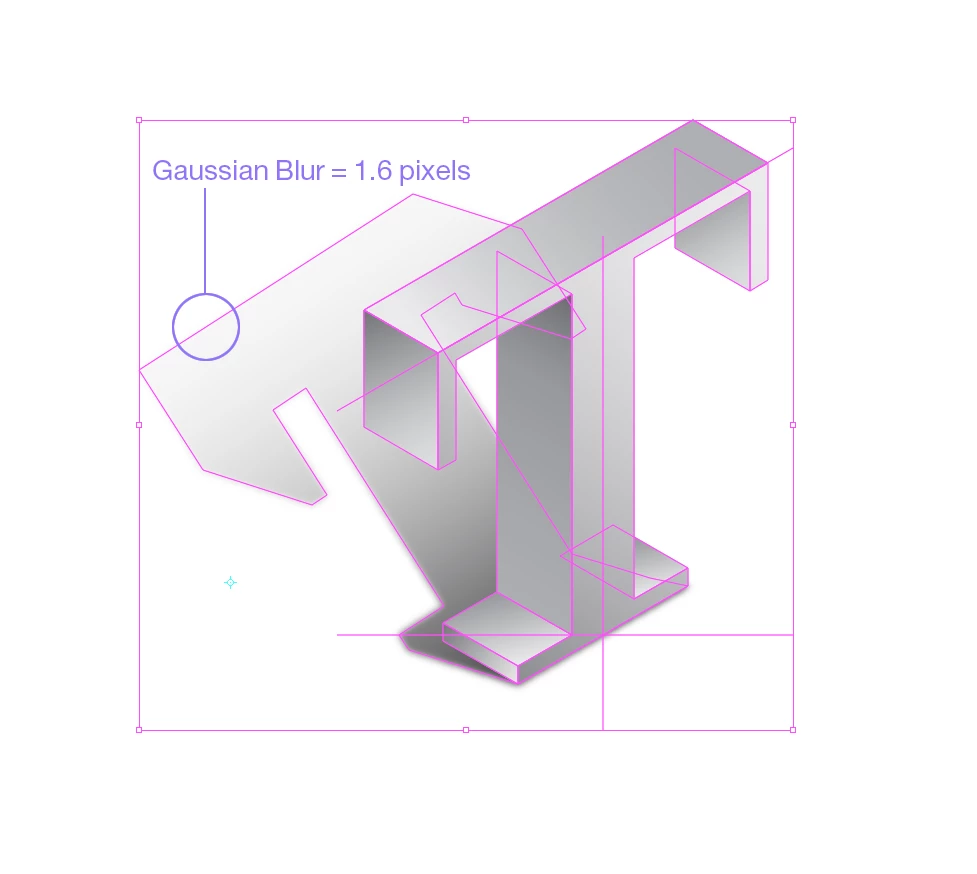
By using Appearance Panel using Effect > Distort & Transform > Transform, as you suggest, the result is a big mess of now-un-interlocking paths that completely ruins the original .. but sure enough, the Gaussian Blur is now accurately 200% what it was originally. But the illustration is ruined.
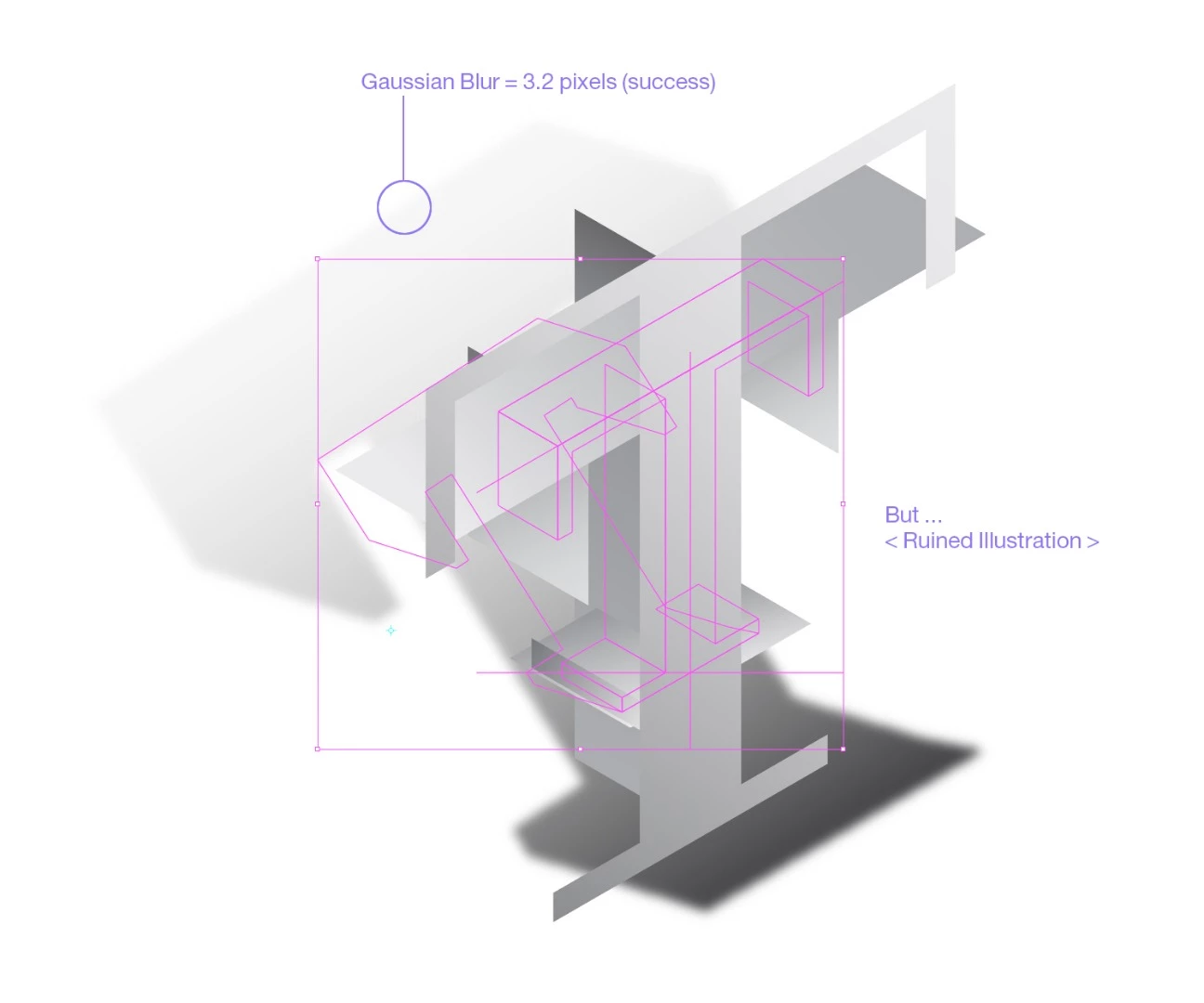
The only way I've found to NOT ruin the original art by this procedure is to make it into a symbol first. And it does indeed scale properly using this convoluted method. But ... I have not been able to find out HOW to RELEASE the symbol to its former paths (with altered Effects). My project brief does NOT allow for anything but editable paths.
So far, there is no reason to go through all this time-consuming work. I reiterate: the basic Scale check-box assuring that the effects are scaled with the rest of an illustration DOES NOT WORK, and it SHOULD.
However, I'm listening, and if you can suggest a method that DOES work, I'm all ears. :+) Specifically, is there a way to RELEASE a symbol back to its original path-parts and effects, after scaling? So far, everything seems to release EXCEPT the path with the Gaussian Blur Effect! It really seems it is IMPOSSIBLE to get there from here in AI CC 2018! -- Which leads me back to my original assertion: just calculate the percentage change in the Gaussian Blur attribute and apply it MANUALLY after scaling normally (which ignores scaling the effects, even if that check-box is selected). This seems to be the quickest way to get the job done.
Thanks again.
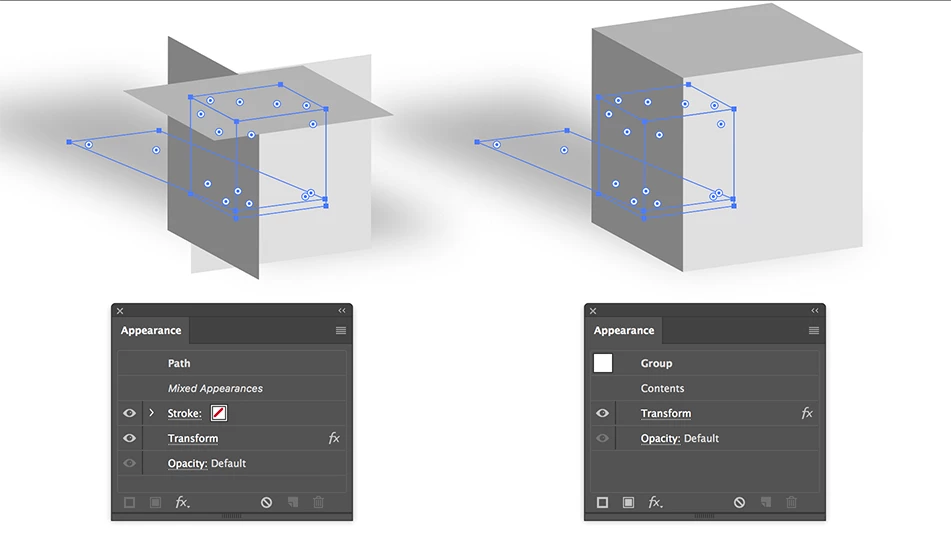
I'm guessing, but maybe you should have grouped the objects first before applying the transform effect.
Left: Not grouped, Right: Grouped.
But to request a solution for your Scale Strokes and Effects problem with Gaussian Blur, you can do that here:
Adobe Illustrator Feedback
 AdChoices