Participant
April 1, 2020
Answered

Scaling up circle with konstant center

  • April 1, 2020
  • 10 replies
  • 5358 views

Hey guys,

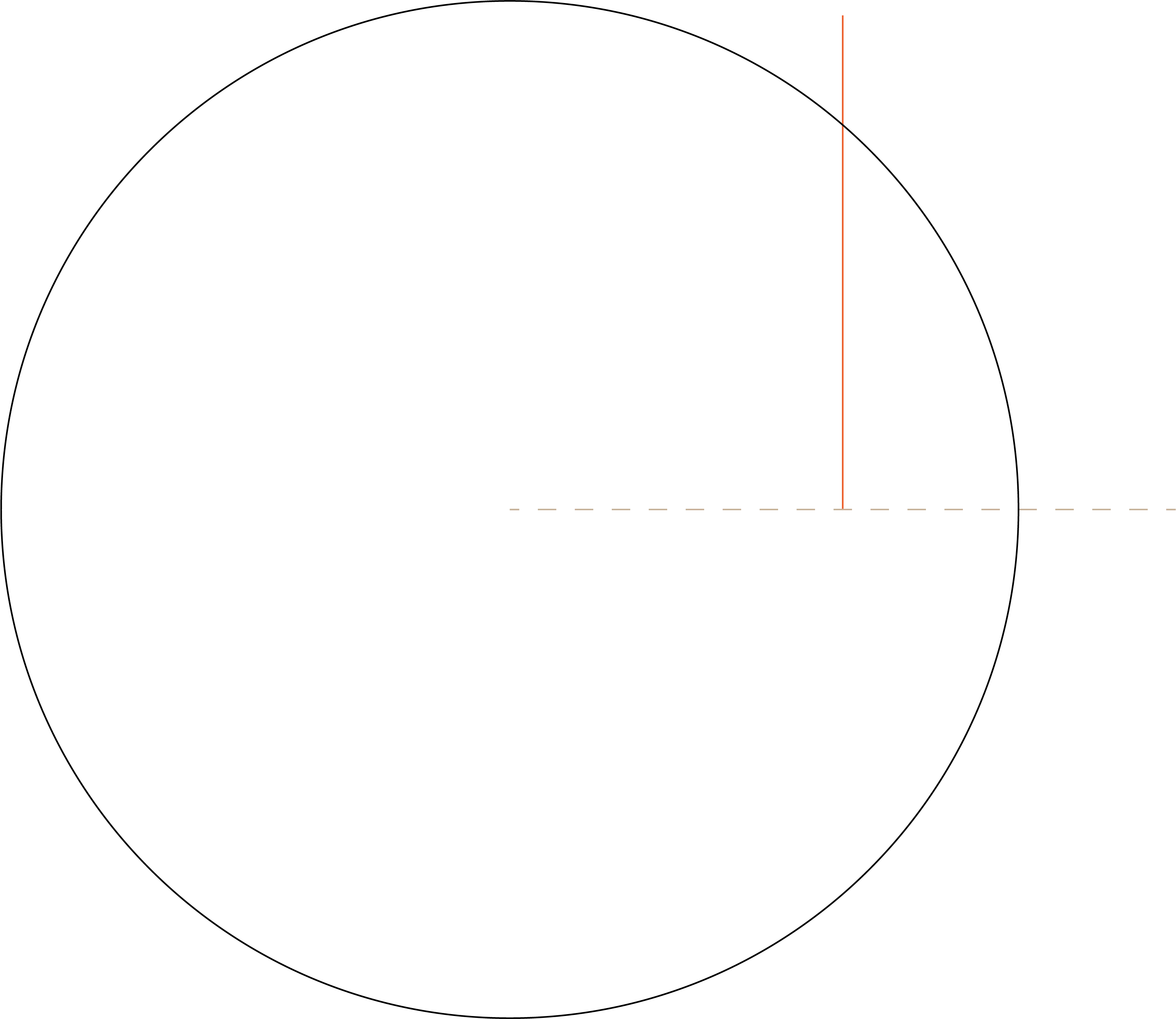
here you can see my sketch:

I want to make the circle bigger by draging it. I want to make it exactly that big, so that the circle intercepts with the end of the orange line, like the following sektch would show:
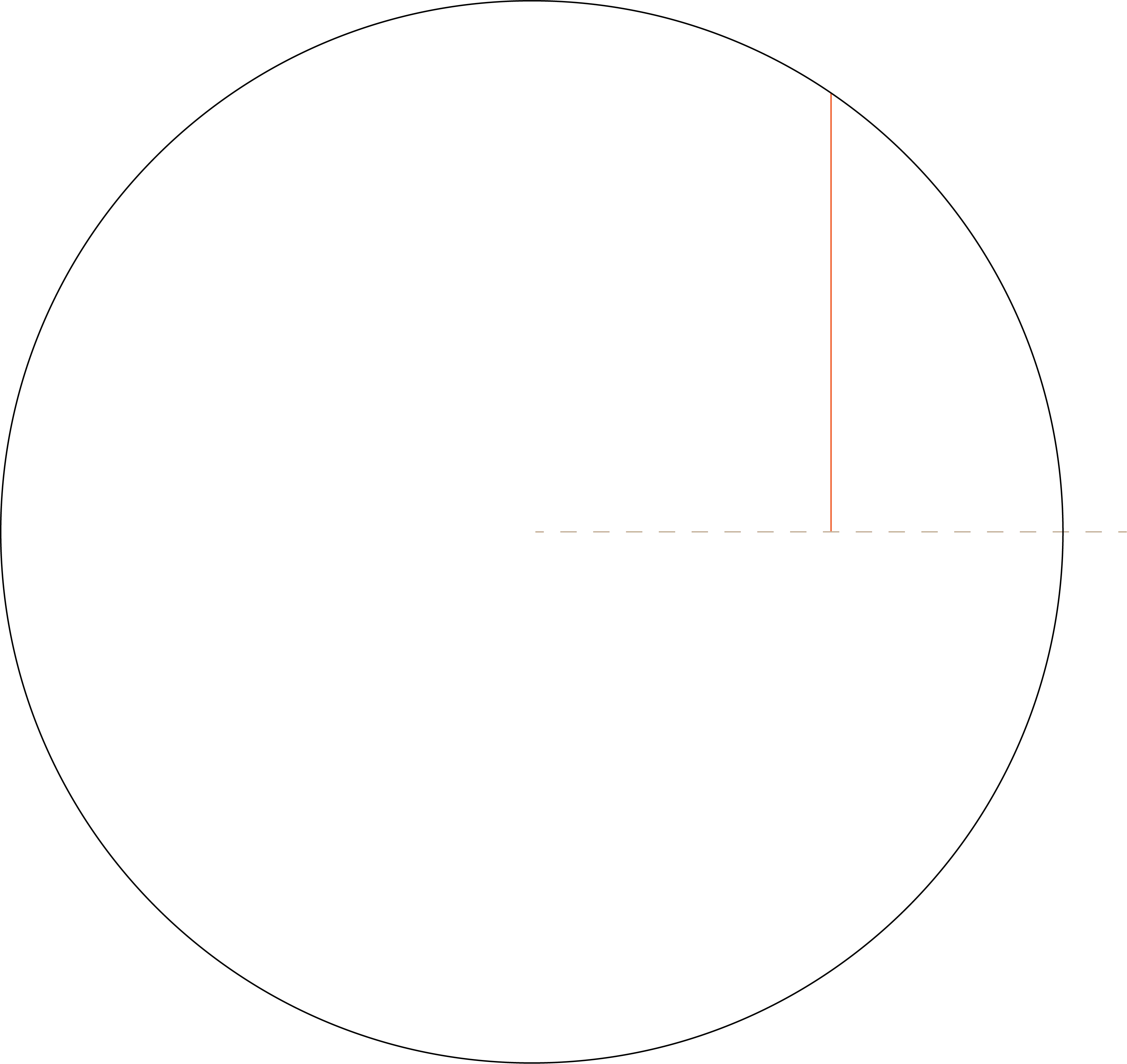
I did this sektch by changing the width [px] and height [px] values. But i do not want it like that. I want it to scale up by dragging. The problem: After making the circle bigger by dragging the outer ring of the circle, the position of the center of the circle changes. It does not stay at the same place. Is there any to do this?

Of course i could just change the height values, but i want the circle to overlap with the end of the line EXACTLY.
Greetings Spedex
This topic has been closed for replies.
Correct answer Kurt Gold

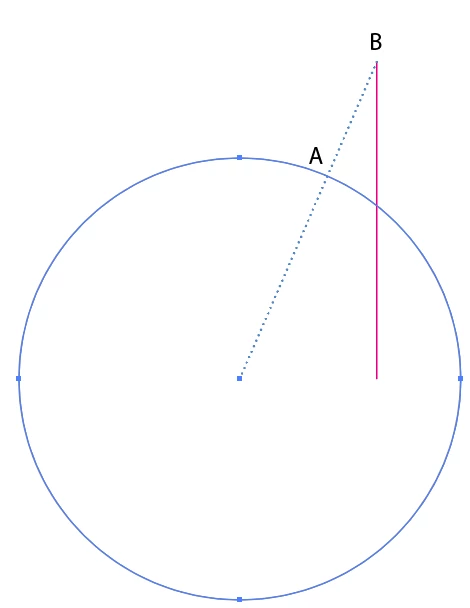
Another way is drawing a temporary guide (dotted line) from the centre of the circle to the top of the vertical line.


Then – while smart guides are turned on – just select the circle, take the Scale tool, start dragging at point A (intersection of circle and dotted line) until you reach point B (upper point of the vertical line).


10 replies

Kurt Gold
Community Expert
Community Expert
April 3, 2020

Unfortunately, my last post in this thread has been manipulated by someone who has the privilige to do that. Without my agreement.


There was absolutely no insult involved. Just an objective comment.


I hope that this will never happen again. Please do not break the freedom of speech in this forum unless there are bad defamations.

tromboniator
Community Expert
Community Expert
April 2, 2020

Nothing wrong with either of those methods; I just wanted to find a way that was all construction/Smart Guides/snapping, and didn't depend on increasingly untrustworthy eyes.

pixxxelschubser
Community Expert
Community Expert
April 2, 2020

😉


Why so complicated?

Draw a simple line from circles centerpoint to endpoint of your red line.


This is the radius.


select your circle and set the width = radius * 2


Done and

have fun

😉


Update.

I totally missed Kurt's answer. But as well - one more option.

Kurt Gold
Community Expert
Community Expert
April 2, 2020

See my last post, but Peters solution is also a good way to do it.


Also, please notice that the initial question was about a way to do it with dragging things instead of doing it the way you are suggesting (which is valuable as well).

Kurt Gold
Community Expert
Kurt GoldCommunity ExpertCorrect answer
Community Expert
April 2, 2020

Another way is drawing a temporary guide (dotted line) from the centre of the circle to the top of the vertical line.


Then – while smart guides are turned on – just select the circle, take the Scale tool, start dragging at point A (intersection of circle and dotted line) until you reach point B (upper point of the vertical line).


Jacob Bugge
Community Expert
Community Expert
April 2, 2020

Hi Peter.


No show this (non) winter there either?


tromboniator
Community Expert
Community Expert
April 2, 2020

More winter than in decades, slowly vanishing.

tromboniator
Community Expert
Community Expert
April 2, 2020

If you like you can, of course, duplicate the line segment, use the copy for the rotation, and delete when you have scaled the circle.

Peter


Hi, Jacob, Carlos, and Kurt!

CarlosCanto
Community Expert
Community Expert
April 2, 2020

Genius!!


hi Peter!

tromboniator
Community Expert
Community Expert
April 2, 2020

Thanks, Carlos. My main source of projects is mostly shut down, so I actually have time to think about stuff.

Jacob Bugge
Community Expert
Community Expert
April 1, 2020

Hardly, when you are asking, Kurt.


Kurt Gold
Community Expert
Community Expert
April 1, 2020

Are you sure that this will really work in this case, Jacob?

Jacob Bugge
Community Expert
Community Expert
April 1, 2020

Spedex,


Smart Guides being your friends you can Select the circle, switch to the Scale Tool, Click somewhere on the upper right of the perimeter and ClickDrag to snap to the top Anchor Point, and while you stay within snapping distance press and hold Shift until you have let go of the mouse button.


Hi Carlos.


CarlosCanto
Community Expert
Community Expert
April 1, 2020

Hi Jacob!

CarlosCanto
Community Expert
Community Expert
April 1, 2020

hold the Alt key to keep the center fixed while dragging