Participant
July 25, 2017
Answered

Seeking some help: smoothing edges

  • July 25, 2017
  • 2 replies
  • 861 views

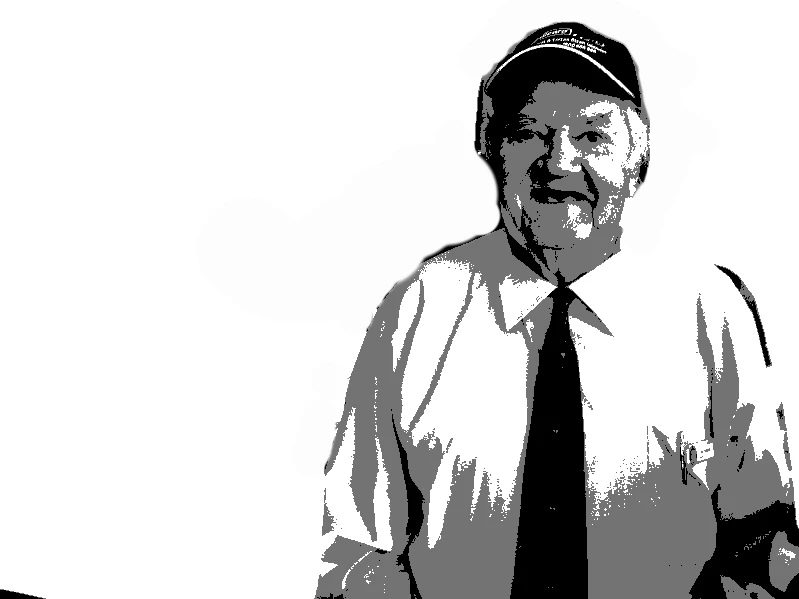
Hello all , i am  new to Illustrator   and still finnid my way around it,  I am usally good at finding things but I cant seem to be able to sort out this problem,  What I am trying to do is smooth all the edes so I can either cut it all out with a vinyl cutter or just sandlbast it, I want to eventually put it on a pices of glass and then color but i am not to sure how to smooth out the edges

Thank you for your help
5

This topic has been closed for replies.
Correct answer rcraighead

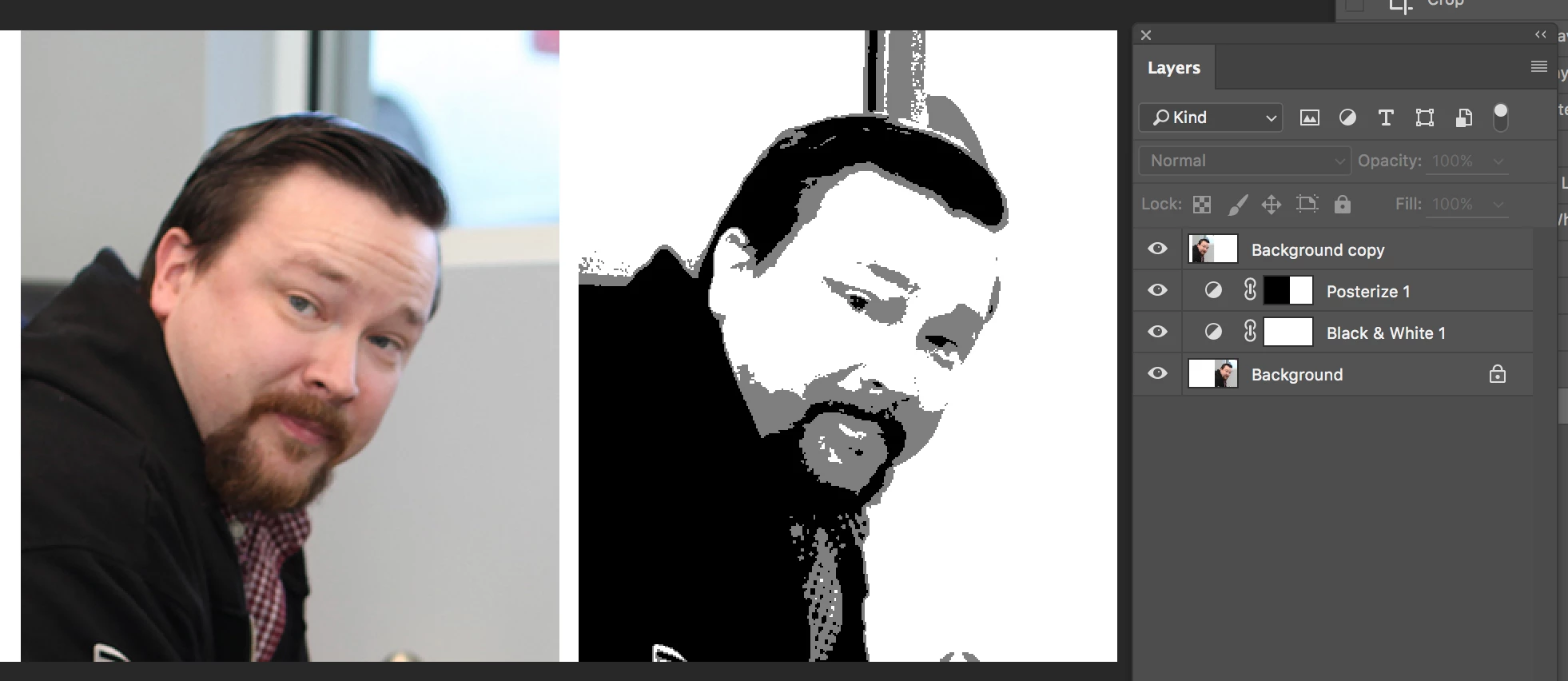
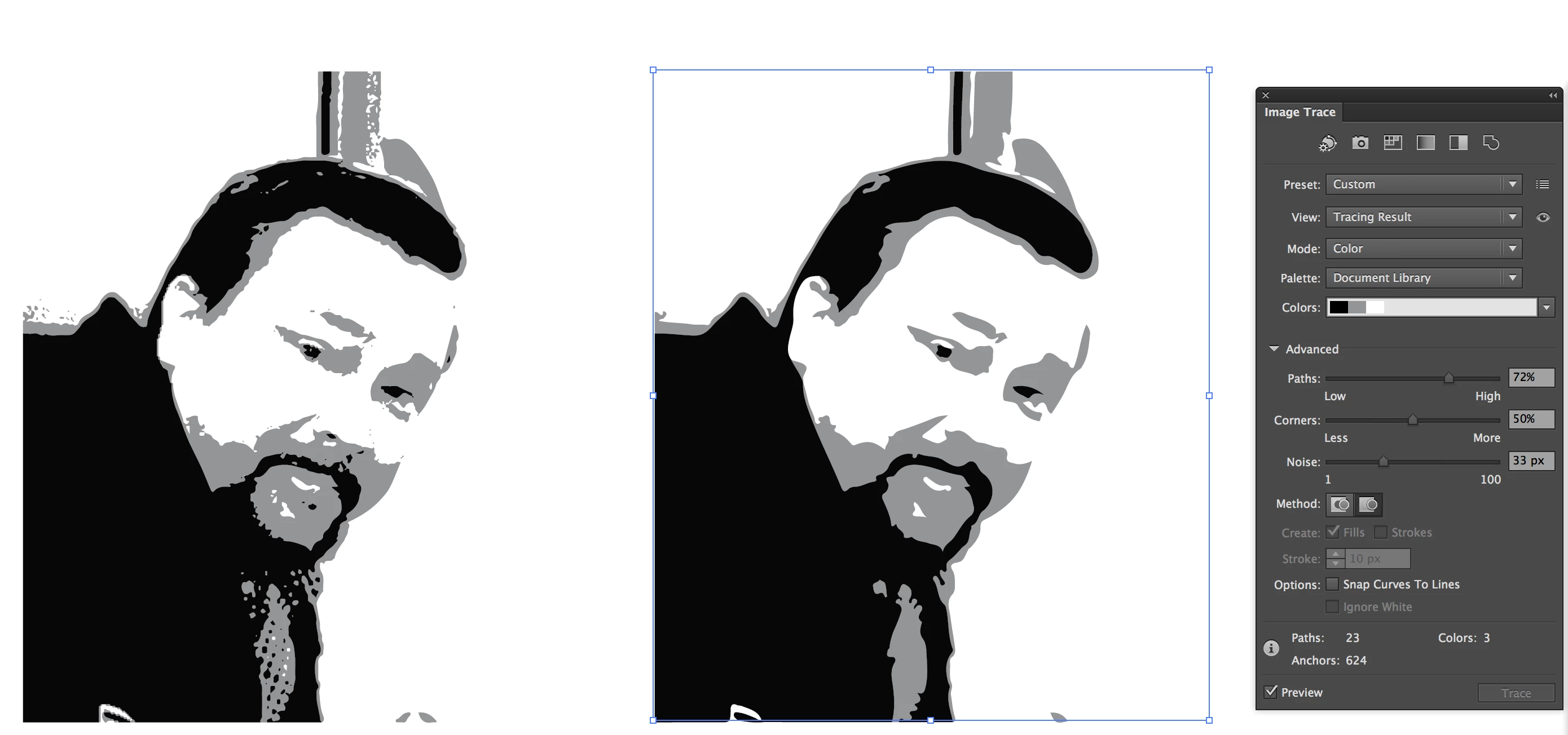
If you are using Image Trace you may want to do some of the work in Photoshop first, then place the photo as a "linked" image, in AI, so changes will be automatically updated if changes in the Photoshop file are made. You can choose specific color (gray) steps by selecting a "Document Library" in the Image Trace preferences. Use the "Advanced" settings to reduce jaggies.

Photoshop

Illustrator (Advanced: Path and Noise settings will limit artifacts).

2 replies

rcraighead
rcraigheadCorrect answer
Legend
July 25, 2017

If you are using Image Trace you may want to do some of the work in Photoshop first, then place the photo as a "linked" image, in AI, so changes will be automatically updated if changes in the Photoshop file are made. You can choose specific color (gray) steps by selecting a "Document Library" in the Image Trace preferences. Use the "Advanced" settings to reduce jaggies.

Photoshop

Illustrator (Advanced: Path and Noise settings will limit artifacts).

Trin3of7Author
Participant
July 25, 2017

Thank you So much ,  I will try it today and see how i go

Jacob Bugge
Community Expert
Community Expert
July 25, 2017

Trin3of7,

As I (mis)understand the vinyl option, you may lock the image and then use the Pen Tool to carefully draw a path round the whole appearance; for parts like the left arm and shoulder to neck you will need to draw into thin air to get the best possible shape.

It is important to place the Anchor Points at the best possible spots defining the shape. Use ClickDragging for curved path segments (and Clicking for straight ones, if any; and for transitions between straight and curved segments, you may repeat the use of the Pen Tool on top of the latest Anhor Point).

To adjust the position of an Anchor Point while you are at it, Hold the spacebar to (freeze the Handles and) move the Anchor Point about; you may switch between adjusting the Handles and the position as many times as you wish before going on.

Smart Guides are your friends telling you where you are (snapping to).

Trin3of7Author
Participant
July 25, 2017

Thank you Jacob I will try that one that was very helpful

Jacob Bugge
Community Expert
Community Expert
July 26, 2017

For my part you are welcome, Trin3of7.