Participant
July 15, 2017
Answered

Select a Pie Chart for editing ? Will not permit selection

  • July 15, 2017
  • 2 replies
  • 2697 views

HI,

Am trying to select a pie chart ( with hole in centre ) for editing / deleting . I have tried the following:

  • Selection Tool
  • Direct Selection Tool
  • Group Selection tool
  • Object Graph type

Nothing seems to allow me to select the graph or give me access to its data

. I had pasted a small graphic in the centre of chart and possibly grouped them to move - have been able to remove this insert  I can see path annotation and anchor points when I move the cursor around the graph .

Any solutions gratefully accepted .

Frank H

This topic has been closed for replies.
Correct answer Bill Silbert

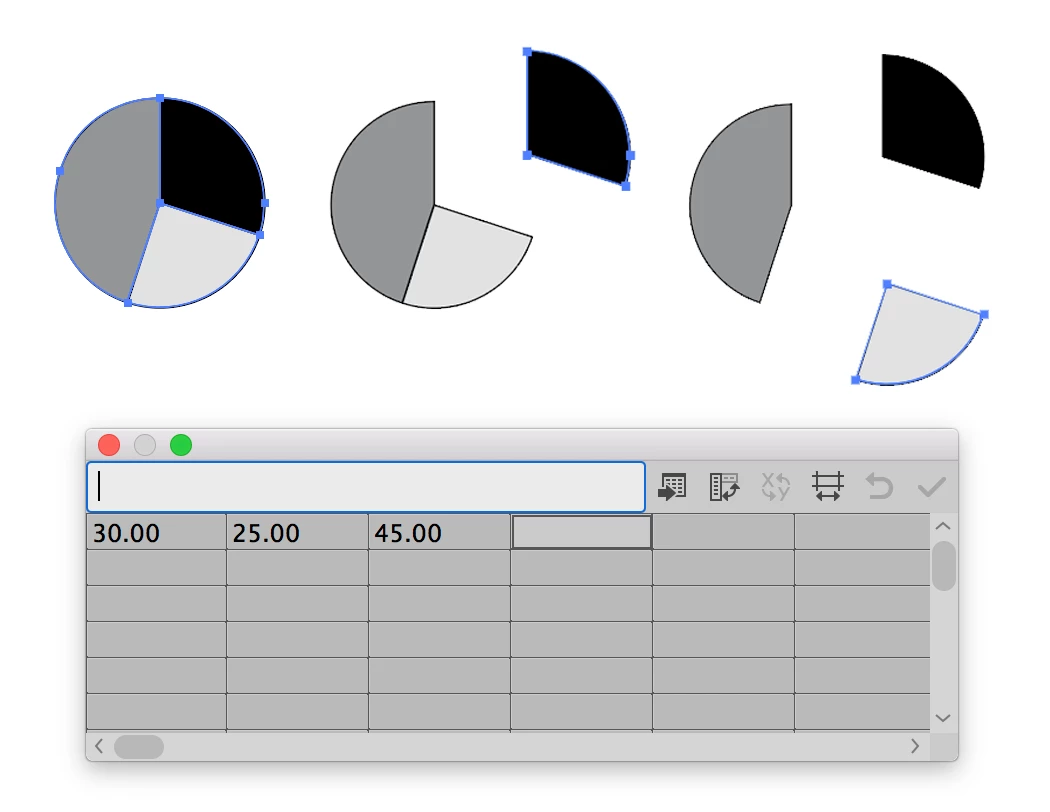
In the screen shot below I created a pie chart using Illustrator's graph function. As you can see the pie is easily editable using the direct selection tool to pull each segment away from one another:
If this is not working for you then you may need to reset your Illustrator preferences.

To do so:

For Macintosh Users: With Illustrator closed launch a Finder Window in column view and click on your home folder. With the Option Key pressed choose Library from the Finder Go Menu. Within the Library folder find the following two files and delete them: “Adobe Illustrator <Version #> Settings” (earlier versions of Illustrator might just say “Adobe Illustrator”) and “com.adobe.Illustrator.plist”. When Illustrator is next launched it will create new preference files and the program will be restored to its defaults.

After you’ve reset up the program (make sure that no document window is open) to your liking, it is a really good idea to create copies of your personalized “mint” preference files (make sure that you quit the program before copying them—that finalizes your customization) and use them in the future to replace any corrupt versions you may need to delete.

For Windows Users: Hold down Ctrl + Alt + Shift when launching Illustrator and respond affirmatively when asked if you want to reset.

2 replies

jane-e
Community Expert
Community Expert
July 15, 2017

frankh76163328  wrote

Am trying to select a pie chart ( with hole in centre ) for editing / deleting . I have tried the following:

. I had pasted a small graphic in the centre of chart and possibly grouped them to move - have been able to remove this insert  I can see path annotation and anchor points when I move the cursor around the graph .

And possibly grouped them? That possible step may possibly be causing your problem. Please spin open the Layers panel and post a screen shot with the pie chart selected.

Without grouping a second time, the 25+ year old technology for graphs is that they work like a group and you can select with the Group Selection tool. They are graphs until you ungroup them; then they are just artwork.

Bill Silbert
Community Expert
Bill SilbertCommunity ExpertCorrect answer
Community Expert
July 15, 2017

In the screen shot below I created a pie chart using Illustrator's graph function. As you can see the pie is easily editable using the direct selection tool to pull each segment away from one another:

If this is not working for you then you may need to reset your Illustrator preferences.

To do so:

For Macintosh Users: With Illustrator closed launch a Finder Window in column view and click on your home folder. With the Option Key pressed choose Library from the Finder Go Menu. Within the Library folder find the following two files and delete them: “Adobe Illustrator <Version #> Settings” (earlier versions of Illustrator might just say “Adobe Illustrator”) and “com.adobe.Illustrator.plist”. When Illustrator is next launched it will create new preference files and the program will be restored to its defaults.

After you’ve reset up the program (make sure that no document window is open) to your liking, it is a really good idea to create copies of your personalized “mint” preference files (make sure that you quit the program before copying them—that finalizes your customization) and use them in the future to replace any corrupt versions you may need to delete.

For Windows Users: Hold down Ctrl + Alt + Shift when launching Illustrator and respond affirmatively when asked if you want to reset.