Participating Frequently
July 1, 2025
Answered

Select all and applying effect not applying to all selected...

  • July 1, 2025
  • 2 replies
  • 220 views

I have multiple paths in a layer, and I am selecting all elements on that layer. It shows that they all have the same properties: same fill colr, and same opacity.
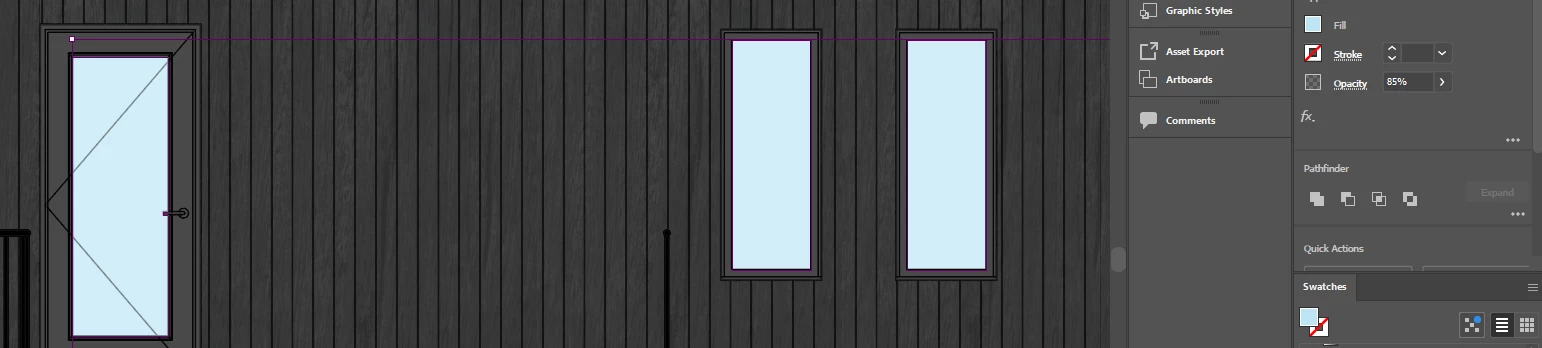
 

So why when I click the individual shape, is the opacity different?
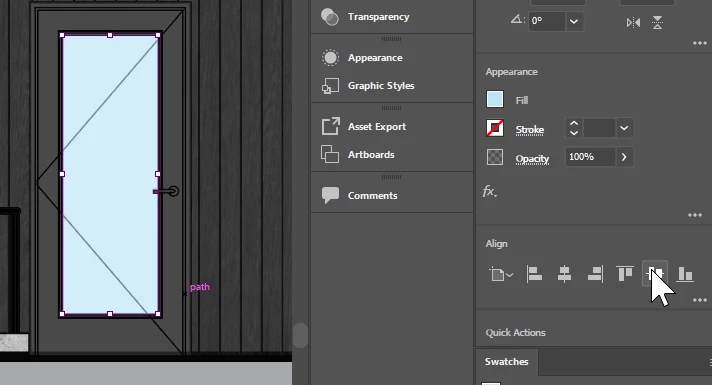


Correct answer Monika Gause

OPen the real Appearance panel in Window > Appearance to check this out.


Opacity can be applied to the object, a fill or stroke, or the layer or a group

2 replies

Monika Gause
Community Expert
Monika GauseCommunity ExpertCorrect answer
Community Expert
July 2, 2025

OPen the real Appearance panel in Window > Appearance to check this out.


Opacity can be applied to the object, a fill or stroke, or the layer or a group

Participating Frequently
July 1, 2025

In general, the "select same fill" tool and then applying an opacity change to those selected elements IS NOT WORKING. their opacities remain UNCHANGED and I have to change them all manually.

Participating Frequently
July 1, 2025

unless there is a provision about "Select same" and applying an appearance property not working across multiple artboards, despite selecting objects across multiple artboards...

Participating Frequently
July 1, 2025

No this is not the issue. it simply is not applying my changes to all selected elements.