Selecting layers from objects without 1000 clicks?
I have been all over various forums and can't find the answer to a very specific question. It might be out there, but I can't find it if it is.
I am working with some AI files that have some very large numbers (1000s) of paths in a single layer (based on downloaded map data via AutoCAD). These paths are not listed in any logical order in layers panel (e.g. 5m contour lines (in red) and 1m contours (in grey) are all scrambled together).
I need to do a lot to the image (e.g. creating and applying styles, blends using knockout and isolation), so I need to gather items into appropriate layers and sublayers. However, due to the large number of paths I can't (haven't time to) manually select all the items that need gathering. So I need a shortcut. I can't be the only person with a similar situation so I'm surprised I can't find a workaround/tool for this. Sorry if this is already out there or there is an obvious answer!
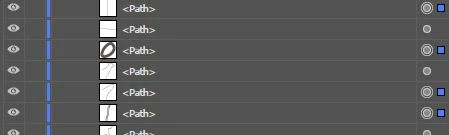
The imported paths luckily have formatting, so I can use Select > Same command to select similar items. So far so good. BUT, this selects the paths on the drawing but does not select the "layer items" in the layer list . By this I mean that in the layer panel, for each item there is a little square showing it's selected, but the row is not highlighted(see first picture below), meaning that you can't use the "Collect to layer" command. Instead I have to manually scroll down the layer panel ctrl and/or shift clicking the rows of the selected paths (see second pic).
So.. in summary the question is: Is there a simple way, once items are selected within the drawing via Select Same, to then select the relevant rows in the layer panel?
An automatic command, or a workaround would be great.

 AdChoices