iBabs2
Inspiring
May 11, 2018
Answered

Seperating a letter within a compound path group and it's underlying image.

  • May 11, 2018
  • 7 replies
  • 1187 views

Hello,

I was wondering if there is anyway to do this:

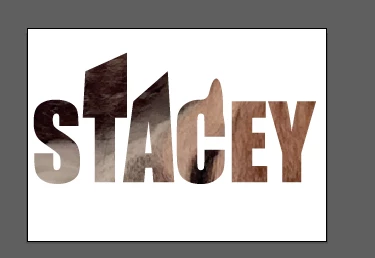
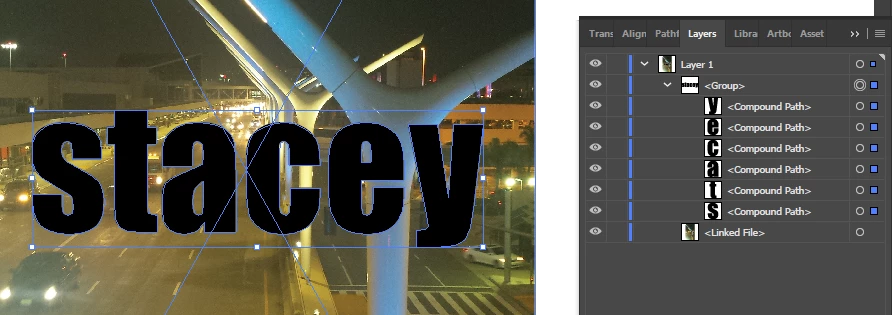
I made some text and outlined it.

Created a Compound Path

Then used those letters as a clipping mask on an image.

So, here is the question:

Is there anyway to separate the letters and the image below, if I wanted to just use a few letters, or move the letters around etc?

I have tried to all things in the pathfinder panel and and divide objects below, but cannot get one letter with the image below cut out on its own.
Thank you,

Babs
    This topic has been closed for replies.
    Correct answer CarlosCanto

    ...another way.

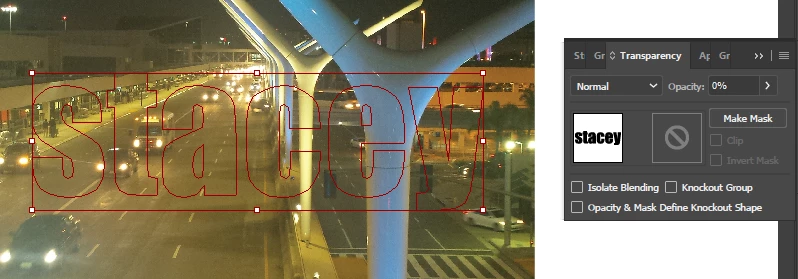
    place outlined text on top of your image, no need to make a compound path

    give your outlines 0% opacity

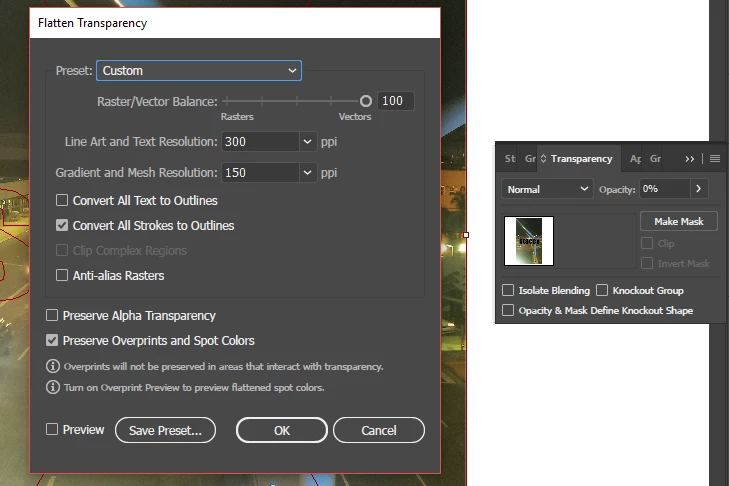
    select both, the outlines and the image and Flatten Transparency

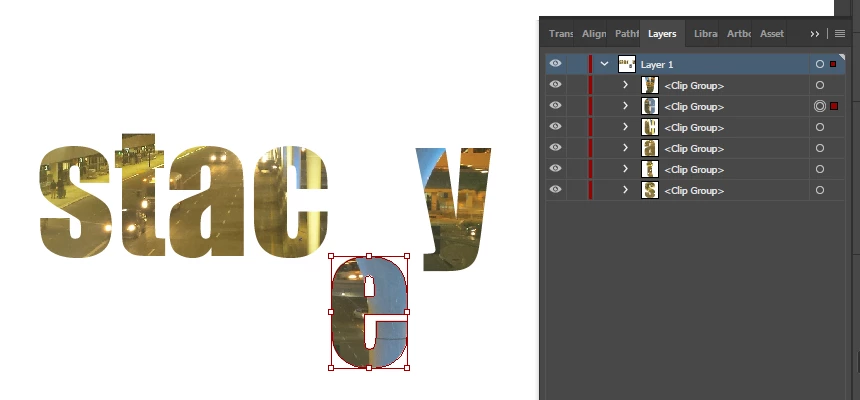
    ungroup, delete background image, move around letters

    7 replies

    iBabs2
    iBabs2Author
    Inspiring
    May 12, 2018

    Thank you Carlos!

    Works great!

    Babs

    iBabs2
    iBabs2Author
    Inspiring
    May 12, 2018

    WOW!!

    Thank you everyone!!! This is great! Learned many new things here!

    Much Appreciated!

    Babs

    Ton Frederiks
    Community Expert
    Community Expert
    May 11, 2018

    You can try this:

    Create Outlines from your text.

    Ungroup.

    Place your image behind the outlined text and Embed it

    Select the text objects and change the opacity to 1%

    Select All and choose Object > Flatten Transparency

    Ungroup.

    You can now delete the picture outside the characters and move the around freely.

    iBabs2
    iBabs2Author
    Inspiring
    May 12, 2018

    Thanks Ton Frederiks!!!
    All good stuff!! Great work-arounds.!

    Best Babs

    CarlosCanto
    Community Expert
    CarlosCantoCommunity ExpertCorrect answer
    Community Expert
    May 11, 2018

    ...another way.

    place outlined text on top of your image, no need to make a compound path

    give your outlines 0% opacity

    select both, the outlines and the image and Flatten Transparency

    ungroup, delete background image, move around letters

    Ton Frederiks
    Community Expert
    Community Expert
    May 11, 2018

    Carlos was a little faster :-)

    tromboniator
    Community Expert
    Community Expert
    May 12, 2018

    And, of course, easier than mine. Oh, well, I'm in rehearsal for two shows, so maybe I lack focus.

    tromboniator
    Community Expert
    Community Expert
    May 11, 2018

    Assuming that you have a version of Illustrator with Crop function:

    Peter

    Myra Ferguson
    Community Expert
    Community Expert
    May 11, 2018

    One way you could do it would be to use Image Trace to convert the photo to vectors (probably with either the High Fidelity Photo or Low Fidelity Photo setting) and Expand. Then select your outlined letters and the background and use Shape Builder to remove all the parts you don't want to keep. Then what's left would be individual filled letters.

    iBabs2
    iBabs2Author
    Inspiring
    May 12, 2018

    Thanks Myra Ferguson!

    That also work and and was playing with that a bit earlier.

    Think I am going with Carlos's only because then I don't have to worry about image tracing the image and losing any quality

    But thank you for your idea, that was the route I was initially thinking !!!!

    Best,

    babs

    Monika Gause
    Community Expert
    Community Expert
    May 11, 2018

    No, you can't do that.

    You would need to duplicate the word and then delete what you don't need in each copy

    iBabs2
    iBabs2Author
    Inspiring
    May 12, 2018

    Thanks Monika!

    As always, appreciate the help!

    Babs