
Participant
February 23, 2022
Answered

Shape builder tool is constantly disabled

  • February 23, 2022
  • 2 replies
  • 3234 views

Hello,
I have an issue with the shape builder tool, it does not work at all. I've seen other posts related to this problem as well, but none helped me. I've tried several things but despite whatever I do the tool is disabled and I can't select it. Could someone help me?

Thank you in advance
This topic has been closed for replies.
Correct answer Doug A Roberts

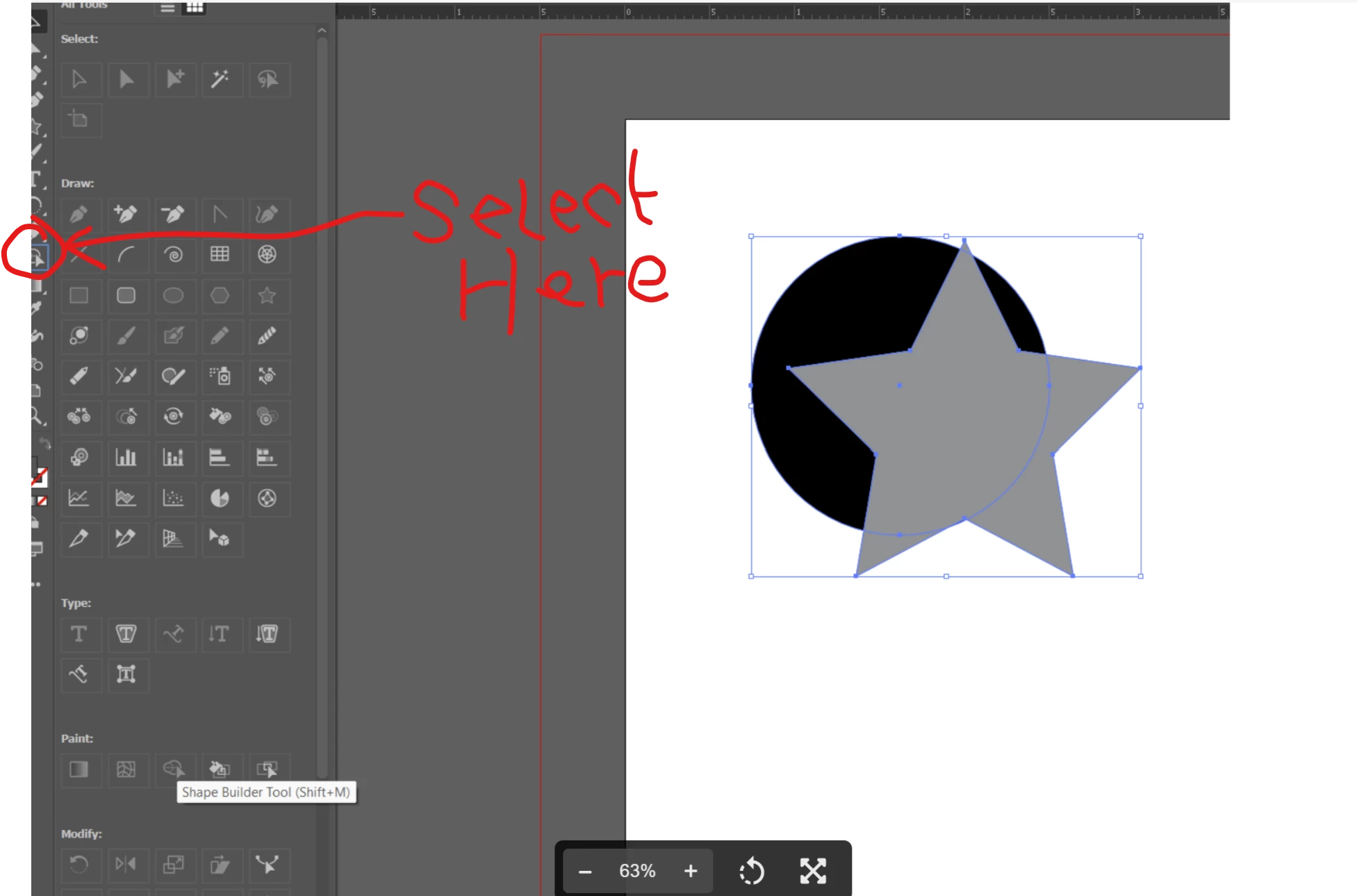
That window is not the toolbar -- it is a menu for customising the toolbar.

In your screenshot you can see a blue highlight in your toolbar when you hover over shape builder in the customisation window. Thar means it is already in the toolbar and cannot be added. Click where the highlight indicates, or press Shift+M.

2 replies

Jeff Witchel, ACI
Community Expert
Community Expert
February 23, 2022

Do you know how to use the Shape Builder tool?  Here's a old tutorial I produced: http://www.jeffwitchel.net/2011/12/geared-up-for-shape-builder/

Participant
February 24, 2022

Thank you for the link you provided. I am familiar with Illustrator and I have used this tool in the past. I recently purchased this plan and version of AI, so I don't know what the problem could be.

Monika Gause
Community Expert
Community Expert
February 23, 2022

You have the objects selected, right?


Please show a screenshot of your artwork.

Participant
February 24, 2022

I made two random examples to show you and I have included in the screenshot the tool as well so you can see that it is not clickable - it is disabled.

Thank you

Doug A Roberts
Community Expert
Doug A RobertsCommunity ExpertCorrect answer
Community Expert
February 24, 2022

That window is not the toolbar -- it is a menu for customising the toolbar.

In your screenshot you can see a blue highlight in your toolbar when you hover over shape builder in the customisation window. Thar means it is already in the toolbar and cannot be added. Click where the highlight indicates, or press Shift+M.