Melissa Gridley
Participant
December 30, 2018
Answered

Shape from Pen Tool Not Allowing Type Inside Area

  • December 30, 2018
  • 5 replies
  • 1862 views

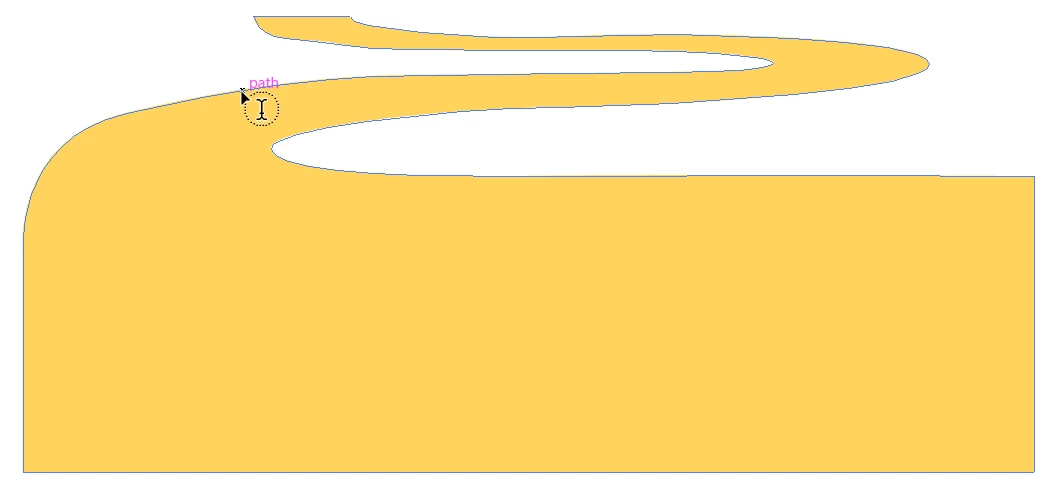
I've created a closed shape using the pen tool and would like to fill it with text but I keep getting the error "You must click on a non-compound, non-masking path to create text inside a path".

It is not a compound path. It is not a clipping mask. I cannot convert it to a shape.

I have tried isolating, joining, and making & releasing a compound path. I've tried clicking inside the shape, on the border of the shape, directly on the anchor points. Clearly none of this worked.

How do I get the text inside the non-compound, non-masking shape I've created with the pen tool? I've searched Adobe and Stack Exchange for hours and can find no questions that replicate my situation. I've run into this situation a number of times. I'm sure there's a solution somewhere.

Mac OS 10.14, Illustrator CC 2019
This topic has been closed for replies.
Correct answer barbara_a7746676

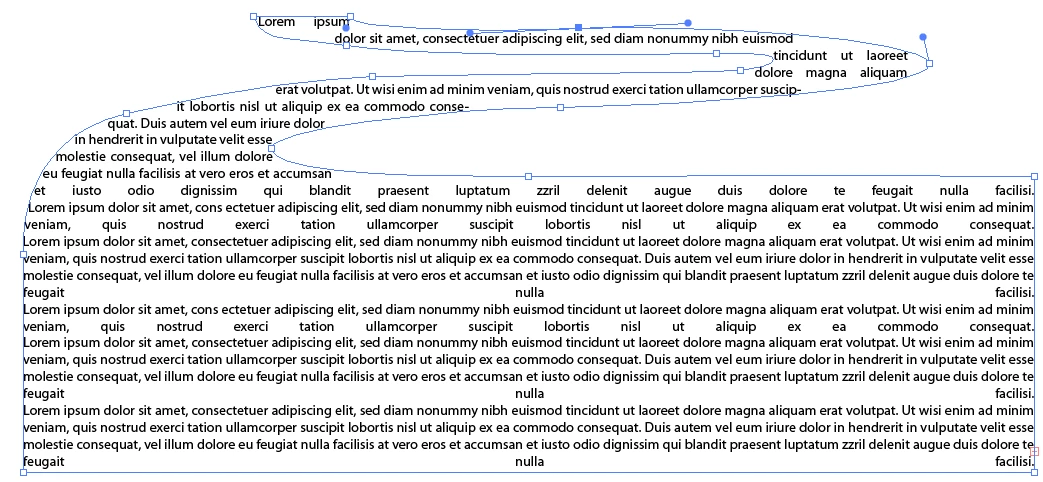
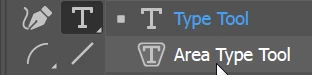
Select the Area Type Tool.

Click anywhere on the edge of the path. The cursor should have a circle around it (not a square around it).

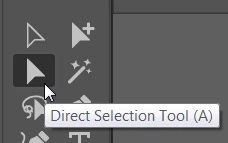
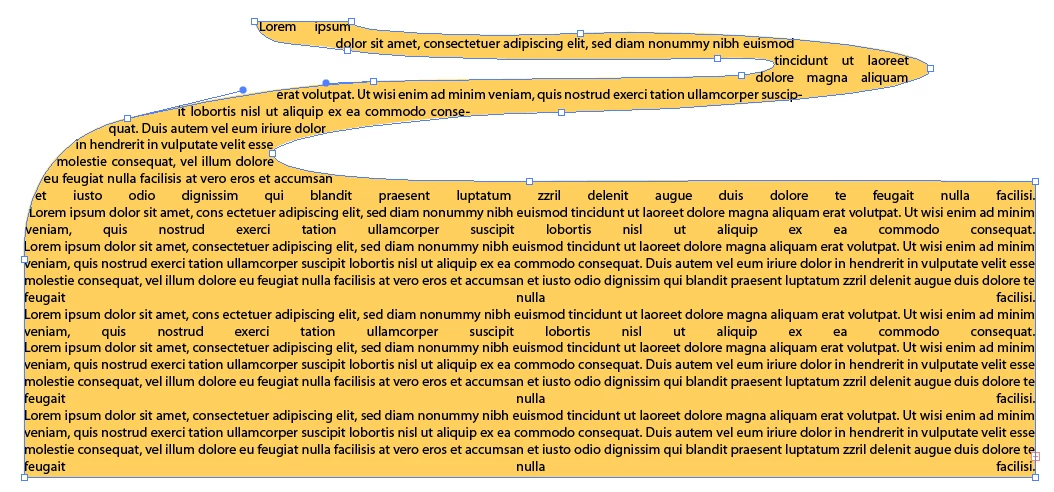
The path will lose it's color, but if you select the path with the Direct Selection Tool, Click just the edge of the path so that just the path is selected. You should not see any underline highlighter on the text.

you will be able to add color back in.

5 replies

Participating Frequently
December 31, 2018

As Barbara Ash mentioned in her post; Cursor will have a circle icon.

Hovering upper-left over the object will always work.

barbara_a7746676
Community Expert
barbara_a7746676Community ExpertCorrect answer
Community Expert
December 31, 2018

Select the Area Type Tool.

Click anywhere on the edge of the path. The cursor should have a circle around it (not a square around it).

The path will lose it's color, but if you select the path with the Direct Selection Tool, Click just the edge of the path so that just the path is selected. You should not see any underline highlighter on the text.

you will be able to add color back in.

Melissa Gridley
Participant
December 31, 2018

Thank you, this worked. Apparently I was hovering the circle/bar over the anchor points/path edge rather than the little arrow to the upper left of them. Good grief so much frustration over something so literally tiny. Lesson learned! Thanks again!

barbara_a7746676
Community Expert
Community Expert
December 31, 2018

You're most welcome, Melissa.

Myra Ferguson
Community Expert
Community Expert
December 30, 2018

Select the Area Type Tool and click on an anchor point (as opposed to somewhere inside the object you drew) to have the text set inside.

Ares Hovhannesyan
Community Expert
Community Expert
December 30, 2018

Please share a file via any cloud service

Monika Gause
Community Expert
Community Expert
December 30, 2018

Please show us the contents of the layer in the layers panel.