harshinim5407457
Participant
February 8, 2019
Answered

Shape issue

  • February 8, 2019
  • 3 replies
  • 458 views

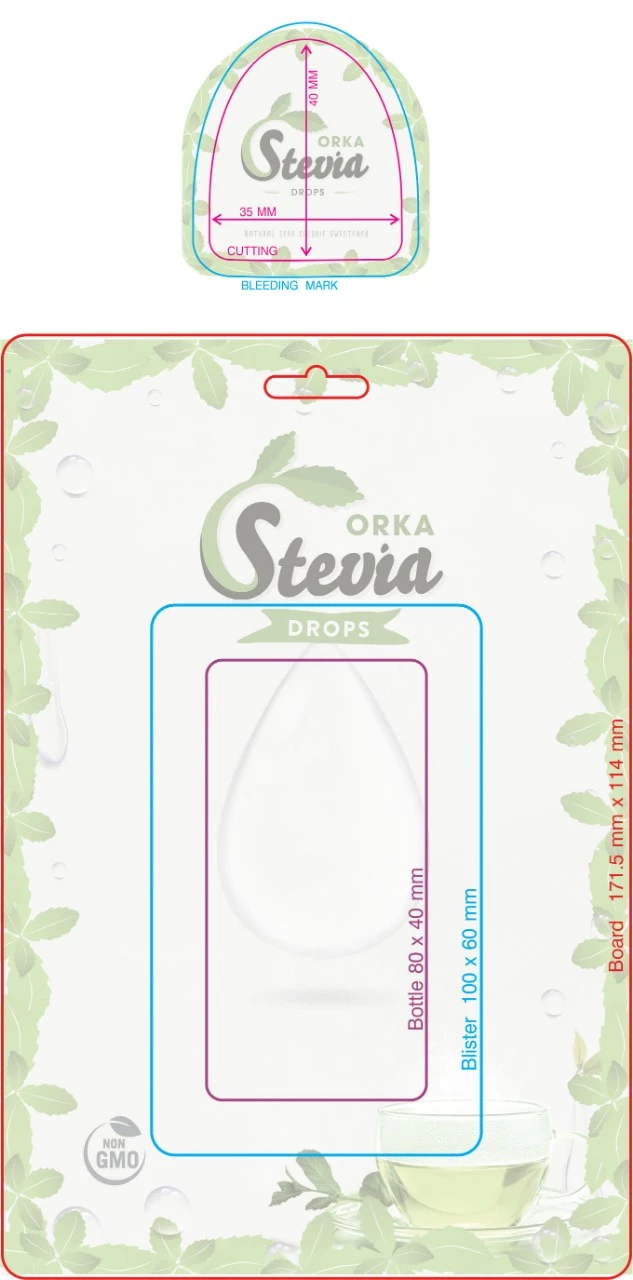
I'm working on blister pack for a product and I'm not sure how to add the bottle shape (given in pic below). I had selected top 2 anchor points with direct selection tool and curved them but that doesn't give me the desired shape (as in the pic below). So any help would be appreciated.

Thanks!

    This topic has been closed for replies.
    Correct answer tromboniator

    I think you'll find that whoever created this shape used very convenient dimensions and shapes.

    1) Create a 35 mm × 40 mm rounded rectangle with corner radii of 3.75 mm.

    2) Create a 35 mm × 60 mm ellipse.

    3) With the Direct Selection tool select, then delete, the bottom half of the ellipse.

    4) Select the rounded rectangle and the half ellipse, then Vertical Align Top and Horizontal Align Center.

    5) Deselect the rounded rectangle and lock the half ellipse.

    6) Make sure that Smart Guides are active, and with the Scissors tool click on the vertical sides of the rounded rectangle where Smart Guides show the intersection of those sides and the ends of the half ellipse.

    7) Select and delete the upper portion of the rounded rectangle.

    8) Unlock the half ellipse, select it and the bottom section of the rounded rectangle, and Object > Path > Join.

    Peter

    3 replies

    Jacob Bugge
    Community Expert
    Community Expert
    February 9, 2019

    Harshini,

    As I (mis)understand it, you can work on a full shape consisting of a combination of a lower shape that forms part of a rounded rectangle (a rectangle with rounded corners) and an upper shape starting out as a circle/ellipse.

    You may, working on top of the given inner shape which should be locked (the outer shape can just be made with Object>Path>Offset Path, presumably by 5 mm):

    1) Create a circle with a thin stroke that is 35 x 35 mm and place the top Anchor Point on top of the given inner shape;

    2) Use the following combination to obtain the right shape of the upper part:

    2a) Scaling into an ellipse (use the top centre Reference Point in the Transform palette and try with increasing H values,

    2b) After deselecting ClickDrag with the Direct Selection Tool over the two top segments (avoiding the Anchor Points), which should get the Handles to appear, then use the Up/Down arrow keys to stretch them (you can see it happen),

    2c) Click the top Anchor Point and then ClickDrag one of the Handles;

    These will change the shape in different ways, keeping the shape symmetrical and easy to assess and make accurate, used together maybe going back and forth should bring you to the right shape down to (maybe just about) the rounded corners at the bottom,

    3) Hide the circle and create the lower shape from a (rounded) rectangle with a width of 35 mm (with live corners maybe to be expanded), adapt till you are satisfied;

    4) Decide whether you need a short bit of the sides from the (rounded) rectangle or the top part should go all the way down to the rounding, then cut each part where they meet (you can use the Scissors Tool), then Pathfinder>Unite.

    Smart Guides are your friends.

    Srishti_Bali
    Legend
    February 8, 2019

    Hi Harshini,

    You can also try creating this with the curvature tool. For more details please refer to the help articles shared below:

    How to draw with the Pen, Curvature, or Pencil tool in Illustrator

    How to rotate and reflect objects in Illustrator

    Regards,

    Srishti

    harshinim5407457
    Participant
    February 9, 2019

    I need that shape in given dimensions. I think it's not possible with curvature tool.

    tromboniator
    Community Expert
    tromboniatorCommunity ExpertCorrect answer
    Community Expert
    February 10, 2019

    I think you'll find that whoever created this shape used very convenient dimensions and shapes.

    1) Create a 35 mm × 40 mm rounded rectangle with corner radii of 3.75 mm.

    2) Create a 35 mm × 60 mm ellipse.

    3) With the Direct Selection tool select, then delete, the bottom half of the ellipse.

    4) Select the rounded rectangle and the half ellipse, then Vertical Align Top and Horizontal Align Center.

    5) Deselect the rounded rectangle and lock the half ellipse.

    6) Make sure that Smart Guides are active, and with the Scissors tool click on the vertical sides of the rounded rectangle where Smart Guides show the intersection of those sides and the ends of the half ellipse.

    7) Select and delete the upper portion of the rounded rectangle.

    8) Unlock the half ellipse, select it and the bottom section of the rounded rectangle, and Object > Path > Join.

    Peter
    Monika Gause
    Community Expert
    Community Expert
    February 8, 2019

    You can't create that by rounding the edges. You will need to draw one half of it and then mirror it.