Participant
January 22, 2025
Answered

Shorten curved line along its path; text on the arrow path

  • January 22, 2025
  • 4 replies
  • 1054 views

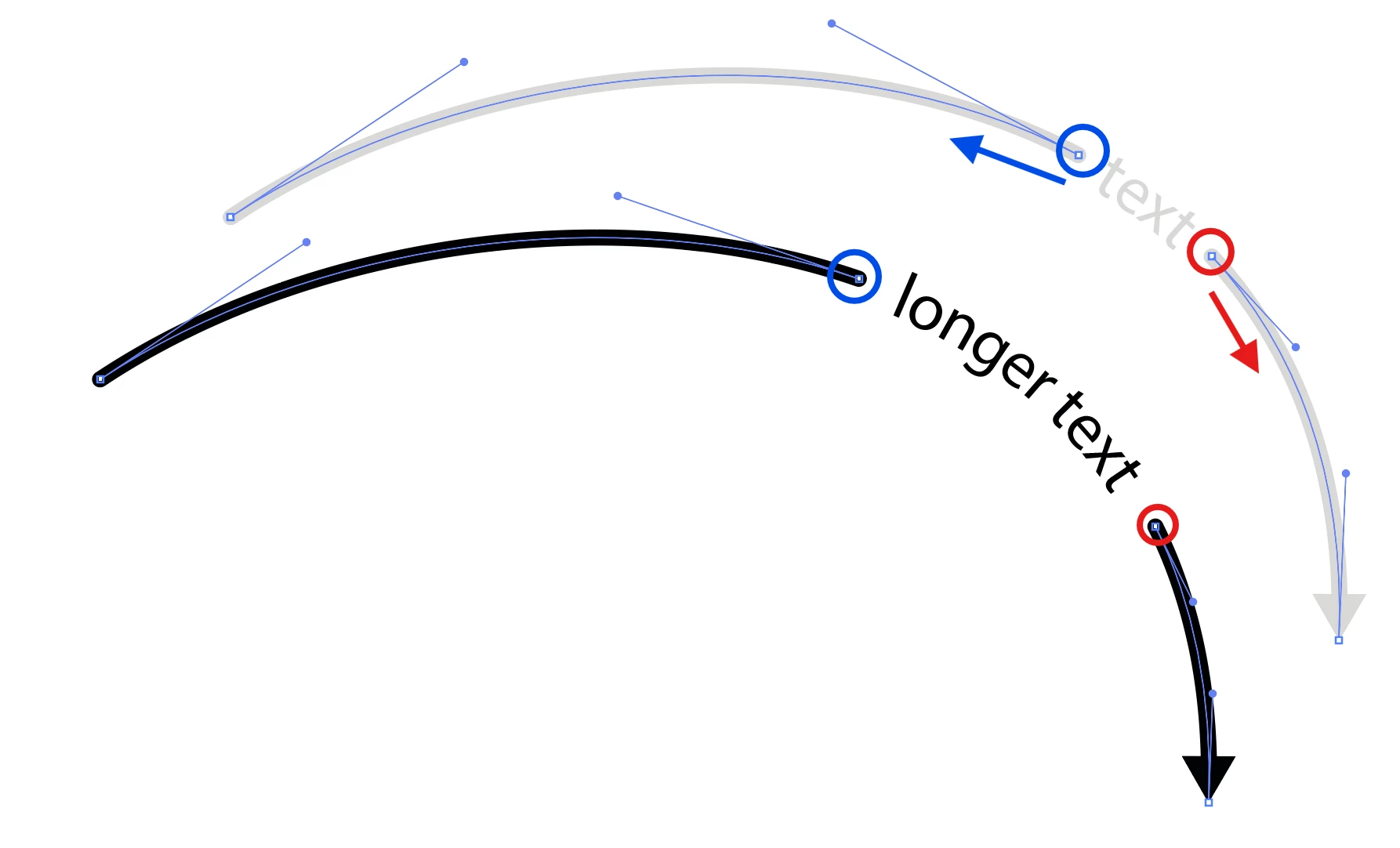
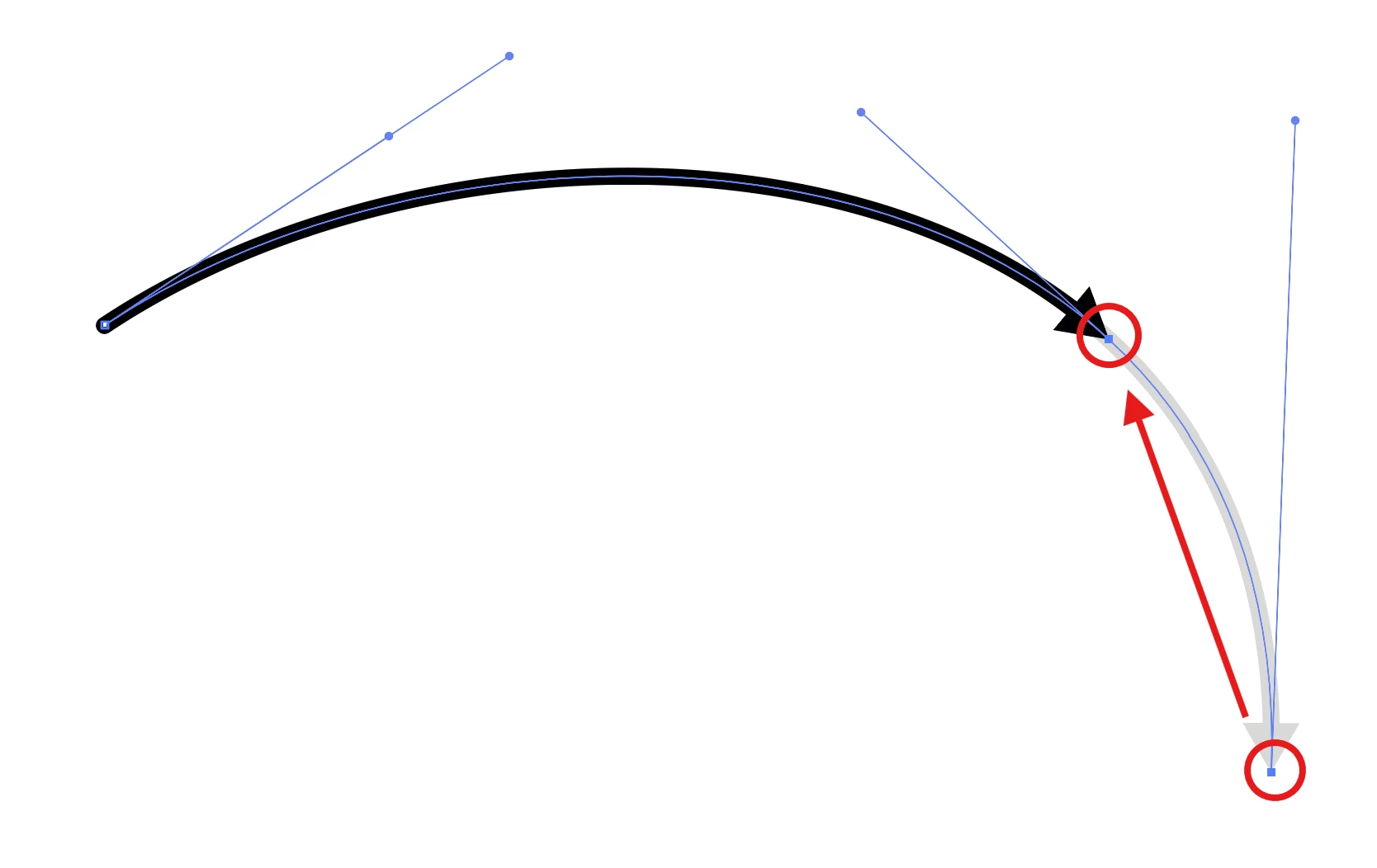
Is there any way (except by Scissors tool and then deleting the unwanted part of the original line) how to move the ending anchor point of a curved line along the original curved path of the line to trim (shorten) the line? I want to keep the original path curvature.


The purpose of it is to easily adjust the space for the text on the arrow path in case I need to add (or change) text on its path the text.


Ideally, it would be nice to be able to change the curvature of the arrow together with the curvature of the text, but I do not know if this is possible.


Thank you for your answer.
 

Correct answer Kurt Gold

You can download two knockout approaches and experiment a bit with them.


Type on Path Knockout Sample 1 (Illustrator file, format 2020)


The first expedition uses a stroked type object. The last expedition uses an Object on a Path object that can be scaled and moved along the path to make the appropriate knockout.


Modify the type and move the object on a path (circle) to see what happens.


There are some other ways and I think it was Ton Frederiks who once shared a way that used just a single Type on a Path object to get the right knockouts.

4 replies

Kurt Gold
Community Expert
Community Expert
January 26, 2025

I've slightly refined the approach. It should now work on any arbitrary curvature.


Frederiks-Lines 2

Jacob Bugge
Community Expert
Community Expert
January 23, 2025

Matu,


When I first read your question, I noticed that your original path and the shortened end paths had Round Cap and thereby rounded ends, which is more complicated to obtain than a simple cutoff corresponding to Butt Cap.


It is doable, and I looked into fully editable/reversible ways to do it, but then I had some urgent tasks, and left the thread until now.


Normally the simpler cutoff is used, and it also makes the text appear as an integral part of the arrow path, rather than text between two paths, only one being an arrow path.


You could also choose Butt Cap instead of Round Cap for the arrow path with full consistency.


I can see that Kurt has offered a solution easy to use.


MatuSKAuthor
Participant
January 24, 2025

Yeah, I will use it with butt cap as it is easier.  Thank you for your reply.

Jacob Bugge
Community Expert
Community Expert
January 24, 2025

For my part you are welcome, Matu.

Kurt Gold
Community Expert
Community Expert
January 22, 2025

There are a couple of other versatile ways that work with various knockout techniques instead of shortening or lengthening the stroked paths.


Would that be something you may want to look at as well?

MatuSKAuthor
Participant
January 22, 2025

Thank you. If you have time to write some summary of it I would very much appreciate it.

Kurt Gold
Community Expert
Kurt GoldCommunity ExpertCorrect answer
Community Expert
January 22, 2025

You can download two knockout approaches and experiment a bit with them.


Type on Path Knockout Sample 1 (Illustrator file, format 2020)


The first expedition uses a stroked type object. The last expedition uses an Object on a Path object that can be scaled and moved along the path to make the appropriate knockout.


Modify the type and move the object on a path (circle) to see what happens.


There are some other ways and I think it was Ton Frederiks who once shared a way that used just a single Type on a Path object to get the right knockouts.

Monika Gause
Community Expert
Community Expert
January 22, 2025

If you happen to have Astute Graphics plugins (a set of plugins which are not free) then it would be possible with the Extend path tool.