caseyd42306480
Participant
May 3, 2019
Answered

Sketch Drawing to Vector File

  • May 3, 2019
  • 4 replies
  • 1396 views

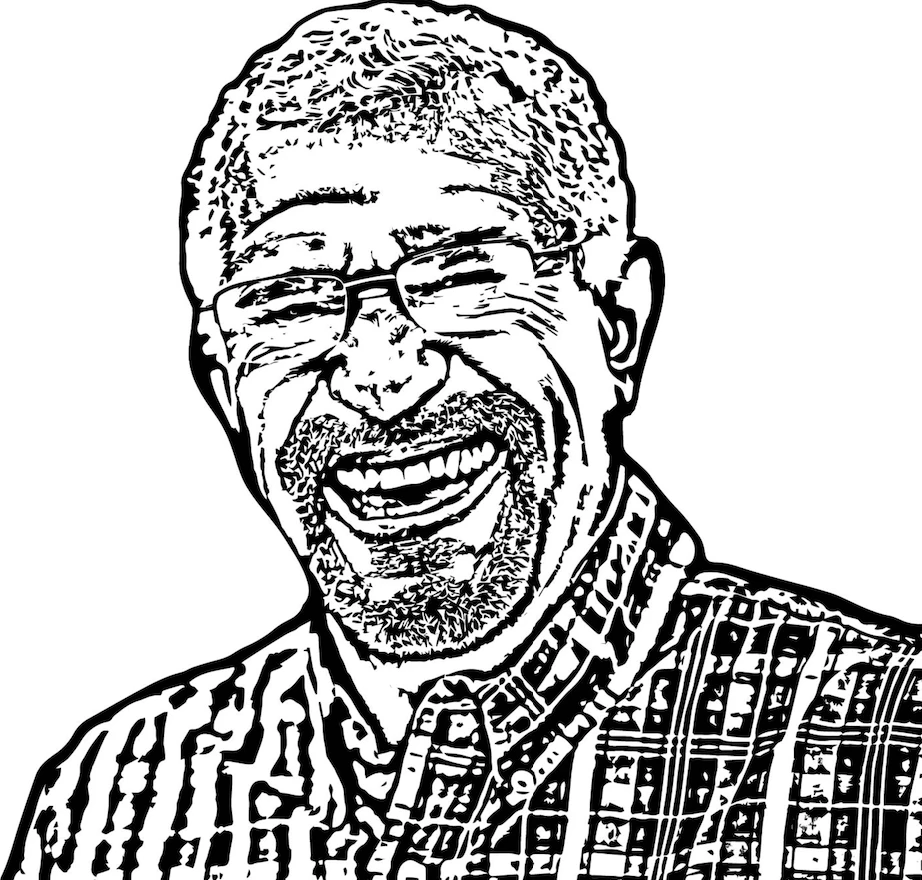
Hi there! Never posted on this forum before but I'm in a pinch and was wondering if anyone might know what direction to point me in. So, I am currently trying to use photoshop and illustrator in tandem to take a photo from a customer, make it into a sketch drawing, then vectorize it in illustrator so a physical copy can be engraved into metal. We have had some success with this, however, the issue lies with the quality of the photo and how long it takes to produce a product like this. The main issue I'm having is getting detail out of the photo and then image tracing it and it not looking like a giant black blob. Does anyone have any ideas on:

a. Turn a highly pixelated raster photo into a believable sketch drawing quickly

b. Quickly transform that into a vector file in illustrator so that it can be engraved with our vector compatible software

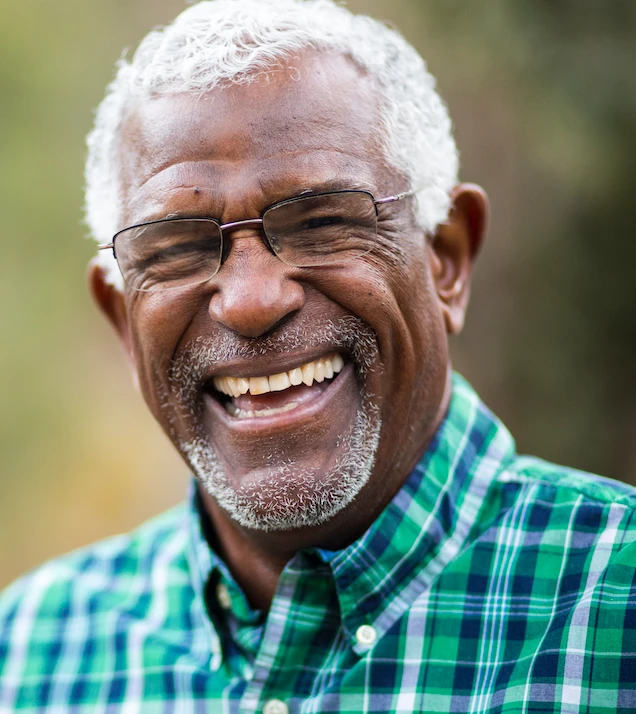
I will attach a couple of example photos to get a better idea of what I mean. Here is one that did work, however it is a stock photo and incredibly clear. That's opposed to most customer's pixelated or fuzzy low quality photos. If this is the wrong place to post, by all means remove it or let me know so I can remove it. Just at a loss of what to do here and would love some opinions

This topic has been closed for replies.
Correct answer Myra Ferguson

I'd try doing the following:

In Photoshop:

  • Try to scale it up by going to Image > Image Size and with Resample selected, change the drop down to either of the 2 enlargement settings and increase the resolution (test sizes to see how much enlargement still looks good)
  • Use the Black and White adjustment layer to convert the photo to grayscale, using the sliders to create contrast where you want details
  • Go to Filter > Filter Gallery and try out the effects especially with different settings with the sliders
  • Reapply filters as needed to get the sketch look that you want
  • Save

In Illustrator:

  • Import
  • Go to Window > Image Trace to open the panel
  • Twirl down Advanced and try various settings to get whatever result looks best and will work with your engraver

4 replies

Community Expert
May 4, 2019

I'll second Monika's suggestion: manually draw a new vector image using the photograph as a guide. That will yield far better results than any auto-tracing methods. There are various ways one can go about doing this.

It can be pretty tedious to use a mouse and keyboard shortcuts to manually digitize clean vector lines over a photograph using the Pen tool. A pressure sensitive graphics tablet and stylus can lay down fairly natural looking lines faster. You can create a calligraphic brush with pressure sensitivity options to create strokes that will look more like they were drawn with an ink brush rather than monotone strokes that look technical. An iPad Pro and Apple Pencil can be used to the same degree with the Adobe Illustrator Draw app.

caseyd42306480
Participant
May 6, 2019

I have a Huion tablet set up as a second screen for my iMac, that's what I've been using for this. I just need to practice more with it haha! But that's really great advice, thanks for letting me know your thoughts

Michael Bullo
Community Expert
Community Expert
May 3, 2019

Image Trace does not have the ability to control settings at a local level. Instead settings apply to the entire Image Trace.

You can take much stronger control of Image Trace if it is applied to an image that has first been saved as a Photoshop file. Changes to specific areas within the Photoshop file can be made and because Image Trace is a live effect these changes will update within the Illustrator file. For example, specific areas could be lightened or darkened and also done so in a non-destructive manner.

This link might help...

Controlling an Illustrator Image Trace with Photoshop - YouTube

caseyd42306480
Participant
May 6, 2019

Awesome info! I will be sure to check out that link, thanks

Myra Ferguson
Community Expert
Myra FergusonCommunity ExpertCorrect answer
Community Expert
May 3, 2019

I'd try doing the following:

In Photoshop:

  • Try to scale it up by going to Image > Image Size and with Resample selected, change the drop down to either of the 2 enlargement settings and increase the resolution (test sizes to see how much enlargement still looks good)
  • Use the Black and White adjustment layer to convert the photo to grayscale, using the sliders to create contrast where you want details
  • Go to Filter > Filter Gallery and try out the effects especially with different settings with the sliders
  • Reapply filters as needed to get the sketch look that you want
  • Save

In Illustrator:

  • Import
  • Go to Window > Image Trace to open the panel
  • Twirl down Advanced and try various settings to get whatever result looks best and will work with your engraver
caseyd42306480
Participant
May 6, 2019

After some trial and error, I ended up using a method similar to this However, I did add one more thing and that was adjusting the image trace threshold. Then I could take multiple variants of the image trace vector, layer them, keep what detail I wanted, erase what I didn't. Worked pretty well I think, thanks for the info

Monika Gause
Community Expert
Community Expert
May 3, 2019

Have an experienced artist draw it manually.

Maybe the Photoshop community has other ideas, but that's what I would do in order to satisfy clients.

caseyd42306480
Participant
May 6, 2019

Thanks for the suggestion!