Participant
April 29, 2020
Answered

Slow performance while saving files in Illustrator 2020 (24.1.2) on Windows 10

  • April 29, 2020
  • 3 replies
  • 12425 views

This is ridiculous. I end up using my old pc and AI CC 2018 just to get work done. AI freezes when saving no matter how small the file size.

AI  2020 ver. 24.1.2

Win 10 Pro

64 GB

All files are on local disk. 

Have unchecked Save in Background. 

Optimize File Open and Save Time, etc. checked. 


This topic has been closed for replies.
Correct answer Anubhav M

for those that use Apple?


Hello @andreac75249358,


Sorry to hear about this experience. Kindly try these steps for macOS and check if it helps:

  • Close all Adobe applications.
  • Go to the following locations:
    ~/Library/Caches
    ~/Library/Application Support/Adobe
    ~/Library/Preferences
  • Rename Adobe Illustrator, com.adobe.illustrator and Adobe Illustrator 26 Settings folders to Adobe Illustrator.old, com.adobe.illustrator.old and Adobe Illustrator 26 Settings.old
    Launch Illustrator from the Creative Cloud.


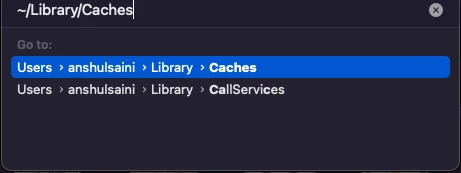
Note: Location starting with this "~" sign indicates the User Library, which is hidden. So, you need to copy & paste the exact path in spotlight search or from Finder Menu > Go > Go to Folder > Paste the location in the dialog box like this:
Disclaimer: Please note that renaming preferences folders will remove all the custom settings, and Illustrator will
launch with default settings. You can also take a backup of the folders in case you want to. The location is mentioned above.


Also, try rebooting your computer in Safe Mode (https://support.apple.com/guide/mac-help/start-up-your-mac-in-safe-mode-mh21245/mac) and share your observations.


Looking forward to your response.


Thanks,

Anubhav

3 replies

Participant
August 28, 2023

I had the same issue. I even reinstalled illustrator. Finally It is resolved by Saving file in Safe mode i.e. Below Steps:
Turn on windows in Safe Mode.

Open Illustrator, open any file and save it.

Now the issue should be resolved.


Now even when you leave safe mode by restarting, illustrator should work fine afterwards.

Participant
January 5, 2023

Unchecking Create PDF Compatible File while saving helped in my case. Files now save in a second.

Srishti Bali
Community Manager
Community Manager
April 29, 2020

Hi there,


So sorry to hear about the trouble you are facing with Illustrator. That's not a typical experience with the latest update. Let us make this right for you. Could you please share a few more details like:

  • Screenshot from Task manager (https://shared-assets.adobe.com/link/d84b261d-f05a-46f4-5f19-986e6d943212).
    1. Launch Task Manager.
    2. Go to “Details” tab.
    3. Right click on the “Name” column heading.
    4. Select the option “Select Columns”.
    5. Scroll to the Check Box “GDI Objects”.
    6. Select the Check Box.
    7. Click on OK button to close the “Select Columns” window.
    8. You will see another column “GDI Objects” added to the “Details” tab.
    9. Please share a screenshot of task manager screen.

  • Where the files are saved (Network Drive/ System HDD/ Shared Folder on System /External HDD)? 


All this information witll help us understand the issue and help you accordingly. Looking forward to your response!


Regards,

Srishti


firebyterAuthor
Participant
April 29, 2020

Files kept on local system D. internal HDD.

Photoshop is slow to load too. Noticed when creating screenshot.

Anubhav M
Community Manager
Anubhav MCommunity ManagerCorrect answer
Community Manager
November 30, 2022

for those that use Apple?


Hello @andreac75249358,


Sorry to hear about this experience. Kindly try these steps for macOS and check if it helps:

  • Close all Adobe applications.
  • Go to the following locations:
    ~/Library/Caches
    ~/Library/Application Support/Adobe
    ~/Library/Preferences
  • Rename Adobe Illustrator, com.adobe.illustrator and Adobe Illustrator 26 Settings folders to Adobe Illustrator.old, com.adobe.illustrator.old and Adobe Illustrator 26 Settings.old
    Launch Illustrator from the Creative Cloud.


Note: Location starting with this "~" sign indicates the User Library, which is hidden. So, you need to copy & paste the exact path in spotlight search or from Finder Menu > Go > Go to Folder > Paste the location in the dialog box like this:

Disclaimer: Please note that renaming preferences folders will remove all the custom settings, and Illustrator will
launch with default settings. You can also take a backup of the folders in case you want to. The location is mentioned above.


Also, try rebooting your computer in Safe Mode (https://support.apple.com/guide/mac-help/start-up-your-mac-in-safe-mode-mh21245/mac) and share your observations.


Looking forward to your response.


Thanks,

Anubhav