Participant
March 22, 2020
Answered

Smoothing and scaling logo

  • March 22, 2020
  • 4 replies
  • 1972 views

Hi Guys,


I am trying to create a simple logo in Illustrator, and I am facing two problems.
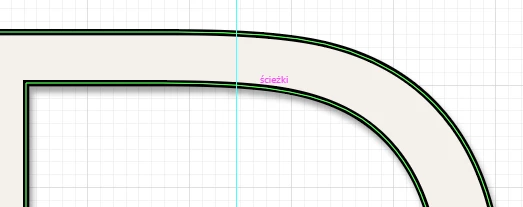
I just can't understand how to correct this logo so there won't be any visible pixels. For example I tried "smooth" tool I think, but it didn't help.

This is like my first adventure with vectors graphics and I thought that it would be much easier to scale things and create simple objects. Other obstacle that appeared is exporting the file to JPG. From what I have read it mostly depends on the PPIs, buuut there is another question coming... what PPI should I set to get a good quality and a final image in 180x180 px (for example)?


I did a lot of research to find a solution for my "problems" but non of it worked for me. I hope that someone would be able to support me here!

This topic has been closed for replies.
Correct answer Jacob Bugge

Tomasz,


"I can't even set this to 180x180 becaus of its proportions."


If the logo is not square, you will just have to set the largest of width/height to 180 px (including outer bounds to avoid snipping off parts) and then have the missing parts transparent (by ticking Transparency).


But given the FB notoriety mentioned already, forget about judging the quality by the carefully optimized destruction of appearance there.


Judge it in a non destructive viewing application or on a website that abstains from meddling with the uploads.


4 replies

Jacob Bugge
Community Expert
Jacob BuggeCommunity ExpertCorrect answer
Community Expert
March 24, 2020

Tomasz,


"I can't even set this to 180x180 becaus of its proportions."


If the logo is not square, you will just have to set the largest of width/height to 180 px (including outer bounds to avoid snipping off parts) and then have the missing parts transparent (by ticking Transparency).


But given the FB notoriety mentioned already, forget about judging the quality by the carefully optimized destruction of appearance there.


Judge it in a non destructive viewing application or on a website that abstains from meddling with the uploads.


Jacob Bugge
Community Expert
Community Expert
March 23, 2020

Tomasz,


The bit shown presents no issue in terms of smoothness of the original vector artwork itself, so maybe a more troublesom part, if any, may be needed for suggestions.


Concerning highest possible degree of PNG smoothness (Facebook and some other social media sites are notorious for destroying carefully optimized appearance):


This may sound unforgivably outdated and boring, sorry.


If you wish to have PNGs (PNG24 (also (little) known as PNG32, it holds 24 bit colour and 8 bit Alpha channel (transparency)), of course) look crisp and clean, it is important to have the images in the exact desired final pixel x pixel size, forget about resolution which may actually lead to wrong sizes and hence blurriness. It is easiest and safest to work at the desired size.


A very common unsuitable way is to Export to PNG (remember to use PNG24 and use Transparency for artwork to be in front of different backgrounds) with a medium or high resolution, such as 300PPI.


To retain the clean and crisp artwork, a PNG must be created at exactly the pixel x pixel size that it is to be used for (or second best at sizes that are powers of 2 times as large).


For clean and crisp artwork avoid JPEG.


It is also important to have the artwork and also the Artboard placed fully within integer/whole pixel X and Y values in the Workspace. Otherwise the resulting image will become a bit wider/taller and the extension(s) will be empty and therefore be white.


Therefore, the safest way is to create the artwork at the final pixel x pixel size and use a corresponding Artboard, then either use the Legacity Save for Web (where you can look in the Image Size window for size confirmation) or Export at 72PPI. In either case, use the relevant optimization (available with both ways); it is also convenient to have 72PPI in the Effect>Document Raster Effect Settings.


If you have pure vector artwork, you can relax a bit and have the artwork/Artboard at any size (the Artboard must have the same proportions as the final image), then use the Legacity Save for Web and set either Width or Height in the Image Size and Apply (make sure the other value is also correct).


The Legacy Save for Web may be an old carthorse, but it knows its way home, even if the driver is drunk and sleeping it off in the hay in the back.


Tomasz.SAuthor
Participant
March 24, 2020

Thanks for such detailed answer... I just think that there is something wrong with the original logo I created or I am too stupid for this. It is becoming really frustrating to be honest. I tried now using Save for Web but it didn't help. I can't even set this to 180x180 becaus of its proportions.


This is how to logo looks like on FB, and I am really not satisfied. It doesn't look crispy at all compared to other logos.

Just ran out of ideas I guess (and patience).


Mike_Gondek10189183
Community Expert
Community Expert
March 22, 2020

What are you using this for, if for a website you can use .svg format.

As mentioned pi does not matter as you already have your final dimensions of 180 x 180px.

If you are going to ,jpg, make sure you turn on snap to pixel, so your pixel fall onto the grid and  reduces softness.

Tomasz.SAuthor
Participant
March 23, 2020

Thank you for answer and sorry for asking stupid questions but I still don't understand this.

I have my logo in dimension 398,16 x 421,68 px created in Adobe.

For example Facebook requires profie image size of 180 x 180px. How should I scale it to not lose the quality?

I tried exporting it in different ways, but nothing helps.

Monika Gause
Community Expert
Community Expert
March 23, 2020

You can't scale it down to 180 px without losing quality. That's how pixel images work.

Monika Gause
Community Expert
Community Expert
March 22, 2020

If there is a fixed pixel dimension you have to export, then PPI doesn't matter. 180 x 180 pixels won't give you a smooth result. You have to expect some pixel steps to appear.