



Solution: Remove highlighting when selecting type
When you select type, AI highlights it. One of many problems is that the highlight changes the visual color of the text, making it difficult to adjust the color of a portion of text since you can't see the changes in real time.
AI lets you to hide selections using view>hide edges (or shortcut). It's supposed to work for type also, but many users have pointed out that it doesn't in their versions for whatever reason. I'm using AI 2020 v24 and this is the case for me as well.
I experimented to see if there were quick workarounds and hide edges works properly on type:
- When Preview on CPU is enabled instead of GPU preview.
- When either Overprint preview or Pixel preview are enabled.
All options under the view menu.
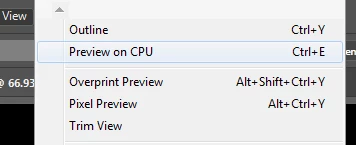
I don't know if there are other workarounds or how well known these already are. I just noticed so many people still searching across the web for an answer to this just like I was, so I decided to post my solution in case it helps someone!
 AdChoices