
Known Participant
November 10, 2022
Question

Step Text on a circle, double digit numbers

  • November 10, 2022
  • 3 replies
  • 1045 views

Hi all
I'm trying to put text in a circle for some artwork to go on a control panel for a volume control.
All is ok until I get to double digit numbers (10,11,12 etc...) where it doesn't recognise them as a pair of digits. Apart from doing the double digit numbers as a '1' and then adding a second digit manually, is there any workaround anyone knows of?
Hopefully I'm making sense......
thanks
G
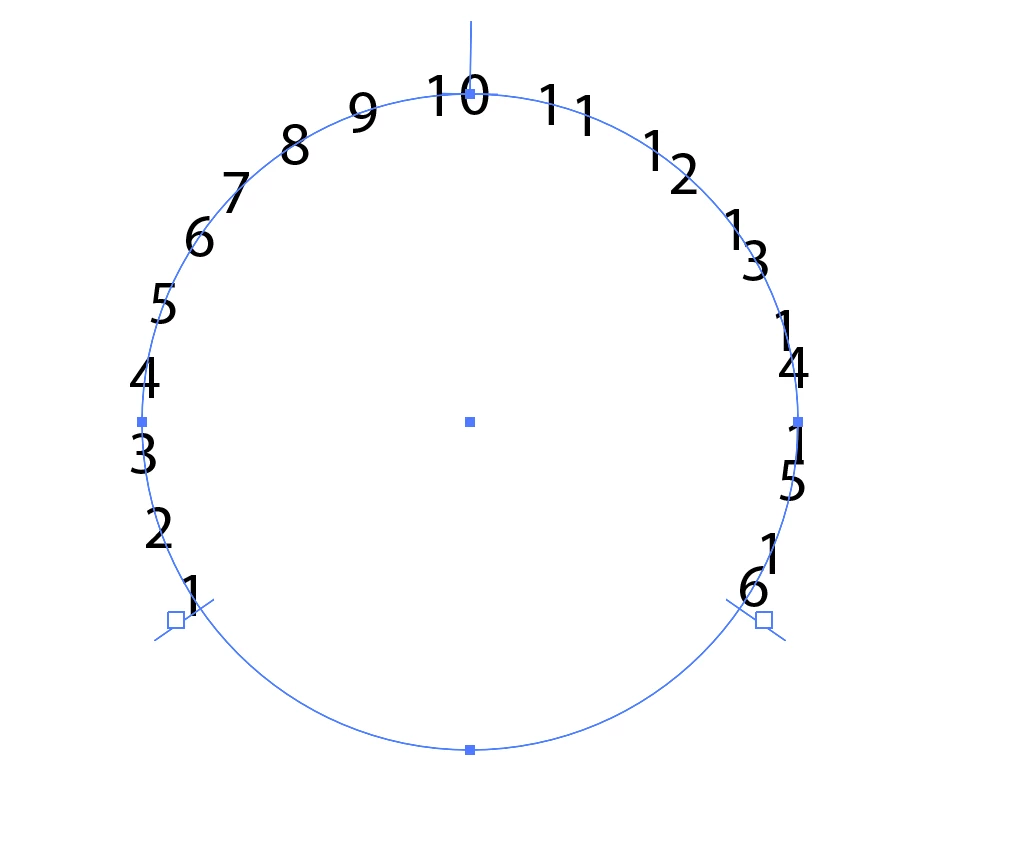
This topic has been closed for replies.

3 replies

Jacob Bugge
Community Expert
Community Expert
November 14, 2022

Granger,


To create it once, you can use a 1 step fake Blend, as shown below; and you can also apply tick marks, all similar to this,

https://community.adobe.com/t5/illustrator-discussions/justify-text-evenly-along-a-path-in-illustrator-clockface/m-p/13342021#M343357


Click/RightClick to get closer, and Click again to get closer still

Known Participant
November 16, 2022

This looks exactly how I want it but I don't understand a "fake blend" or how to make one? 

Jacob Bugge
Community Expert
Community Expert
November 16, 2022

Granger,


In this case,


1) Create a set of single live Type numbers along a horizontal path, then Outline them and Ungroup to form individual Compound Paths, then select each pair of Compound Paths forming two digit letters and Ctrl/Cmd+8 turn turn them into one Compound Path;

2) Align>Distribute Objects to get the same centre to centre distance throughout the set, this is the first part of the image;

3) Object>Blend>Blend Options>Set the number of steps to 1, then Object>Blend>Make, this is the second part of the image, the steps looking funny (both funny peculiar and funny haha):

4) Create/Select the circle part, then Object>Path>Add Anchor Points a sufficient number of times (at least thrice in this case), this is to shorten the segments and ensure an even Blend, you can see it in 5) if you have too few, this is the third part of the image;

5) Select both Blend from 3) and the circle part from 4) and Object>Blend>Replace Spine, this is the fourth part of the image, still looking funny;

6) Object>Blend>Release to get rid of the funny steps, this is the fifth part of the image.


pixxxelschubser
Community Expert
Community Expert
November 10, 2022

@GrangerMorton 

Do you want to create this once or do you need it as a template with variable circle diameters, distances and number of text fields?

Known Participant
November 16, 2022

Hi, sorry for the late reply, my stuff is not behaving....
I guess a template that I can edit?

Mylenium
Legend
November 10, 2022

I would just split the circle itself and insert more anchor points, then use conventional snapping to those points with separate text objects. I'm sure there's soem super fancy way of doing it with pattern brushes or symbols, but sometimes the dumb quick & dirty way is more efficient.


Mylenium