
Chris  P.  Bacon
Inspiring
August 24, 2022
Answered

Stop Envelope Distort from distorting fonts when fitting words to the same width
  • August 24, 2022
  • 4 replies
  • 1849 views

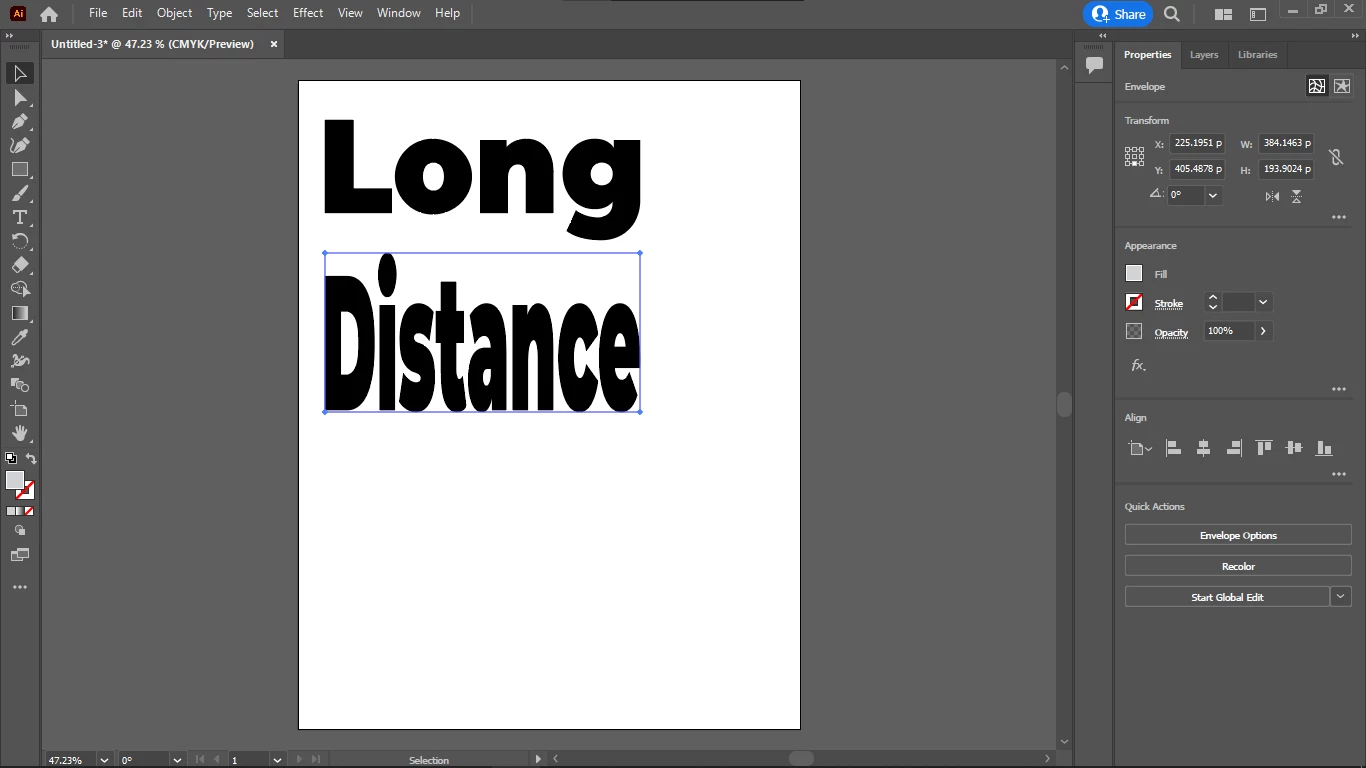
I want to fit words in rectangle shapes with Illustrator (each word is a rectangle but the words together are also a rectangle) with one word in each row so that Envelope Distort would make the text into the selected shape without distorting the font height. 

Instead, it should automatically adjust the rectangle height, to fit the text to the width.

In fact, I don't want to allow horizontal distortion of the font either.

And I don't want to allow to distort the tracking (distance between the characters) either.

The only thing I want to allow to the Envelope Distort, is to resize the second word's font until the width of the word matches the width of the first word, and so on.

So only the font size is allowed to change until it matches the width.

And the vertical distance between the words should also be the same, so their frame should perfectly fit the word so I can space them evenly, vertically.

How do I do that?

Thanks in advance.
 

This topic has been closed for replies.
Correct answer Chris P. Bacon

Somehow I didn't find the script handy.

What I finally did is that:

1. created a text box with my lines

2. justified each line separately (not sure if the same effect if I justify the whole text)

3. I increased/decreased the font size of each line in 0.1 pt increments, until one increment before line break

4. I adjusted the line height to be even.

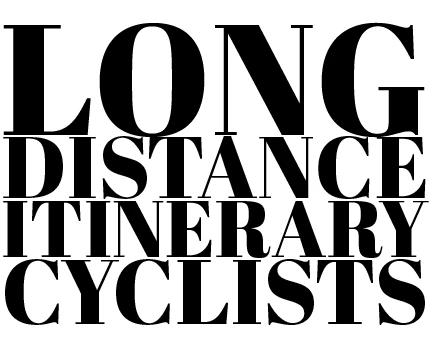
Like this I could maintain the original tracking of the font size and have no distortions.

And I got my slab text block:

4 replies

Legend
August 25, 2022

There is a script for this  - does turn the text into outlines, though.


looks good with all caps, too


Chris  P.  Bacon
Inspiring
August 25, 2022

Thanks.

I noticed that Fit Headline works by changing the tracking.

We need a Fit Headline that increases the font size instead.


Chris  P.  Bacon
Inspiring
August 25, 2022

And keeps the original tracking according to the font size.

ensel
Participating Frequently
August 25, 2022

Hi,
my solution for this (some manual work needed, i suppose it could be automated by a script, but that´s out of my knowledge).
(sorry, my illustrator is in german language and i´m not sure of some of the appropriate english terms and menu commands )


1. Select the text tool

2. type the first word with the desired font, font size doesn´t matter for now

3. Deselect all

4. type the next word, deselect again

5. The same for all the words you need.

6. Convert each of the texts to paths (type-menu -> create outlines)

7. In the layers palette select the group of the first word

8. In the toolbar type in the desired width (with the symbol for proportional scaling checked, to avoid distortion)

9. repeat this process for each of the words (always the same widths)

10. In the layers palette select the groups of all the words

11. In the toolbar klick on align left

12. Keep the groups selected

13. open the alignment palette (window -> align)
14. Click on one of the words: It should look highlighted. In the alignment palette you now should see an input field to input the distance of the disired distribution of the words. Type in the desired distance (e.g. 20px) and click on the icon for vertical distribution.


tromboniator
Community Expert
Community Expert
August 24, 2022

Adjusting font size is far outside the capability of Envelope Distort. Not being a scripter I have no idea if a script could accomplish such an adjustment, nor if there's another way to automate such a task.


I found it pretty quick to type the words into a single area type object, adjust one word's font size and tracking to establish the width I wanted, then select each word in turn and click and scroll in the font size field in the Character panel until the size was right, then do same in the Leading field. The tracking value remains constant.


Peter


Monika Gause
Community Expert
Community Expert
August 24, 2022

Looks like Type > Fit Headline could do what you want.

You would need tohave all your text in an area text in order to be able to use it.

Chris  P.  Bacon
Inspiring
August 24, 2022

I just tried Fit Headline.

The font of the upper row should grow to fit the width of the row below.

How do I do that?


Chris  P.  Bacon
Inspiring
August 24, 2022

The font size I mean.