
stass19946577
Participant
August 7, 2024
Answered

Strange behavior using Appearance on group

  • August 7, 2024
  • 3 replies
  • 425 views

Hey,

Been using Illustrator for a million years.
Something recently changed in how fills and strokes affect elements inside a group.
In general, I expect a Fill effect on a group to apply to the whole group as a single object, rather than apply the fill individually to each part of the group.

To give an example:
These are 2 separate regular squares.
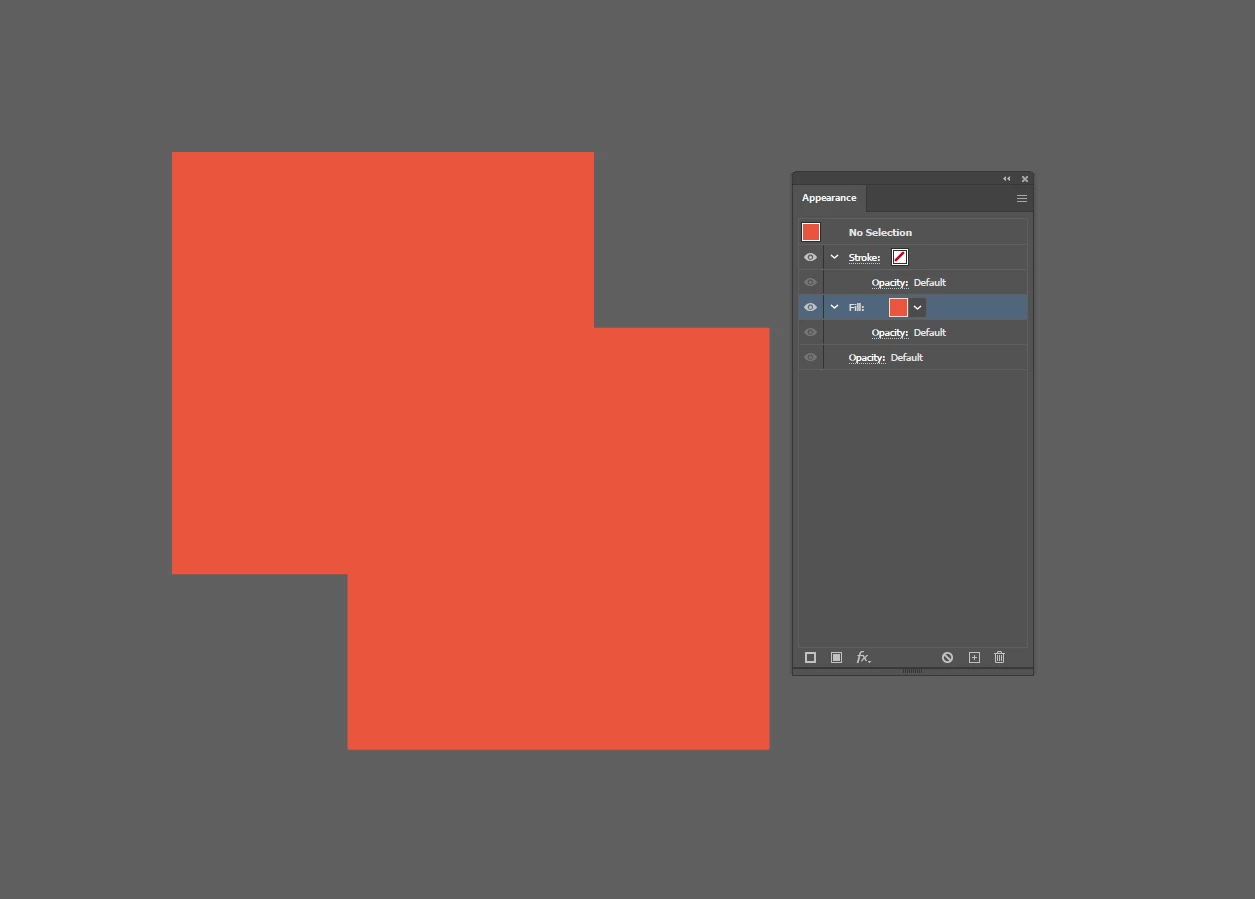
I would like to apply a gradient on top of the existing fill.
To receive this effect: (Which in this example I got by placing a compound object above the 2 squares, defeating the purpose of using the appearnce tab on a group).
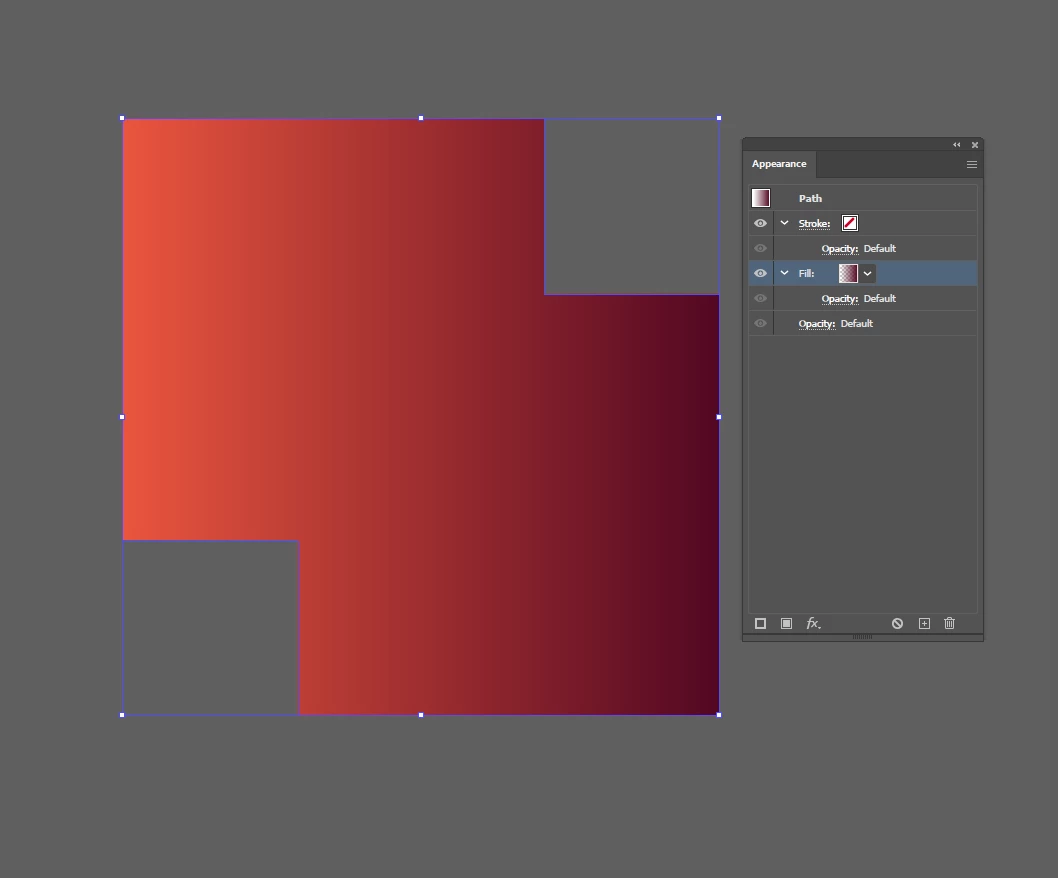

So like always, I group the 2 squares and apply a fill effect on the group, which gives me this horrid result:
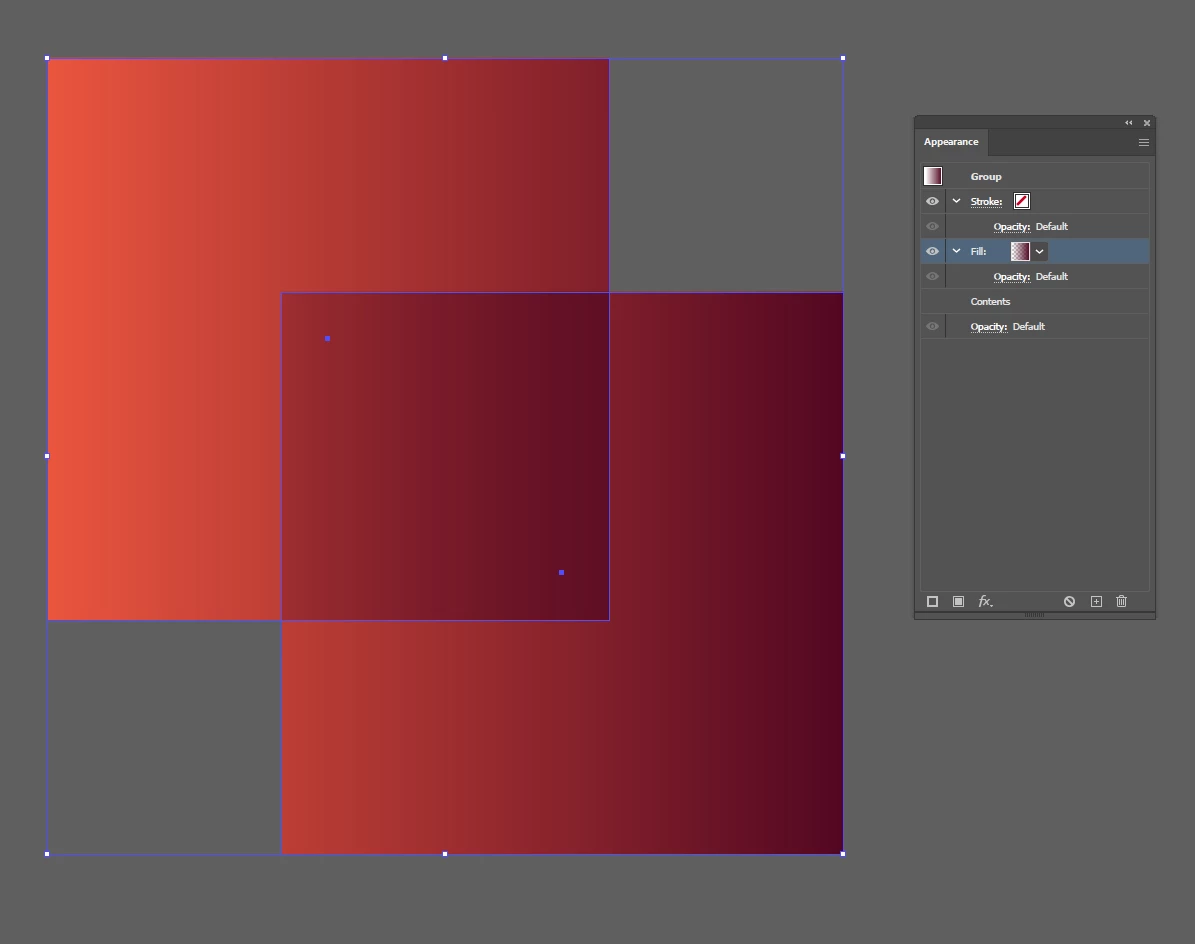
Why is the fill effect being applied separately to every element inside the group???
Why would it even change? am I being gaslit by Adobe?
SO MANY QUESTIONS.

Anyone know of a setting that fixes this behavior?
Using the latest Ai version and all that.

Thank you for reading.


This topic has been closed for replies.
Correct answer Monika Gause

I could only test that in version 2020 and it was the same.

But also when you apply a stroke to the group it will put strokes on all the elements. So that is logical.


You can apply Pathfinder effect "Add" to the gradient fill to solve this.

3 replies

renél80416020
Inspiring
August 7, 2024

Sur la dernière figure, appliquer l'outil Dégradé de couleurs (G).

Kurt Gold
Community Expert
Community Expert
August 7, 2024

It's due to transparency settings in the gradient fill in the overlapping area of the squares.


Another way to fix it is to make the group a knockout group in the Transparency palette.

Monika Gause
Community Expert
Monika GauseCommunity ExpertCorrect answer
Community Expert
August 7, 2024

I could only test that in version 2020 and it was the same.

But also when you apply a stroke to the group it will put strokes on all the elements. So that is logical.


You can apply Pathfinder effect "Add" to the gradient fill to solve this.

stass19946577
Participant
August 8, 2024

It works 😃

Thanks, I really have memories of this working differently. Maybe it's a Mandela effect type of situation.
Thank  you very much!