Known Participant
September 24, 2021
Answered

Strange border between objects of same color

  • September 24, 2021
  • 5 replies
  • 1835 views

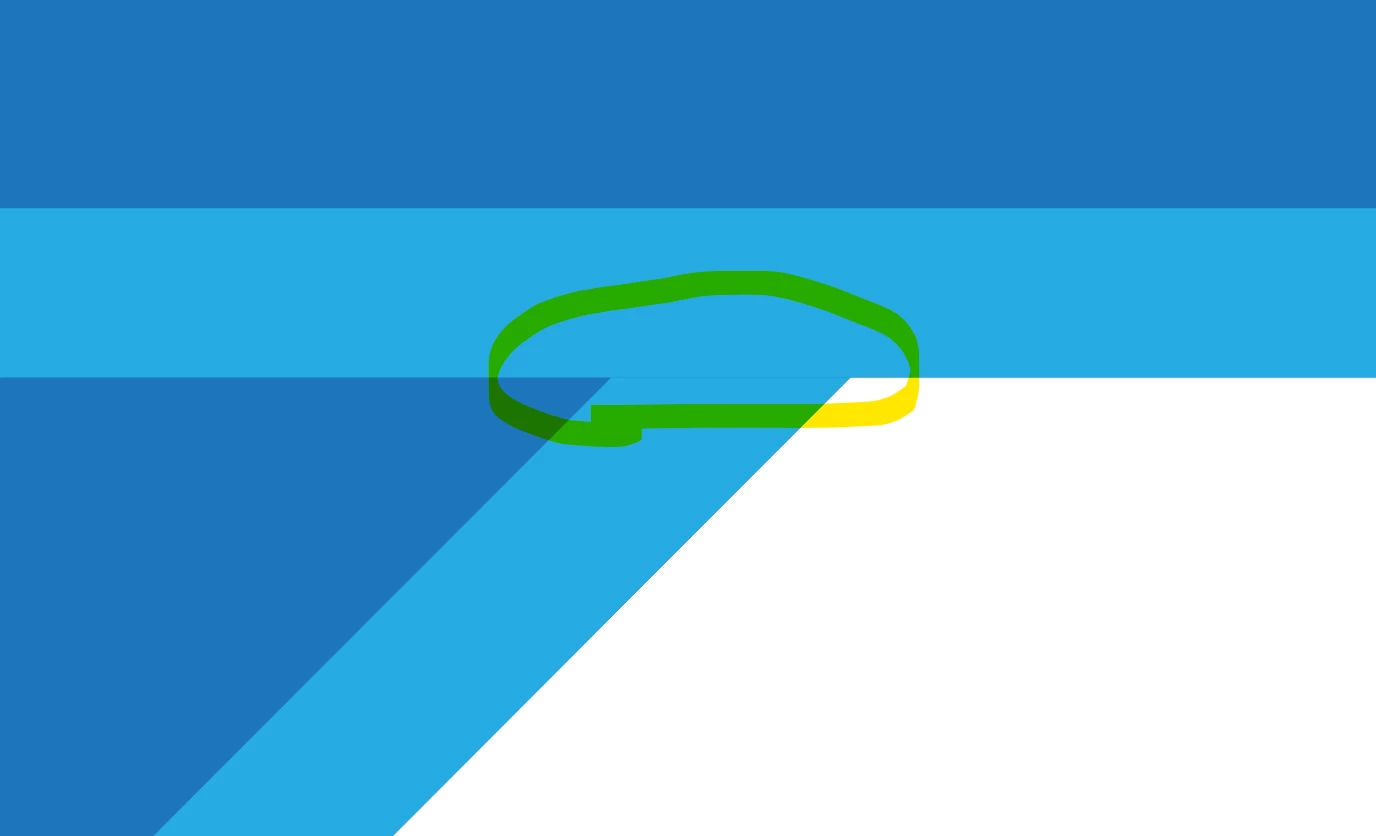
In AI, I have two similar objects overlapping. One at an angle.

In the places where their similar colors intersect, there is a tiny tiny border. Is this due to an antialiasing bug, and how can this be prevented?


This topic has been closed for replies.
Correct answer Brad @ Roaring Mouse

As long as you have no control over how a viewer/browser is going to render this, based on how this is currently constructed, you will always have the chance of the "line" showing up. Vector objects are rendered from the bottom up, so as lomng as you have the light blue and dark blue stacked, even exactly posotioned, the dark blue can "peek" through.

To elimiante it when generating an image format, like PNG, instead of rendering at screen resolution directly, export it first at high-res (say, 300), with NO anti-aliasing, then downsample in Photoshop to final desired resolution.


Orrrrr.. you can modify the file... like so:

 

5 replies

Ton Frederiks
Community Expert
Community Expert
September 25, 2021

And it depends on the browser how much is visible of the anti-aliasing in the svg. Firefox on my Mac shows less than other browsers.

Ton Frederiks
Community Expert
Community Expert
September 25, 2021

It is the stacking order that causes the anti-aliasing artifact.

The 2 dark blue shape is sandwiched between the light blue 1 and 3 shapes.

As suggested moving the bottom part of the dark blue shape upwards will solve the problem.

Anshul_Saini
Community Manager
Community Manager
September 24, 2021

Hi there,


Thank you for reaching out. I checked your file, and here are my observations. I hide the bounding box, smart guides, edges & switch to pixel view, and it looks like there is a tiny gap in decimal between the two elements. That's why that hairline is visible. If I press the arrow down key once it disappears. @Monika Gause, is this the case? Could you please confirm? I hope it helps!


Regards,

Anshul Saini

Monika Gause
Community Expert
Community Expert
September 24, 2021

I am not seeing a gap in pixel preview.

And since this is getting worse in SVG export, then I would assume that the Decimals (precision) is causing it.

Monika Gause
Community Expert
Community Expert
September 24, 2021

It's an anti-aliasing issue that usually only affects the display on screen. But when exporting the pixels you might have it as well.

In order to get rid of it, either unite the objects or overlap them.

Known Participant
September 24, 2021

They are overlapping, though. And I do see it when exporting to an SVG.

Monika Gause
Community Expert
Community Expert
September 24, 2021

SVG options can totally mess up your artwork. Even when the objects are overlapping.


Anything else you want to tell us about the exported artwork before someone starts to describe a fix for it? Anything that stands in the way of just uniting the shapes?

Known Participant
September 24, 2021

I'm unable to attach the AI file to this post for some reason. But here's a link to it: https://shared-assets.adobe.com/link/e995f36d-a6ac-42d3-7b16-ad006cf2ae8a