Inspiring
February 28, 2025
Answered

Stretching (not Scaling) one half of an X?

  • February 28, 2025
  • 1 reply
  • 650 views

Hi everybody,


I'm tackling logos and letters for pretty much the first itme in a long time. I have this X connected at the end of a word and I want to extend the right half of the X into perpetuity. I've tried the Scale Tool trying to stretch one ''line" of dots at a time, but it's still...wonky. 


Is there a procedural tool of some kind that I can use to stretch out the legs of this X without a bunch of mouse and guide play? Now, I'm not scaling, just stretching (or attempting to).


If anybody has any suggestions, I'd be thrilled. Thanks for reading. 🙂

Correct answer Jacob Bugge

Xander,


For that kind of change, with Smart Guides being your friends, you can, for either arm or leg or separately for each:


Edit: The following is edited for easier work and fuller descriptions:


1) With the letter shape deselected, Click with the Direct Selection Tool on the outer segment of the leg (or) arm, then Ctrl/Cmd+C+F+X+F (hold Ctrl/Cmd and press C then F then X then F) to create a new path on top of everything (the one shown in red);

2) In the Transform palette Click the relevant corner Reference Point (top left for the leg), then increase the W or H value (you can multiply it by 2 or 3 or more) and press Ctrl/Cmd+Enter to keep the proportions;

3) With the Direct Selection Tool, ShiftClick both the the end Anchor Points of the (arm/)leg, then ClickDrag the outermost end corner along the cuide line as far as desired.


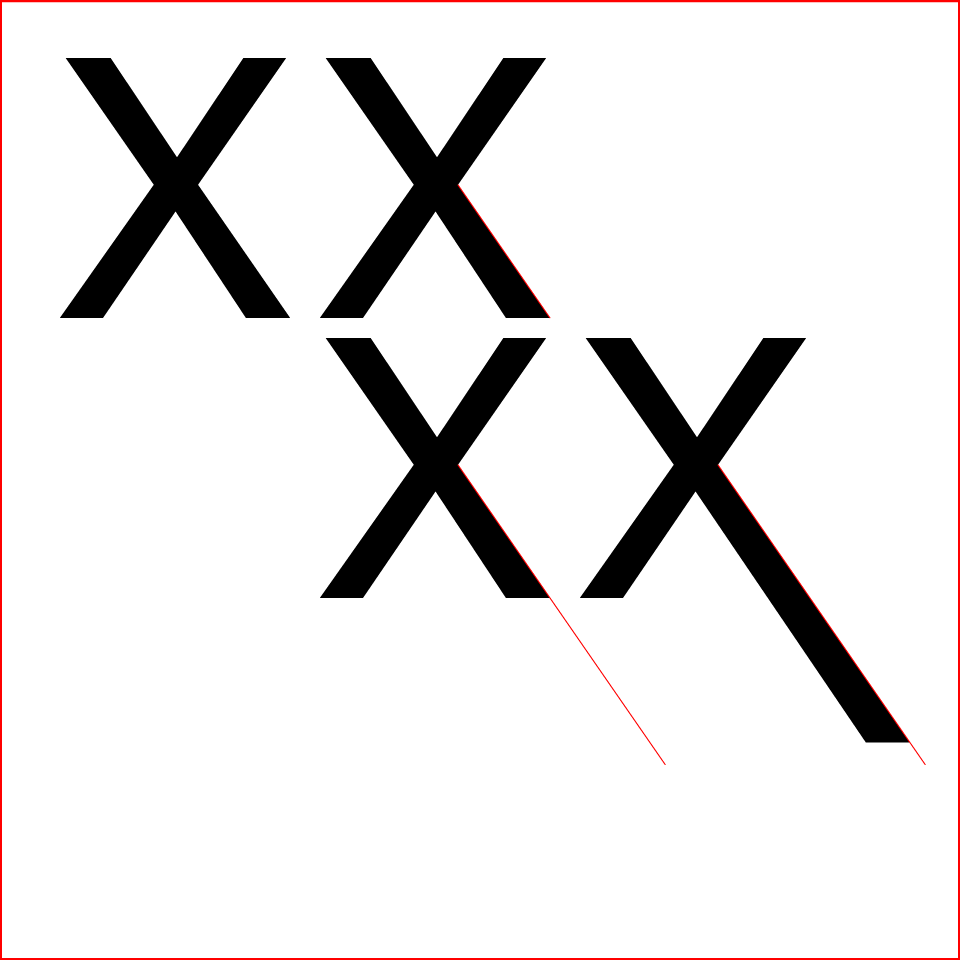
Only the original X shown here,


Click to get closer

1 reply

Jacob Bugge
Community Expert
Community Expert
February 28, 2025

Xander,


As I (mis)understand it, you wish to stretch the right arm and leg (no joke) of the X so their ends go an infinitely long way to the right.


In that case the visible parts of the arm and the leg will just be a horizontal line with a width equalling their combined height at the centre of the X, in other words look like a Y turned +90 degrees.


If you mean that they are to be stretched far to the left but still with the ends visible, which will make them be rather thin at the ends, and presuming you have outlined the X, how about simply doing as follows?


1) Deselect the letter;

2) With the Direct Selection Tool ClickDrag across the outer ends of the right arm and leg (presumably selecting two Anchor Points at the top and two at the bottom);

3) Hold Shift while you ClickDrag this set of Anchor Points left until they are sufficiently far out;


or if you know how far out you wish to move them:


2B) Use Object>Transform>Move and set the Horizontal value to the desired distance.


Shown here with a Helvetica X, the perpetual one continuing past the red boundary,


Click to get closer

Inspiring
March 1, 2025

Hey Jacob,


Sorry, I should've posted a photo. I ended up goign in a different direction but this was the idea at time. Trying to stretch out the limbs of the lettering, but do it without a lot of touch-n-fuss.


Not sure what people do, but it's probably something I'm going to run into again for sure. 

Jacob Bugge
Community Expert
Jacob BuggeCommunity ExpertCorrect answer
Community Expert
March 1, 2025

Xander,


For that kind of change, with Smart Guides being your friends, you can, for either arm or leg or separately for each:


Edit: The following is edited for easier work and fuller descriptions:


1) With the letter shape deselected, Click with the Direct Selection Tool on the outer segment of the leg (or) arm, then Ctrl/Cmd+C+F+X+F (hold Ctrl/Cmd and press C then F then X then F) to create a new path on top of everything (the one shown in red);

2) In the Transform palette Click the relevant corner Reference Point (top left for the leg), then increase the W or H value (you can multiply it by 2 or 3 or more) and press Ctrl/Cmd+Enter to keep the proportions;

3) With the Direct Selection Tool, ShiftClick both the the end Anchor Points of the (arm/)leg, then ClickDrag the outermost end corner along the cuide line as far as desired.


Only the original X shown here,


Click to get closer