
MahaB82A
May 16, 2024
Answered

Stroke in the appearance panel

  • May 16, 2024
  • 4 replies
  • 637 views

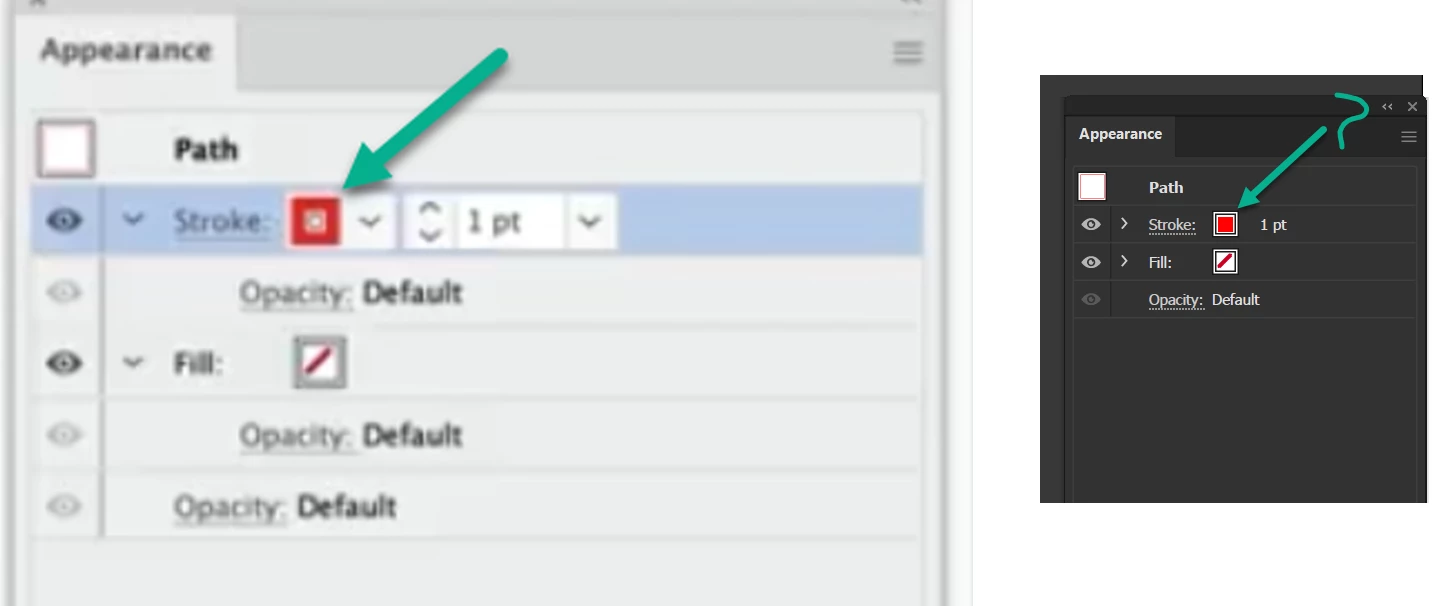
Stroke appeared in two different way in appearance panel. You can notice LHS panel shows small white square inside the big red square. Whereas RHS panael shows solid red color for stroke. Is there any reason for that? image also attached.


This topic has been closed for replies.
Correct answer pixxxelschubser

Please click on the Stroke 'Layer' in the Appearance panel and make it active. Then you will see the difference.
😉


4 replies

Ares Hovhannesyan
Community Expert
Community Expert
May 16, 2024

It depends what is selected in Appearance Panel. If you select stroke it changed to square. The same happen with Fill layer when it is in focus..

pixxxelschubser
Community Expert
Community Expert
May 16, 2024

That shows you that the Stroke is active in the Appearance Panel. (an inactive one is 'only' filled)

Monika Gause
Community Expert
Community Expert
May 16, 2024

One is selected in the panel and the other is not.


Ton Frederiks
Community Expert
Community Expert
May 16, 2024

Yes, it is that simple...

Ton Frederiks
Community Expert
Community Expert
May 16, 2024

Looks like one has the stroke color applied to the layer and the other one just to the path.

MahaB82A
MahaB82AAuthor
May 16, 2024

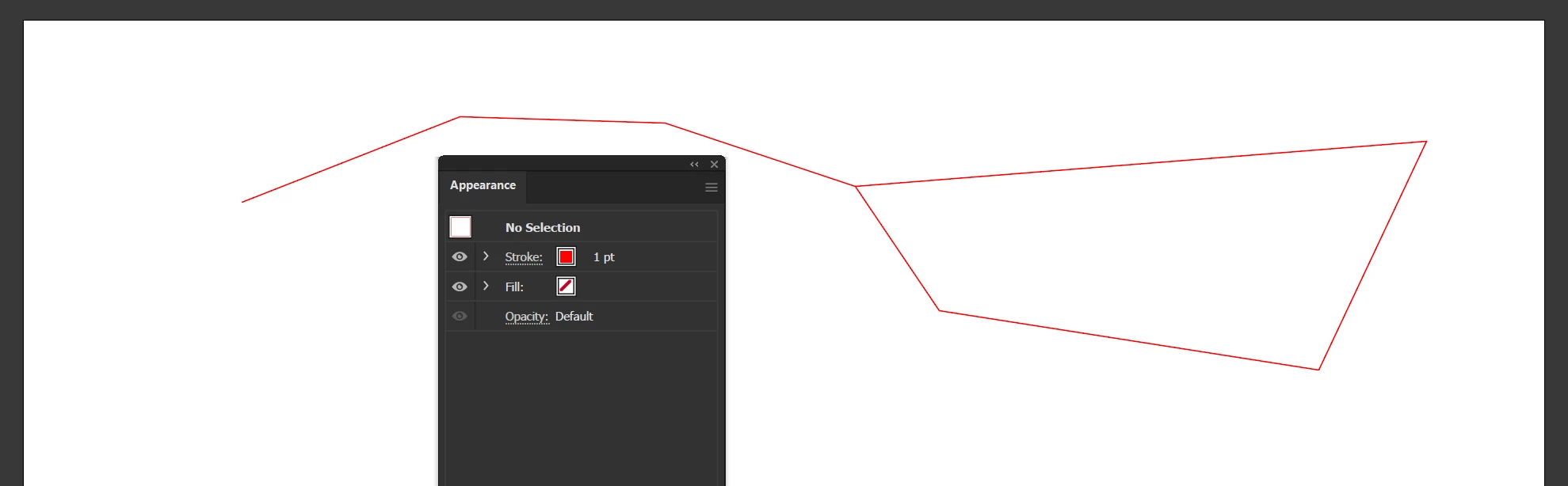
Here is the more explanation.


pixxxelschubser
Community Expert
pixxxelschubserCommunity ExpertCorrect answer
Community Expert
May 16, 2024

Please click on the Stroke 'Layer' in the Appearance panel and make it active. Then you will see the difference.
😉