
Participant
August 2, 2022
Answered

Stroke scale not matching ruler/document scale.

  • August 2, 2022
  • 3 replies
  • 402 views

Encountered a bug I think:

I'm working on a large map (6'x4'), and the strokes for my state borders have decided to be about 5 times thicker than defined in the stroke dialogue, as you can see in the attached screenshot.
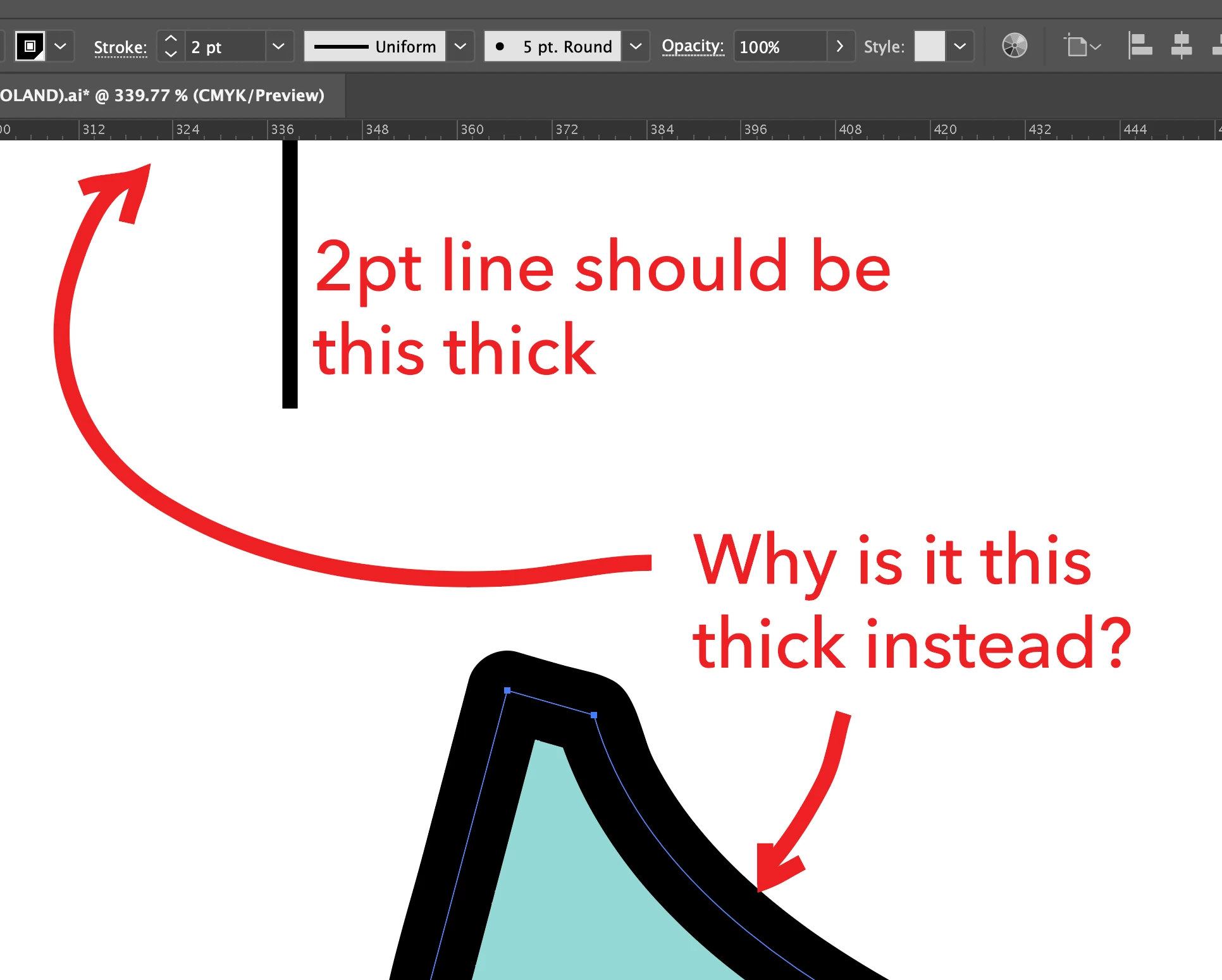
These vectors were copied in from another Illustrator file, and they're the only paths affected. New paths' strokes are scaled correctly.

The overthick stroke cannot be changed or the scale updated. Resetting the stroke to 0pt and back does nothing. Using the eyedropper to copy from a correct path does nothing. Restarting Illustrator or my computer does nothing. 

I'd rather not just redraw my whole map manually. Is there any way to force the scale on these paths to "reset" so it matches the document settings?

-Matt

This topic has been closed for replies.
Correct answer Matthew25488204sxya

Solved it, and the answer was in that screenshot. 
The stroke style is set to 5pt Round instead of Basic, which I usually work in, so the stroke width was being multiplied by 5. That stroke style was inherited from the file I copied from. Changing the style fixed it. Case closed.

3 replies

Matthew25488204sxyaAuthorCorrect answer
Participant
August 2, 2022

Solved it, and the answer was in that screenshot. 
The stroke style is set to 5pt Round instead of Basic, which I usually work in, so the stroke width was being multiplied by 5. That stroke style was inherited from the file I copied from. Changing the style fixed it. Case closed.

Ton Frederiks
Community Expert
Community Expert
August 2, 2022

Is the stroke using the 5pt round brush?

Monika Gause
Community Expert
Community Expert
August 2, 2022

There's a brush applied to it (5 point calligraphic). Delete the brush from the strokes (you need to select Basic from the menu) and then it should work.