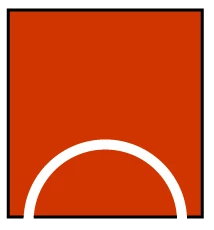
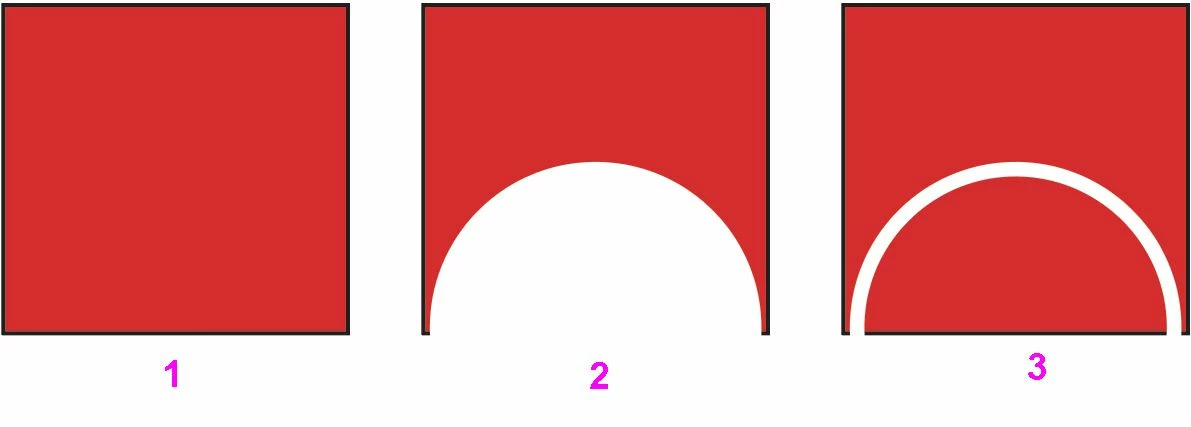
Draw the circle on top of the rectangle. Circle must be on top. Give it a fill of None and give the stroke a color. Adjust the stroke weight to the desired weight.
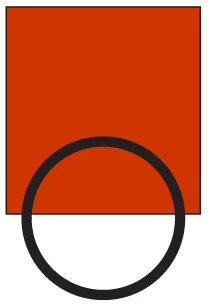
Select only the circle and from the Object menu, choose Path > Outline Stroke.
Select both the circle and the rectangle.
In the Pathfinder panel, click the Minus Front icon.
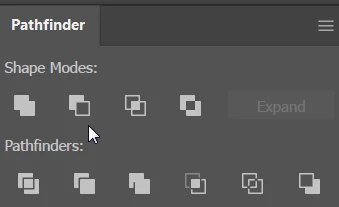
This will result in two grouped paths.
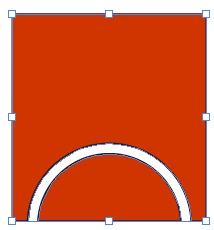
Both will have a stroke. Since you are not showing a stroke on the inner circle, you would either need to follow Ton Frederik's instructions, or you could do the following:
Remove the stroke from both shapes.
With the white arrow Direct Selection tool, carefully click just the edges where you want the stroke (After clicking the first edge, hold down Shift to add to the selection.)
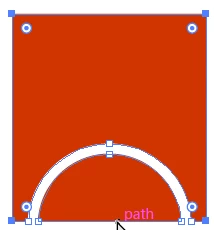
Choose Edit > Copy, then Edit > Paste in Front.
Remove the fill color and apply a stroke color.
The stroke will be a separate object so you may want to Object > Group everything.



 AdChoices