
tylerlwhite
Participating Frequently
August 24, 2017
Question

Subtracting a "donut" from another shape?
  • August 24, 2017
  • 5 replies
  • 1884 views

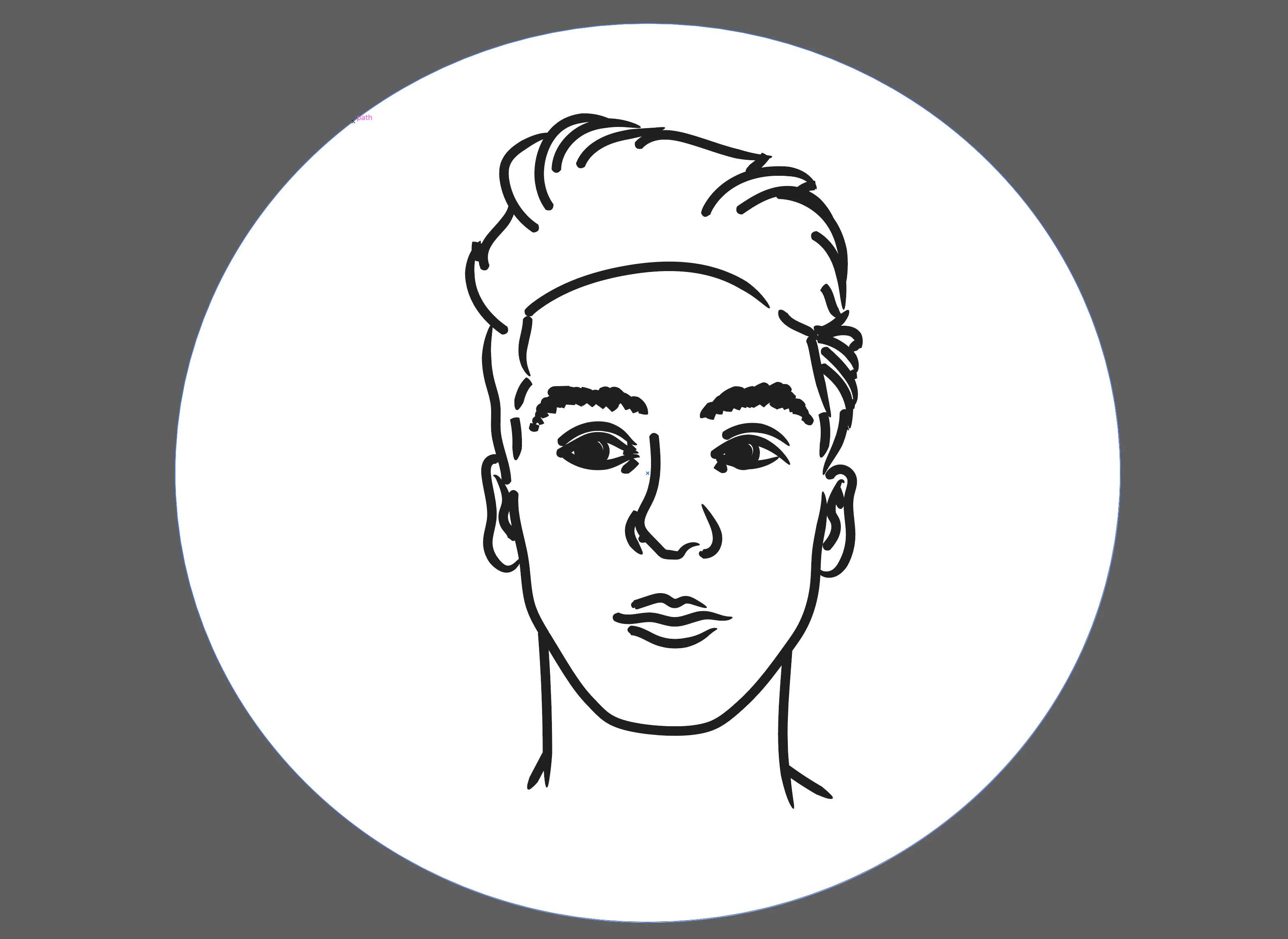
How could I subtract this shape from this face ( I turned it into a shape using expand ten join in pathfinder) without losing the transparent areas between the strokes? I hope this isn't an obvious question because I have been searching everywhere for an answer without any luck.

Than you so much for taking your time to read this!

This topic has been closed for replies.

5 replies

tylerlwhite
Participating Frequently
September 1, 2017
Monika Gause
Community Expert
Community Expert
September 1, 2017

That file just worked:

Adobe Creative Cloud

tylerlwhite
Participating Frequently
September 9, 2017

Using your exact instructions?? Sorry I must have not followed them correctly

tylerlwhite
Participating Frequently
September 1, 2017

Hey guys sorry for the delayed response. I ended up just making it a png, image tracing it, then trying it again with success. Sorry for the nobody solution but it accomplished what I needed perfectly. I'll still grab the original file and upload it.

JETalmage
Inspiring
August 26, 2017

...the only possible reason why a compound path would look like that is duplicate paths.

Actually, that's not the only possible reason. Similar problems often occur in Illustrator due to improperly set winding rules. But that's why the file needs to be examined to find out what exactly is going on. Sloppy use of Pathfinders can result in all kinds of confused constructs.

Otherwise, step back to your original paths before your use of Pathfinders. Then select all (including the dark "background" object) and try clicking the Merge Pathfinder. If that seems to yield what you want, then select the fills of any paths that you want to be "transparent" regions and delete them.

But yeah, like Monika, I much prefer to explain what a problem is so it can be avoided in the future, rather than just provide some guessing-game fix that just happens to work for the immediate situation.

JET

Monika Gause
Community Expert
Community Expert
August 26, 2017

JETalmage  schrieb

...the only possible reason why a compound path would look like that is duplicate paths.

Actually, that's not the only possible reason. Similar problems often occur in Illustrator due to improperly set winding rules.

The fill rule should already be set to Even-Odd (see #3), so the holes should be there.

Jacob Bugge
Community Expert
Community Expert
August 24, 2017

Tyler,

As I (mis)understand it, with features drawn in black and forming a Group (or Compound Path), regardless of structure (stroked paths/filled paths of whichever kinds and compositions), you may select everything, then in the Transparency palette flyout click Make Opacity Mask with both Clip and Invert Mask ticked.

tylerlwhite
Participating Frequently
August 24, 2017

This is the result.

Jacob Bugge
Community Expert
Community Expert
August 25, 2017

Tyler,

Sorry, a small but crucial correction:

With features drawn in black and forming a Group (or Compound Path), regardless of structure (stroked paths/filled paths of whichever kinds and compositions), you may select everything except the dark background object, then in the Transparency palette flyout click Make Opacity Mask with both Clip and Invert Mask ticked.

Monika Gause
Community Expert
Community Expert
August 24, 2017

You want his face to punch through the white circle?

Make a compound path.

tylerlwhite
Participating Frequently
August 24, 2017

This is my result when I try to make a compound path.

Monika Gause
Community Expert
Community Expert
August 24, 2017

You only need to select a different fill rule for this.

Open the attributes panel and "Show options" from its menu.

Then click the button "Even-Odd".