gshooty
Participating Frequently
June 1, 2026
Answered

Suddenly, Illustrator prints black as green. I have not made any setting changes.

  • June 1, 2026
  • 9 replies
  • 78 views

I have seen similar post involving “Raster Link” (whatever that is), but it was for a laptop and the solutions did not apply to a desktop. This problem is for a desktop and I have used this illustrator worksheet to print business cards for at least a year with no issues.  Now suddenly black prints out as green!  I have tried a few things with the settings to no avail. I have updated drivers, etc. Why would things be going along nicely then boom, black becomes green? I should mention this issue is only with Illustrator.  Photoshop is not affected nor any other program that prints.  All else comes out in black.

    Correct answer Mike_Gondek10189183

    If you say it is only Illustrator then save a copy as pdf and printer though Acrobat if you need something. 


    That could obviously happen if you were low on magenta or black ink, or had clogged jets. But htat would affect all apps.

    The more thorough reset has heled in problems that the quick one did not solve.  I am on mac most of the time so cannot double check my old notes are still correct. If anyone else has the correct action for 2026 please share. Google is coming up with a similar location just not roaming 


    • Close Illustrator
    • delete: %AppData%\Adobe\Adobe Illustrator <version> Settings


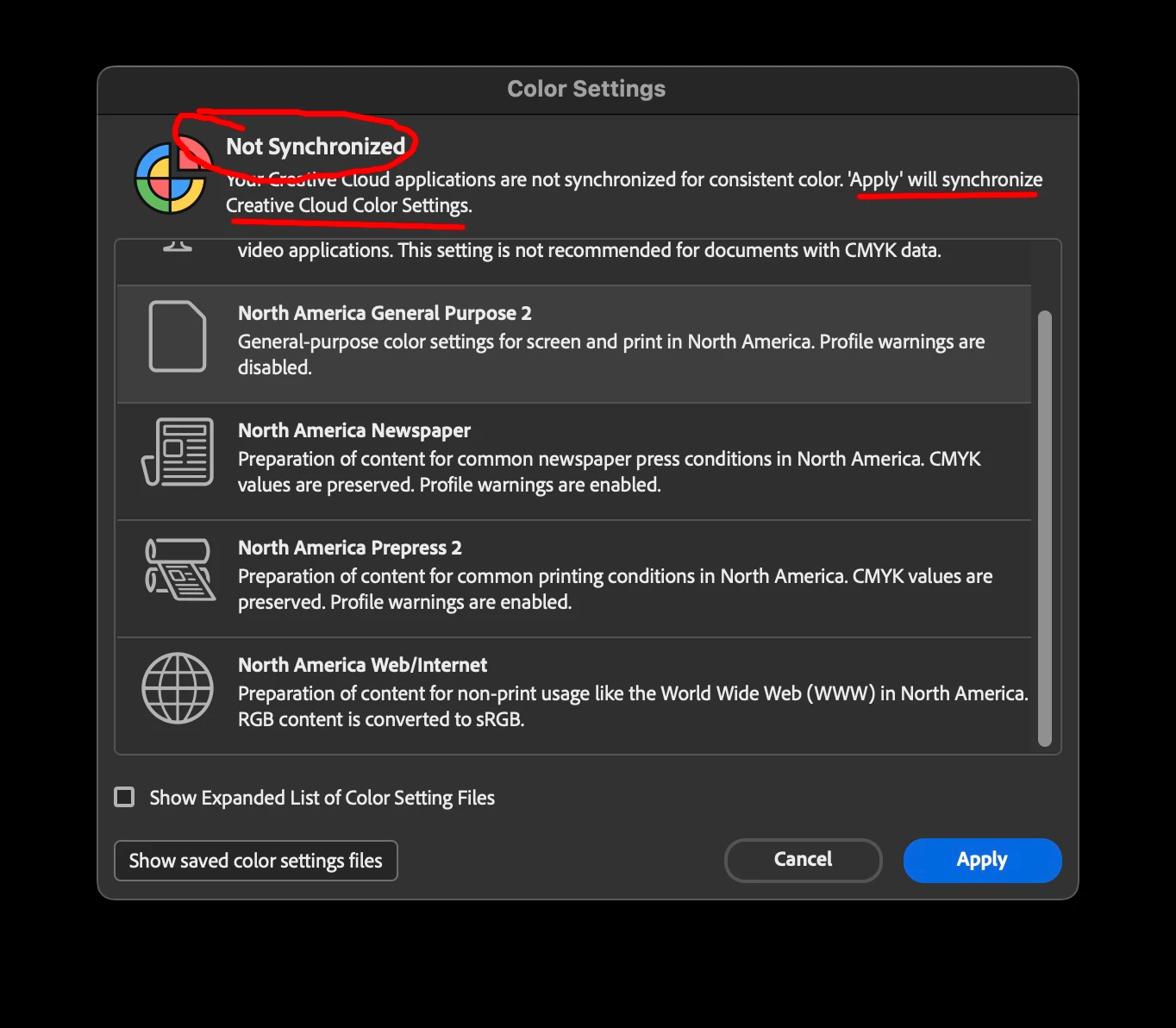
    we also should look at your edit » color Settings (choose North American General Purpose 2)


    Even better I like to go to Adobe Bridge and  use edit » Color Settings. That will set all your apps to the same.


    9 replies

    gshooty
    gshootyAuthor
    Participating Frequently
    June 12, 2026

    Mike_Gondek10189183 was very helpful in solving this issue.  While he put forth many great possibilities, it was the most simple one that fixed it: out of ink!   As he suggested, my printer must have ran out of magenta ink before the low color ink warning light came on, but when I replaced the color cartridge the problem was solved!  Thanks Mike!

    Mike_Gondek10189183
    Community Expert
    Community Expert
    June 8, 2026

    So I see that the greenish blacks happens in Illustrator and Acrobat, but not in word.

    Can we see what you haev in your edit >> color settings. Here are mine:


    Anubhav M
    Community Manager
    Community Manager
    June 8, 2026

    Hi @gshooty,
     

    Following up to see if our experts' suggestions resolved the issue. If they did, kindly mark the helpful reply as the correct answer so others facing the same problem can find it.

    If you're still stuck, please share the steps you've tried so far along with what you observed — that'll help us take the next step.


    Looking forward to your update.

    Anubhav

    gshooty
    gshootyAuthor
    Participating Frequently
    June 3, 2026

    I actually did try printing the file through Acrobat and still green.  I have done a lot of test printing and now the color ink needs to be changed now.  Maybe you’re right about the magenta running out.  Maybe it was the first to go before the indicator light came on? 

    Mike_Gondek10189183
    Community Expert
    Community Expert
    June 4, 2026

    You mentioned this only happens in Illustraor, but do a test in some other non-Adobe program to see if black prints.This will help us narrow that problem down to being the printer, or software. 

    If this is an inkjet you should have a nozzle cleaning/test to run. It wil print thin lines, and if lines are missing you know the nozzles need cleaning.

    If you need more help let us know the model of your printer. Much appreacited if you come back and let us know the solution when you find, as this helps others, and builds up a great resource for helping people.

    Mike_Gondek10189183
    Community Expert
    Mike_Gondek10189183Community ExpertCorrect answer
    Community Expert
    June 2, 2026

    If you say it is only Illustrator then save a copy as pdf and printer though Acrobat if you need something. 


    That could obviously happen if you were low on magenta or black ink, or had clogged jets. But htat would affect all apps.

    The more thorough reset has heled in problems that the quick one did not solve.  I am on mac most of the time so cannot double check my old notes are still correct. If anyone else has the correct action for 2026 please share. Google is coming up with a similar location just not roaming 


    • Close Illustrator
    • delete: %AppData%\Adobe\Adobe Illustrator <version> Settings


    we also should look at your edit » color Settings (choose North American General Purpose 2)


    Even better I like to go to Adobe Bridge and  use edit » Color Settings. That will set all your apps to the same.


    gshooty
    gshootyAuthor
    Participating Frequently
    June 2, 2026

    Thanks Mike for the detailed reset instructions!  I use WIN (but may convert soon) and I failed to let you know earlier this is a CMYK file, not RGB. I did the quick WIN reset to clear the ram as you suggested.  I also renamed the files I intend to use, which are being stored in an external hard drive. I didn't quite follow the last stage of your solution as I got hung up on the “Settings\en_US*\x64\Adobe Illustrator Prefs” part, but I wrote that off as just a more thorough version of your solution. Hope that wasn’t a bad assumption on my part.  Anyway, long story short, it still has the green problem.  I hate to buy another printer risking that not being the issue, but I did notice something that now points me to the direction. When I copied your instructions and dropped them into a new MS Word worksheet it randomly printed green on much of the page which should have been either black or blue (for links).  I selected the entire page, set the color to auto and it printed all in black.  My cheap Canon printer is getting some age so just maybe that is the real problem.  

    Thanks again for your help, it is greatly appreciated!  

    Mike_Gondek10189183
    Community Expert
    Community Expert
    June 2, 2026

    PREFS  RESET (quick)

    Press and hold the 3 modifier keys as you start Illustrator. The new preferences files are created the next time you start Illustrator.

    • Alt+Control+Shift (Windows)
    • Option+Command+Shift (macOS) 


    PREFS  RESET MAC (more thorough)
    Quit Illustrator (100% must quit as your prefs reside in RAM after loaded)
    (HOLD DOWN OPTION) Finder >> Go >> Library (this is the user library)
    rename these 3 folders to Adobe Illustrator XX to Adobe Illustrator XXold

    • ~/Library/Application Support/Adobe/Adobe Illustrator XX/
    • ~/Library/Caches/com.adobe.illustrator
    • ~/Library/Preferences/Adobe Illustrator XX Settings/

    And also this location, if the issue happens for all users

    • Macintosh HD/Library/Application Support/Adobe/Adobe Illustrator XX/


    PREFS  RESET WIN
    <OSDisk>\Users\<username>\AppData\Roaming\Adobe\Adobe Illustrator <version number> Settings\en_US*\x64\Adobe Illustrator Prefs

    Mike_Gondek10189183
    Community Expert
    Community Expert
    June 2, 2026

    Is your file CMYK?

    File >> Document Colro Mode >>CMYK

    Community Expert
    June 1, 2026

    If everything was working properly before and no settings were changed I would suspect an issue with the printer, such as a faulty print head.


    BTW, RasterLink is a large format printing RIP application. Art files are prepared in apps like Illustrator or InDesign and then PDFs of those files are brought into RasterLink Pro to output the files.

    gshooty
    gshootyAuthor
    Participating Frequently
    June 1, 2026

    MS Word print black as black when I tested it.  If it was the print head wouldn’t you think it do the same across the board… meaning everything black would now be green? Thank you, I appreciate your response!

    Community Expert
    June 1, 2026

    The issue might still depend on the nature of the black color being printed. A "100% K" black will only use black ink. A "rich black" will use some combination of all four CMYK inks -either defined automatically by an application like Illustrator or numerically entered by the user.


    If MS Word is printing full color elements properly as well as black then I would wonder about the nature of the artwork in the Illustrator files combined with the kind of printer being used to print the cards. For instance, we have an office laser printer that frankly does a terrible job printing Illustrator-generated artwork if the artwork has any complex clipping masks/groups or any transparency effects. Our large format RIP applications and printers handle that stuff just fine due to the RIP applications having Adobe certified PDF print engines. Our office laser printer can't understand Adobe PDF natively and has to try emulating it and often fails doing so.