theTrueRobomonster
Participant
July 20, 2017
Answered

Take many different shapes and arrange them into a swoosh formation that tapers at one end.

  • July 20, 2017
  • 2 replies
  • 632 views

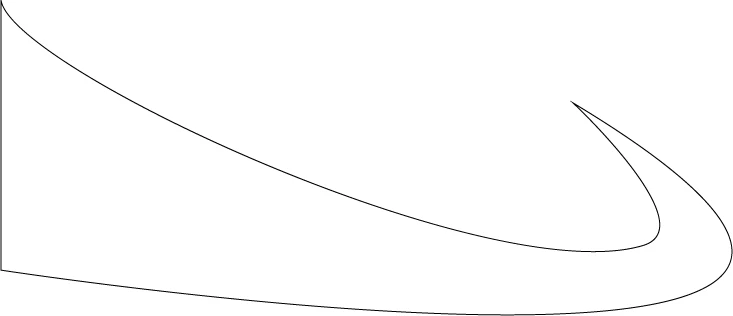
I don't know if that title is clear but I want leaves to "swoosh" from left to right. The left side should have many leaves that are almost indistinct from one another and reduce in number as they "swoosh" to the right. I also need to be able to change the shape from leaves to anything I make. Also also I need to be able to rotate the shapes. So I basically want to create a controlled particle effect that follows constraints in the form of a swoosh.
This topic has been closed for replies.
Correct answer Monika Gause

Sounds like a Scatter brush might do it.

But you could only control the numbers when using pressure input from a graphic tablet, which might require quite some practice.

You could try with more than one stroke.

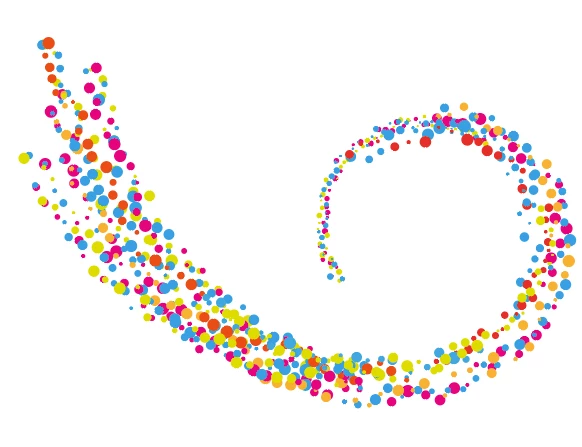
This is the same scatter brush (it's just a circle, you could create other shapes)

It has different settings on each of the strokes.

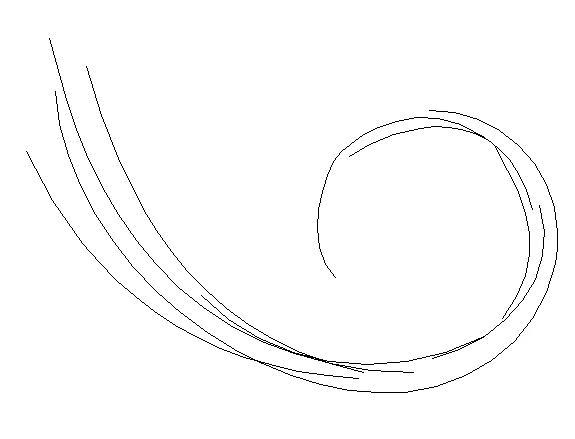
These are the strokes:

You could also try the plugin FilterIT by cvalley.com. It has a module for arranging symbols along a path.

2 replies

sharp_hands16B8
Community Expert
Community Expert
July 20, 2017

So first let me say that I find this to be MUCH easier with a stylus like a Wacom because I can use pressure controls to allow the leaves to be bigger where I push harder and smaller where I push lighter. Regardless of that, to do an effect like this, you want to use a scatter brush if you're going to do it in Illustrator. You may want to get the array of leaves down first and then Warp them into a shape like the one you've drawn. That would be a two step process.

To get you started, learn about the controls in the Scatter Brush in Illustrator.

With the leaves scattered along the path you can use the cut tool to chop the path into multiple segments. Then if you select each segment and change the stroke weight of the path, the leaves will react and get smaller or bigger relative to the stroke. That's why the scatter options are a percentage measurement, it's relative to the path/source size.

Monika Gause
Community Expert
Monika GauseCommunity ExpertCorrect answer
Community Expert
July 20, 2017

Sounds like a Scatter brush might do it.

But you could only control the numbers when using pressure input from a graphic tablet, which might require quite some practice.

You could try with more than one stroke.

This is the same scatter brush (it's just a circle, you could create other shapes)

It has different settings on each of the strokes.

These are the strokes:

You could also try the plugin FilterIT by cvalley.com. It has a module for arranging symbols along a path.

theTrueRobomonster
Participant
July 20, 2017

This is perfect thank you.