
Participant
October 24, 2018
Question

Target icon shows appearance applied, but can't clear appearance

  • October 24, 2018
  • 4 replies
  • 1104 views

I'm working with some text objects in AI 22.0.1.

In the Layers panel, the target icon is filled in, which (as I understand it) usually means that a non-default appearance is applied to the object. However, the options to "Clear Appearance" and "Reduce to Basic Appearance" are grayed out/unavailable in the Appearances panel. (Clicking "Show All Hidden Attributes" doesn't do anything either.)
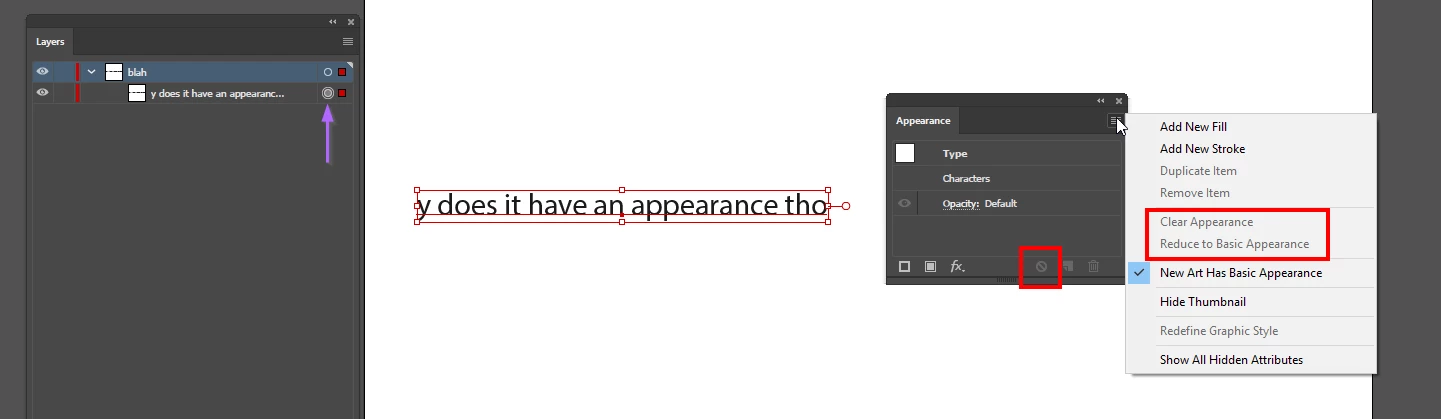
Does the filled target icon mean something else in this instance and/or is there another way to empty it? (I work with a production graphics team, and checking for and clearing filled in target icons is the fastest way for us to standardize some of our text in our exported files.)

This topic has been closed for replies.

4 replies

Ares Hovhannesyan
Community Expert
Community Expert
August 21, 2023

Did you try to reset preferences? 

kenm71594637
Participant
August 21, 2023

I'm sure Adobe will not explain or fix

Monika Gause
Community Expert
Community Expert
August 21, 2023

@kenm71594637  schrieb:

I'm sure Adobe will not explain or fix


This post is 5 years old. If you have the same issue, please post screenshots.

We need: the object selected AND the appearance panel.

tromboniator
Community Expert
Community Expert
October 25, 2018

If I add a new fill at the Type level

and select a fill of No Fill

I get the same result.

The empty fill is no longer accessible to change of to delete. The only way I've found to clear it is to delete the type object and create it from scratch.

Peter

Participant
October 24, 2018

Also of note, if i create new text objects from scratch, and use the eyedropper tool for them--even to apply attributes from other from-scratch text objects with empty target icons--the target icons for these fresh objects also become filled in, but the "Clear Appearances" button is grayed out/unavailable.