
RabDyer
Participant
March 17, 2023
Answered

Text on 3D stairs

  • March 17, 2023
  • 4 replies
  • 1163 views

Hi all,

Illustrator beginner here.

Can anyone assist. I have searched the internet and coming up short.

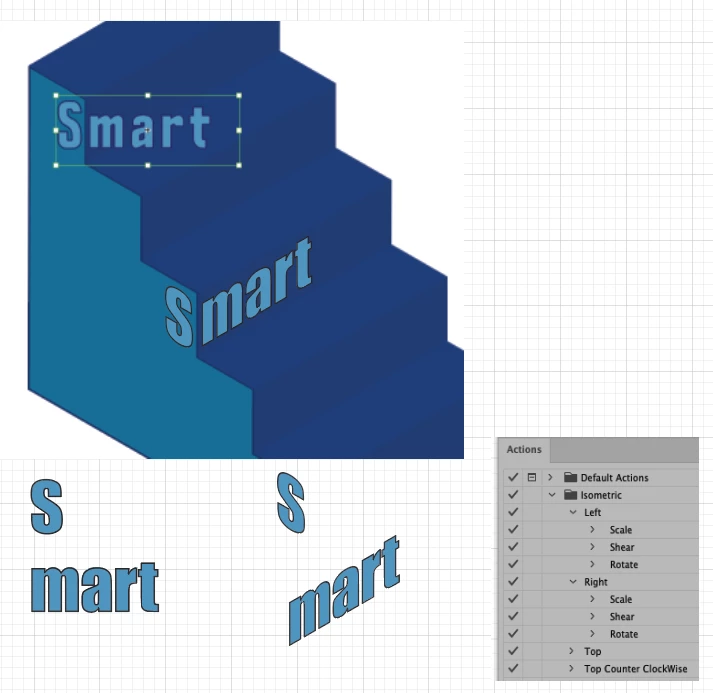
As per the image below, I am trying to mould the text around the stairs so that the 'S' is on the wall of the stairs, and the 'mart' is on the actual stair. So it looks like the text is 3D wrapping round from the wall on to the stairs,

I can't seem to find anything online, but i did see a cool video on Illustrator that showed something like this, but i can't find it again. Any help would be greatly appreciated.
This topic has been closed for replies.
Correct answer kphotopage

RabDyer, Hi.


Set your type.

S

mart


I ran this Isometric Action.

(Maybe someone knows that link to download. It was free.)

Place type on your steps.


K


Edit: I found the link to that Action.

https://rj-graffix.com/software/actions.html

It still works. 😀

I'm using Illustrator 2020

4 replies

RabDyer
RabDyerAuthor
Participant
March 18, 2023

Thank you all for your assistance. Very much appreciated and I can now do what I was looking to do.

Thank you again.

Jacob Bugge
Community Expert
Community Expert
March 18, 2023

For my part you are welcome, RabDyer.


kphotopage
kphotopageCorrect answer
Legend
March 18, 2023

RabDyer, Hi.


Set your type.

S

mart


I ran this Isometric Action.

(Maybe someone knows that link to download. It was free.)

Place type on your steps.


K


Edit: I found the link to that Action.

https://rj-graffix.com/software/actions.html

It still works. 😀

I'm using Illustrator 2020

Jacob Bugge
Community Expert
Community Expert
March 17, 2023

RabDyer,


To match the simple style of the stair, I would suggest this, which you can do with live Type (editable, not outlined):


1) Split the text in to the S and the mart;

2) Move the mart to the stair side, give it a vertical shear matching the direction of the stairs: Object>Transform>Shear, tick Vertical, and insert a negative Shear Angle, then use Privew and readjust until it fits, then set the size and position;

3) Move the S to the wall and do the same, only with a positive angle;

4) Fine adjust the S/mart to fit each other, including (the extensions of) their Baselines meeting at the corner.


Monika Gause
Community Expert
Community Expert
March 17, 2023

You could check out the Free transform tool: https://youtu.be/gwjJaS9bnvs