Tousje_
Participant
October 18, 2016
Answered

Text on a path upside down

  • October 18, 2016
  • 2 replies
  • 75680 views

Hi there,

I just cant get my text the right way? i need it to be like the picture next to it but its always upside down.
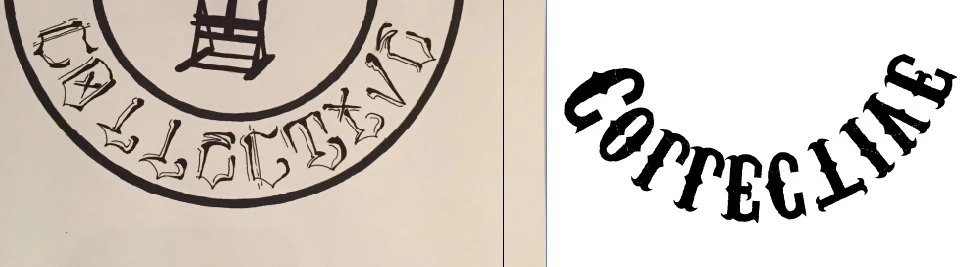

This topic has been closed for replies.
Correct answer Monika Gause

That's because of the text path direction.

You can either

- correct path direction

- Change it in Text > Path text > Options

- Flip it on the artboard

How to create type on a path in Illustrator

2 replies

allisynm78625417
Participant
October 27, 2019

None of these solutions will accomplish the goal. 


You need to create another path that is aligned differently and then place the text on the TOP of the path. 


1. Go to View > Outline (or type Command Y) so you can easily see the paths for your text.

2. Look at the text on the path that you have created, and draw another circle that lines up with the top of the text (which is actually at the bottom because it's upside down). 

3. delete the top point from your new circle with the Direct Selection Tool (A). 

4. cut and paste your upside down text into the NEW path. Make sure your text is on the TOP of the path. It should be nicely aligned with the old path, except now it's right side up because it's on the new path.


STEP 2

STEP 3

STEP 4

Monika Gause
Community Expert
Monika GauseCommunity ExpertCorrect answer
Community Expert
October 18, 2016

That's because of the text path direction.

You can either

- correct path direction

- Change it in Text > Path text > Options

- Flip it on the artboard

How to create type on a path in Illustrator

Tousje_
Tousje_Author
Participant
October 18, 2016

No that doesnt do it for me

Mike_Gondek10189183
Community Expert
Community Expert
October 18, 2016

You should be able to get to where you want   using Monika's suggestion.

You can also change align to path setting in screenshto above,  or use baseline shift in the character palette if needed to get your vertical centering.