Participant
July 12, 2018
Answered

Texture on a multiple shape / color vector?
  • July 12, 2018
  • 2 replies
  • 1313 views

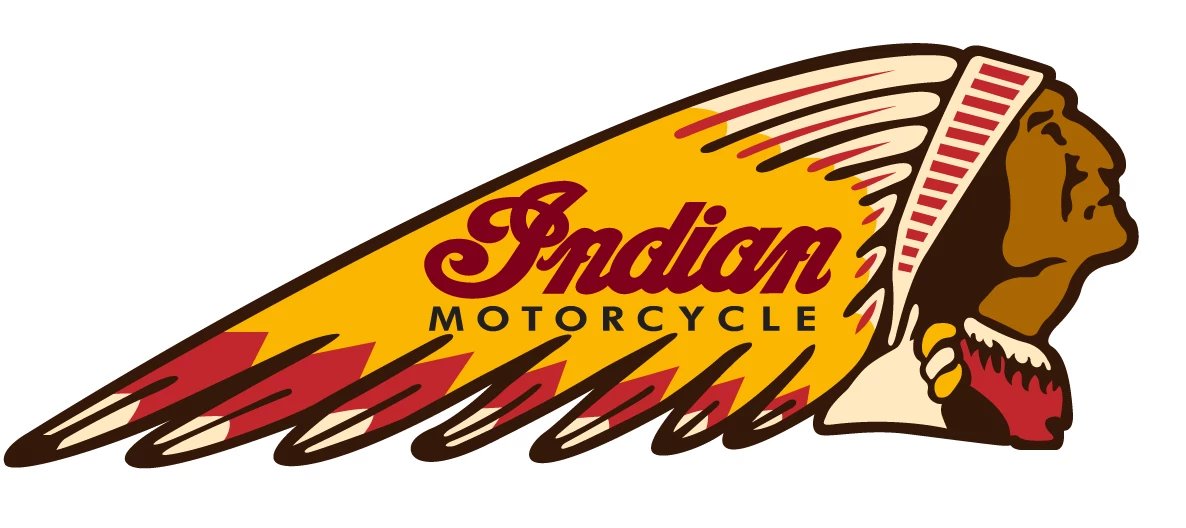
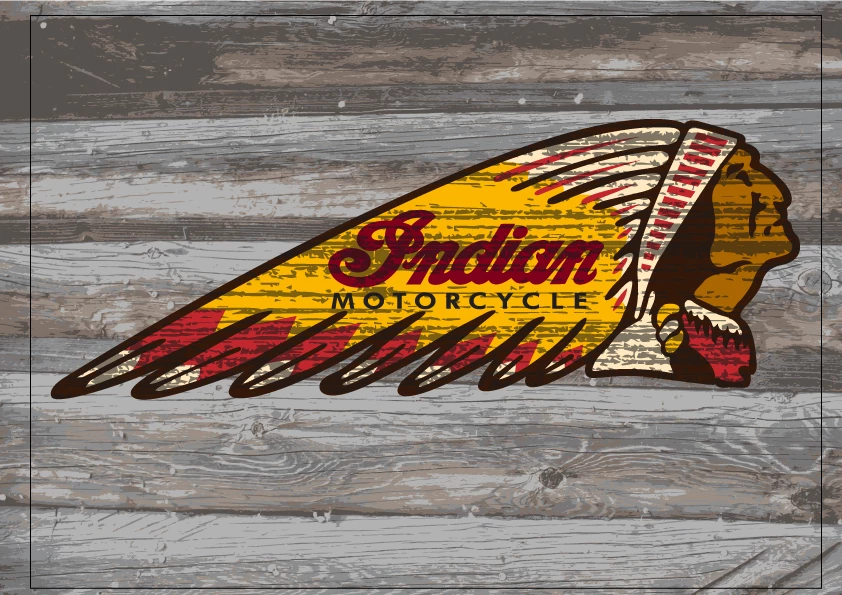
I want to create a cut thru weathered look on a multiple color / shape object similar to this.  (I know about copyright and this is just an example)  All the examples I can find to create a grunge or weathered look to allow anything placed under the image are for objects of ONE color.    Thanks a million!!!!!
    This topic has been closed for replies.
    Correct answer michelew83603738

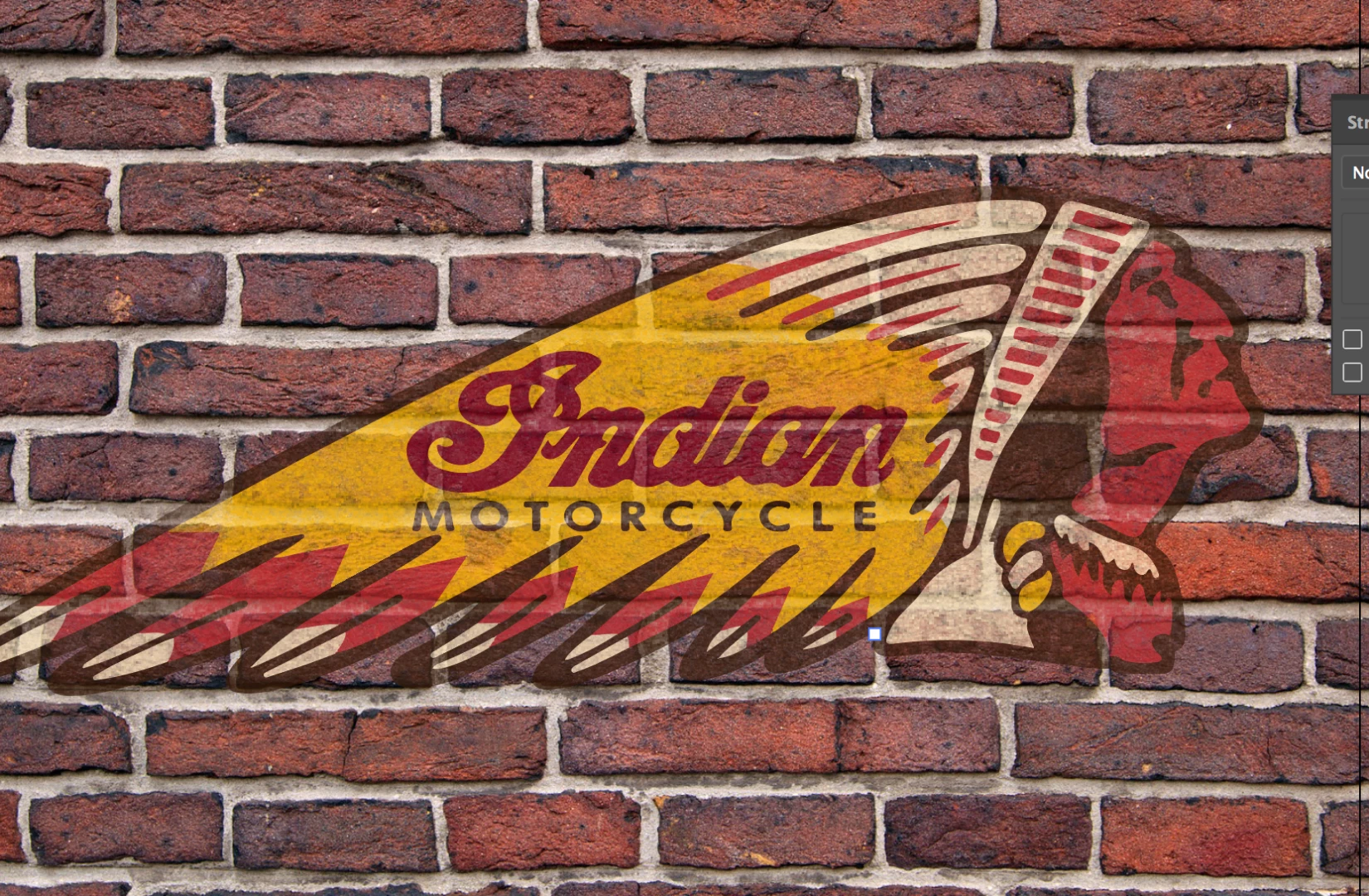
    I have done that.   This is what I had.  However I wanted it to be a true removal of the logo and showing ANY background that I put behind it.  This is as close as I could get.


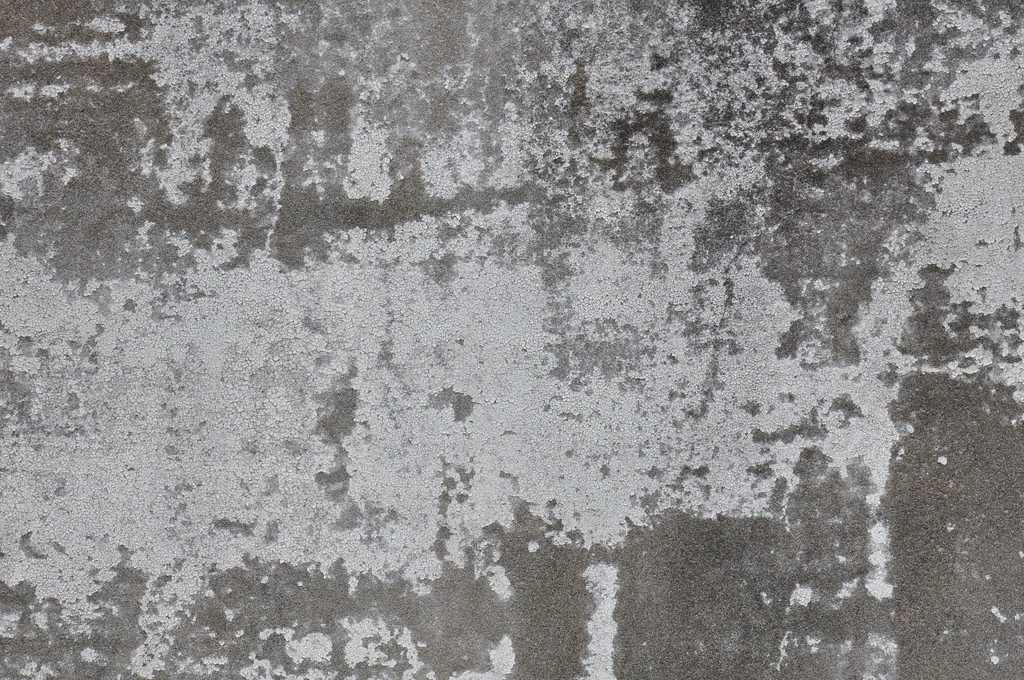
    It is a true removal, depending on the texture that you use. Here I used one texture in the mask and put it against a brick wall. The mask had alot of black in it - so a lot of opacity and so much of the brick wall shows thru. It just depends on the mask you pick.

    Here is the masking image.

    2 replies

    chanaart
    Community Expert
    Community Expert
    July 13, 2018

    You can also try Opacity Mask. and make sure the shape or image on the mask with have great transition!

    1. Blending mode

    2. Opacity

    3. Apperances

    Myra Ferguson
    Community Expert
    Community Expert
    July 12, 2018

    You could try taking an image of a texture, putting it on a layer above the multi-colored art, and use a combination of blend modes and opacity on the texture. That technique will make it apply to the rest of the image regardless of the number of colors.

    proskinzAuthor
    Participant
    July 12, 2018

    Agreed but it will not show thru (cut out) to whatever I have behind the logo.

    Myra Ferguson
    Community Expert
    Community Expert
    July 12, 2018

    In that case, select both the texture and the multi-colored artwork, go to the Transparency panel, and click Make Mask.