

DaliArri
Participant
April 26, 2026
Question

The account you signed in with does not have access to this file

  • April 26, 2026
  • 2 replies
  • 43 views

Estoy teniendo un problema al intentar abrir un archivo desde la sección “Proyectos” en mi cuenta de Adobe.

Problema

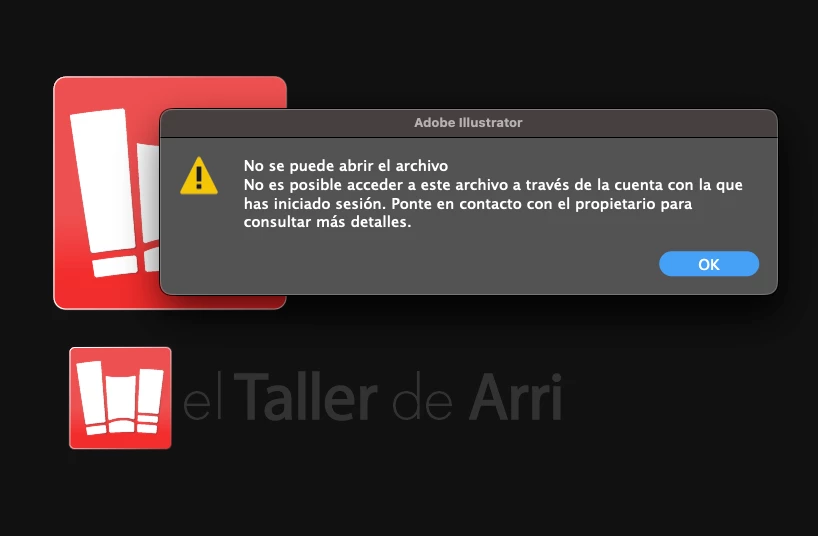
Al abrir el archivo en Illustrator aparece el siguiente mensaje:

“No es posible acceder a este archivo a través de la cuenta con la que has iniciado sesión…”

Contexto

  • Estoy usando mi cuenta habitual de Adobe (mismo correo de siempre).
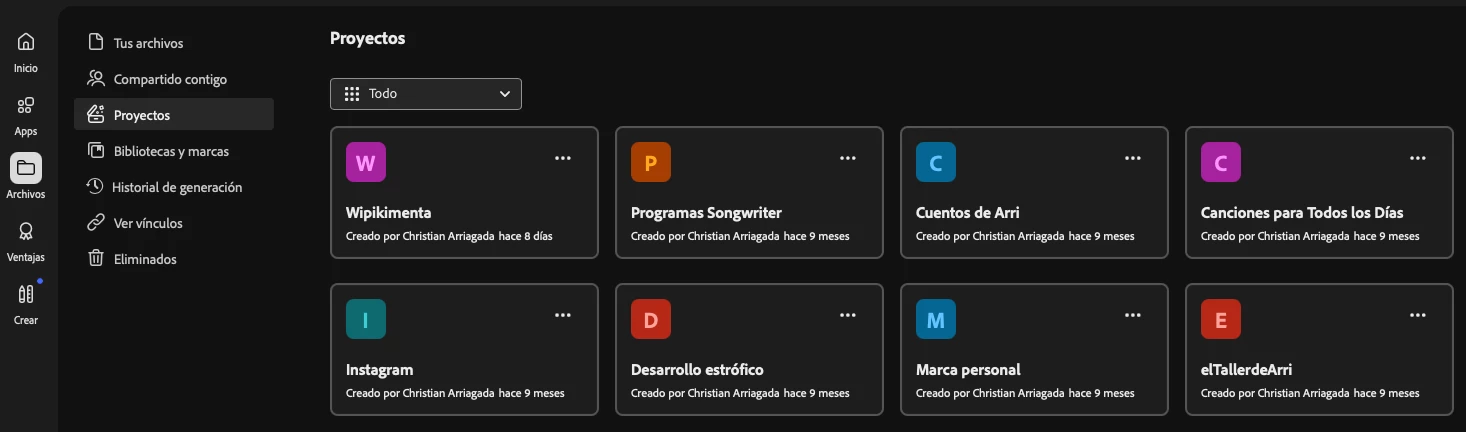
  • El archivo sí aparece en la sección “Proyectos/elTallerdeArri” (no en Bibliotecas).
  • El proyecto fue creado por mí (figura como “Creado por [mi nombre]”).
  • Trabajo en macOS.
  • El archivo esta almacenado en la nube de Adobe (no local).

Objetivo

Poder abrir el archivo normalmente en Illustrator.

Dudas específicas

  1. ¿Puede haber un problema de permisos aunque el proyecto figure como creado por mí?
  2. ¿Existe alguna diferencia de propiedad o acceso entre “Proyectos” y archivos locales/bibliotecas?
  3. ¿Puede estar asociado a otro perfil (personal vs empresa) dentro de la misma cuenta?
  4. ¿Cómo puedo recuperar o forzar el acceso a ese archivo?

Información adicional

  • No he cambiado de cuenta ni de plan recientemente.
  • El archivo no fue movido manualmente a otra cuenta (al menos no conscientemente).
  • El problema ocurre directamente al intentar abrirlo desde Adobe.

Cierre

Agradezco cualquier orientación para entender por qué ocurre este conflicto de permisos y cómo recuperar el acceso al archivo.


    2 replies

    DaliArri
    DaliArriAuthor
    Participant
    April 28, 2026

    Gracias! Lo voy a intentar.

    Anubhav M
    Community Manager
    Community Manager
    April 27, 2026

    Hello ​@DaliArri 


    I’m sorry to hear about your experience. Our product team is currently investigating this issue. Would you mind trying the following steps and letting us know if they help:

    • Go to System Settings > General > Login Items > Enable CC Library.
    • Relaunch Illustrator

    If it’s already enabled, remove it from the items, re-enable and then quit and relaunch the Creative Cloud Desktop app and Illustrator to see if it helps.

    If the problem persists, try enabling Full Disk Access for the Creative Cloud Desktop app from system preferences, restart your computer and relaunch to see if it helps.

    If the steps above failed, try the following steps and let us know how it goes:

    • Close all Adobe applications
    • Remove the Creative Cloud Desktop app, Core Sync, CC Library and Illustrator using the Creative Cloud Cleaner Tool (https://helpx.adobe.com/creative-cloud/kb/cc-cleaner-tool-installation-problems.html)
    • Reinstall the Creative Cloud Desktop application (https://helpx.adobe.com/download-install/kb/creative-cloud-desktop-app-download.html)
    • Reinstall and relaunch Illustrator


    Looking forward to hearing from you.
    Anubhav