
peterg84691840
Participant
May 12, 2018
Answered

The stroke is showing through the fill on the same layer

  • May 12, 2018
  • 3 replies
  • 1688 views

When I make two shapes on the same layer, I put the brown one above the grey one, but sometimes when this happens, the stroke of the grey shape shows through the fill of the brown shape. The transparency of the brown one is 100% and I try to send the grey one to the back, nothing happens.

(when I delete both shapes and the layer and start over, it fixes it, but I want to know why this happens so I don't get too far in my project and have to delete everything.)
Correct answer cosmo_lachie

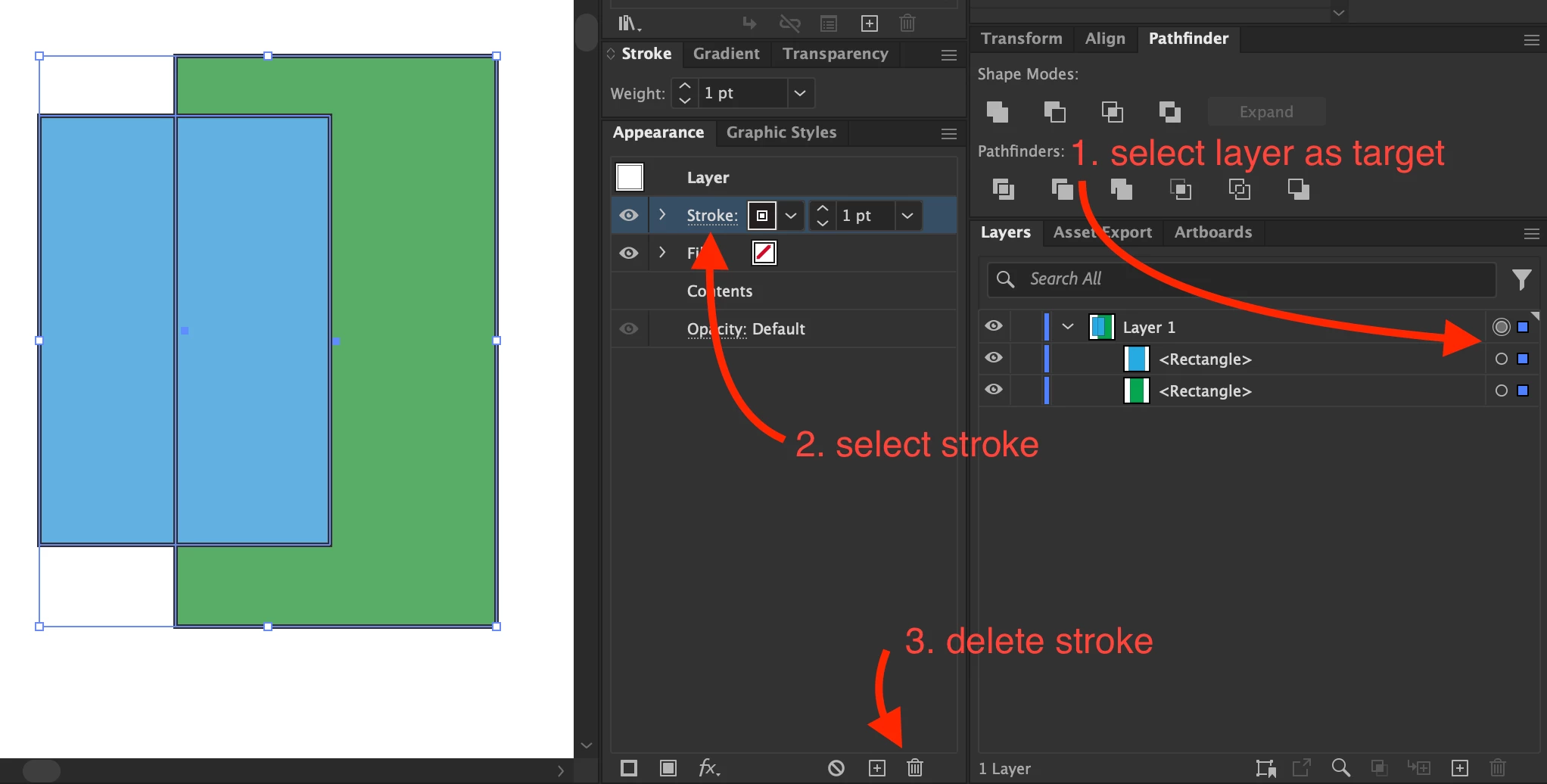
I had this issue, and it turns out that the Layer itself had a stroke applied.


1. Select the layer as the appearance target by clicking the circle left of the selected indicator
2. select the layer stroke in the appearance panel
3. delete the stroke

3 replies

peterg84691840
Participant
May 12, 2018

it looks like this, and no matter how many times I send either shape to front or back they sill look like this and they are on the same layer

cosmo_lachieCorrect answer
Participant
July 16, 2024

I had this issue, and it turns out that the Layer itself had a stroke applied.


1. Select the layer as the appearance target by clicking the circle left of the selected indicator
2. select the layer stroke in the appearance panel
3. delete the stroke

Myra Ferguson
Community Expert
Community Expert
May 12, 2018

Is the blend mode for the shape on top set to normal?

peterg84691840
Participant
May 12, 2018

What is the blend mode?

Monika Gause
Community Expert
Community Expert
May 12, 2018
Monika Gause
Community Expert
Community Expert
May 12, 2018

Check the appearance panel if there is transparency applied to the fill.