


Devin_Gilbert5146
Participant
January 31, 2026
Question

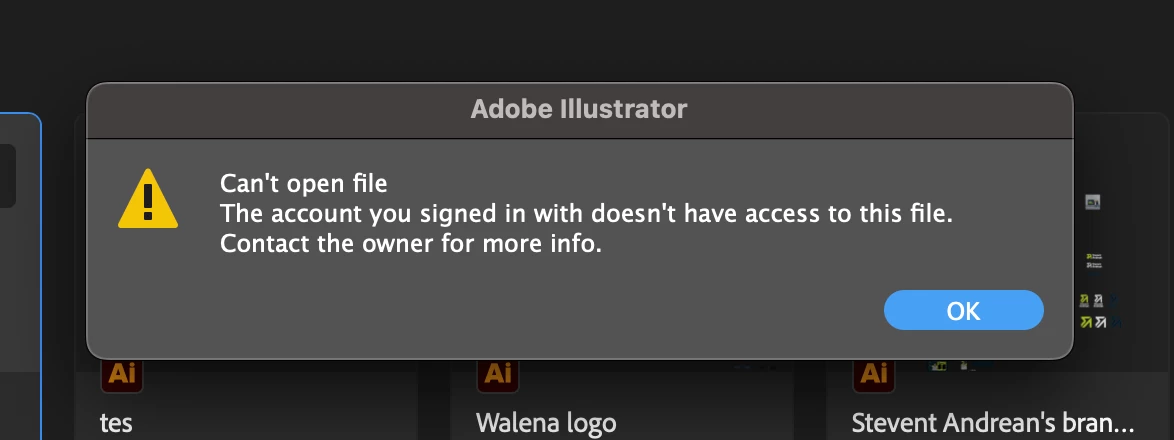
This happens every time I try to save to the cloud: "Can't open file. The account you signed in with." Stable wifi, original account, no multiple logins, re-logged, restarted Mac, Illustrator 2026. I am the file owner.

  • January 31, 2026
  • 1 reply
  • 25 views


    1 reply

    barbara_a7746676
    Community Expert
    Community Expert
    February 3, 2026

    1. Force-reset Adobe’s cloud identity cache (most common fix)

    Even if you’re logged in correctly, Illustrator can be holding on to a corrupted token.

    Do this exactly:

    1. Quit Illustrator

    2. Quit Creative Cloud Desktop

    3. In Finder → GoGo to Folder…

    4. Paste:


      ~/Library/Application Support/Adobe/

    5. Delete these folders (or rename them if you’re cautious):

      • Creative Cloud

      • OOBE

      • AdobeSync

    6. Restart your Mac

    7. Open Creative Cloud Desktop

    8. Sign in again

    9. Open Illustrator → try saving to Cloud

    🔹 This fixes ~70% of cases like yours.

    2. Check which Adobe account Illustrator thinks you’re using

    This error often happens when Adobe silently flips between:

    • Personal account

    • Enterprise / school / work account

    In Illustrator:

    • Help → Sign Out

    • Quit Illustrator

    • Open Creative Cloud Desktop

    • Click your profile photo → Account

    • Confirm you’re logged into the same account that owns the file

    • Open Illustrator again

    ⚠️ Even if the email is the same, Adobe treats these as different identities.

    3. Cloud Documents sync itself may be stuck

    Illustrator Cloud Docs rely on a background sync process that can silently fail.

    Try this:

    1. Open Creative Cloud Desktop

    2. Go to Files

    3. If you see:

      • “Sync paused”

      • “Syncing…” stuck forever
        → Toggle sync off, wait 30 seconds, toggle on

    Then try saving again.

    4. Test by duplicating the file locally first

    Sometimes the file’s cloud metadata is broken.

    1. File → Save a Copy

    2. Save it locally (Desktop)

    3. Close the original cloud version

    4. Open the local copy

    5. File → Save to Cloud Documents

    If this works, the original cloud file is corrupted (sadly common).

    5. Last resort (but reliable): move the file out of Cloud Docs entirely

    If you’re blocked and need to work now:

    • Save locally

    • Work locally

    • Upload to cloud later from Creative Cloud Desktop → Files

    Not ideal, but it avoids data loss.