Participating Frequently
December 12, 2016
Question

Tiling with an Overlap

  • December 12, 2016
  • 2 replies
  • 2025 views

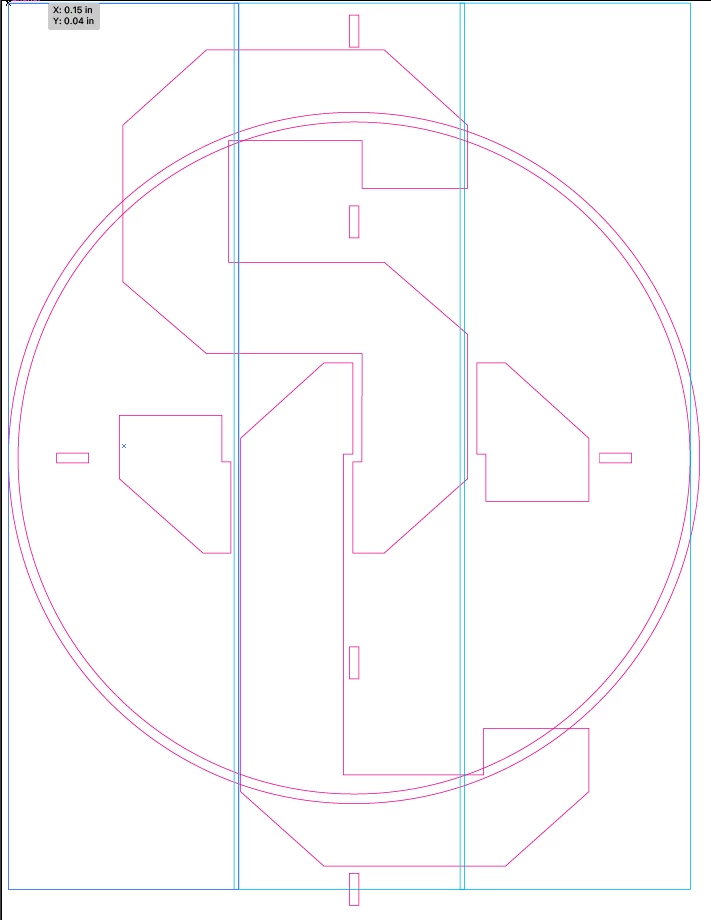
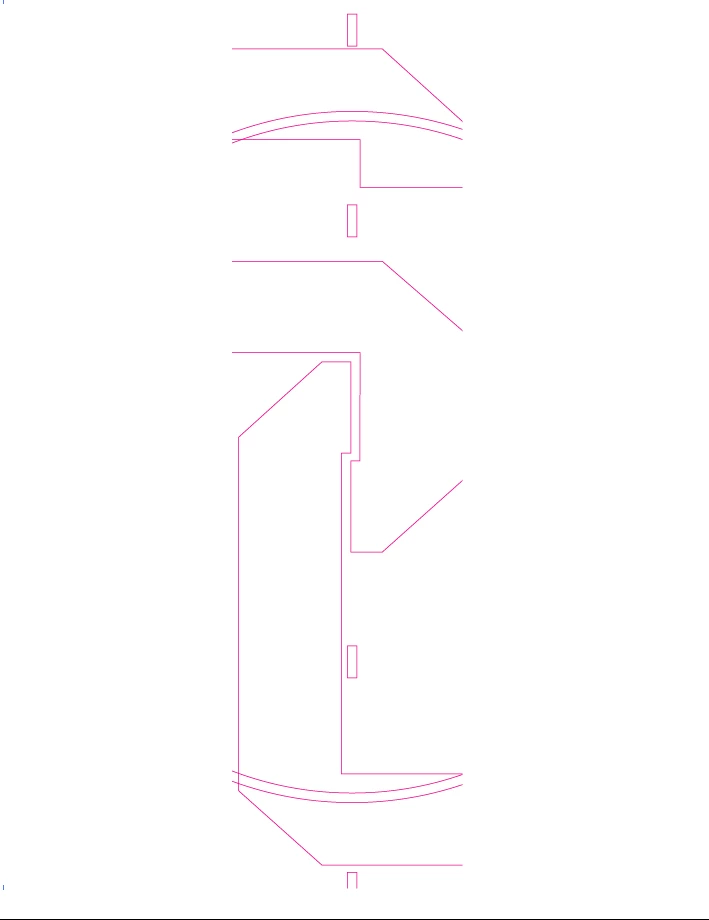
I have been cutting large stencils for gyms for a client for a long time and there's a little issue I haven't been able to figure out but have just made do. These are large stencils, so I design in Illustrator at 1:10 scale. For reference, the circle in the attached image is 12 feet. When approved, I take to our Roland VS640i using Versaworks, scale 1000%, and then tile as the material only has about 47" of usable width. So as an example in reference to the attached image, I'll tile into 3 panels with a 1/2" overlap. It's great, but the software doesn't finish the cuts where it cuts through artwork, so I cut it manually afterwards. See the other two images. The middle panel with the sides open is what I'm getting, and the other is what I ideally want. I think I've exhausted my options of having Versaworks do the work for me, so the next step is to manually tile each panel before sending to the printer.

I just want to see if there's a quicker way to get the end result. If it was as simple as cutting artwork into 3 panels, that would be no problem, but the overlap seems to add several steps. I need the overlap. So my question is how can I tile artwork maintaining an overlap.
This topic has been closed for replies.

2 replies

Mike_Gondek10189183
Community Expert
Community Expert
December 12, 2016
  • Put the art onto a 47" artboard
  • Draw a rectangle the size of the artboard and create a mask.
  • Duplicate 2 more artboards,  select the contents of mask and move over 46.5" &  (2x 46.5"} on the last artboard.

Divide all numbers by 10 since you will need to work 1/10th scale.

Participating Frequently
December 13, 2016

This may be a silly question, but how do I move the art exactly 46.5"? As to the open cuts, I would still have to do those manually right?

Mike_Gondek10189183
Community Expert
Community Expert
December 13, 2016

Double-click in the tool palette on of the section tools, and you will get the move palette.

To select the contents of a mask, with the mask itslef click on this.

Kevin Stohlmeyer
Community Expert
Community Expert
December 12, 2016

I would overlap three artboards to the size of your panels and remove the cyan/blue paths.

Participating Frequently
December 13, 2016

I think that makes sense. So use the art boards as a mask, sort of. I layout the 3 boards, overlapped, placed the art within those 3, and I can simply save as an EPS and check 'Use Art boards' when saving. That should save each section. I guess the only thing that doesn't address is the open cuts. I would still fill those in manually right?