


Inspiring
February 17, 2023
Answered

To create Artboards, select non-rotated rectangles that are not clipping masks

  • February 17, 2023
  • 4 replies
  • 3638 views

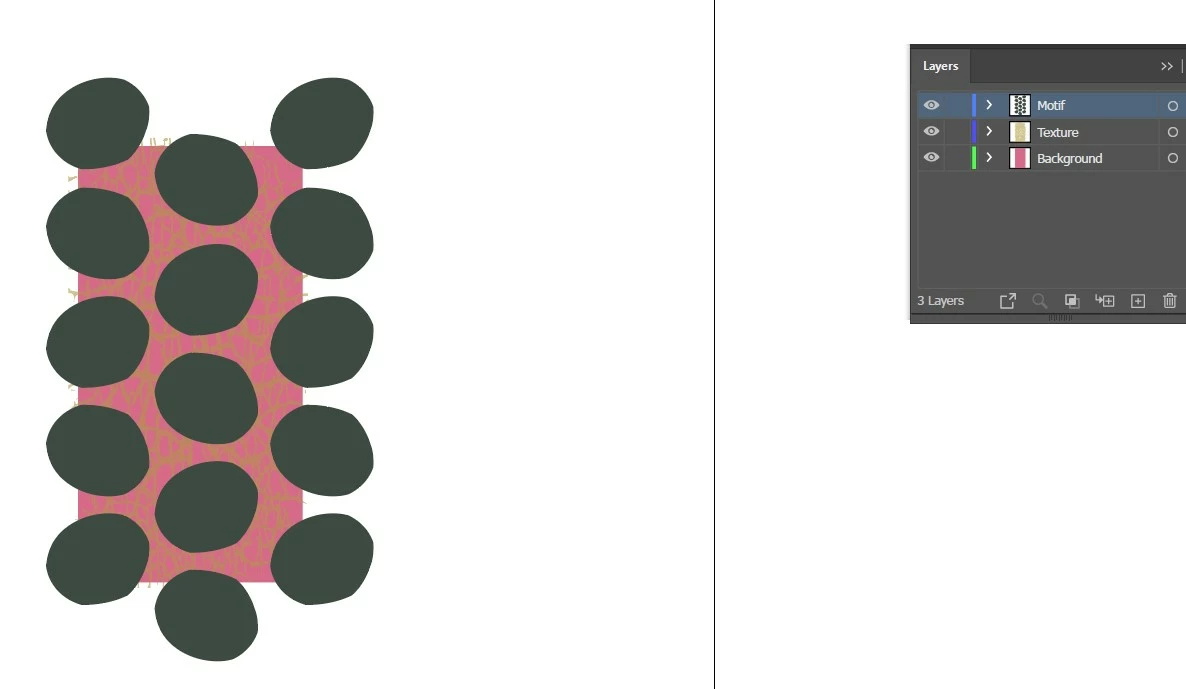
Hi the error msg "To create Artboards, select non-rotated rectangles that are not clipping masks" is preventing me from creating an artboard of 2 separate layers. I have a background on layer 3, texture on layer 2, motif on layer 1. I need to overcome this error to make a repeating pattern. The previous posts with answers DO NOT work for me. Any ideas, I'm desperate! Thanks very much.
Correct answer interesting_Flutter157F

Actually, I'm sorry - with the blank rectangle selected, go to the Align panel and select in the bottom right, align to Artboard. That worked for me. 

4 replies

Participant
March 18, 2025

I have had this problem in the past and figured out a work around. Select the blank rectangle (no stroke, no color fill) - go to Align and click on the center horizontal and center vertical options. Then, with your blank rectangle still selected, go to the Artboard panel and select Create Artboard.

Participant
March 18, 2025

Actually, I'm sorry - with the blank rectangle selected, go to the Align panel and select in the bottom right, align to Artboard. That worked for me. 

Participant
January 15, 2025

I'm having the same issue! I make a brand new solo rectangle using the rectangle tool, then try to convert it into an artboard and I still get this message.

Monika Gause
Community Expert
Community Expert
January 15, 2025

Can you check in the transform panel if it is not rotated?

Participant
January 15, 2025

I checked and it is not rotated


Monika Gause
Community Expert
Community Expert
February 17, 2023

If all you want to do is create an artboard in the size  of that brows rectangle, then click on the rectangle with the artboard tool.

Or adjust the existing artboard to that rectangle.

https://helpx.adobe.com/illustrator/how-to/artboards-basics.html


And also: What Ton said. There are so many pattern tutorials around that teach you some really old workflows around patterns. Read that piece of documentation and then decide for yourself.

Bec MacAuthor
Inspiring
February 17, 2023

thanks but not suitable for print on demand. we don't use the patternmaker in surface pattern design it doesn't achieve the result we need, when putting a texture on top of a background it needs to be slightly bigger than the background in order not to make a conspicuous line through the finished pattern.

Ton Frederiks
Community Expert
Community Expert
February 17, 2023

If you use the pattern maker, the result is a pattern swatch in the swatches panel.

It is very easy to export a seamless single pattern tile.

Just drag the pattern tile from the swatches panel to an empty artboard.

Select the bottom most rectangle in the layers panel and convert it to an artboard.

Ton Frederiks
Community Expert
Community Expert
February 17, 2023

Patterns are generally not made with artboards, did you try the Pattern Maker?

https://helpx.adobe.com/illustrator/using/create-edit-patterns.html

Bec MacAuthor
Inspiring
February 17, 2023

Thanks but for surface pattern design and repeating patterns the patternmaker is not suitable. Patterns are made with artboards when using print on demand for fabric, wallpaper etc printing. This is how they are required for industry, its easy when there's only 1 background but when using texture as another background is a mystery to me!

Monika Gause
Community Expert
Community Expert
February 17, 2023

I usually don't put the background into the pattern maker.