Imagine that you are carving some minute detail on a sculpture that you have been working on for months. You realize that you could really use a slightly different tool. So you get up from your project, get in the car and go to the store, sort through the options, buy the tool, come home and get back to work.
This is what it is like every time I have to change settings in Illustrator. I am using the Blob tool, for example, and want it to be slightly different. Maybe bigger, more angled, whatever. If I double-click the blob tool to get to the settings, a modal dialog box requiring my attention to shift from what I was doing to answer a bunch of questions and then hit okay feel a lot like what I just described.
When I am working in a program and need to change the settings of a tool, I almost never want to deal with a modal dialog box. In fact, if Adobe wanted to be revolutionary, they would eliminate modal dialog boxes entirely.
The problem with a modal dialog box is that it takes you away from your workspace, away from your art, and forces you to jump through a series of hoops to modify the way your tool works. Sometimes it gives you a preview, but with tools like the Blob Brush Tool in Illustrator, the preview is laughable at best and certainly not very useful.
What I would really like to see Illustrator take the lead in is limiting the need for modal dialog boxes.The changing of a brush size does not require user intervention in such a way that everything has to stop and you have to wait for confirmation like a modal dialog does.
Please create a new kind of flexible flyout panel (that looks like your existing panels, but slides out from behind the Toolbar when a Tool is double-clicked. This would not only allow you to change the settings of the tool without leaving your work, it would make everything a lot smoother.
As an example, I have created the following Blob Brush Tool Settings pallet to show you how nice the user interface should be:
| Figure 1 - Blob Brush Flyout Panel | Details and Comments |
|---|
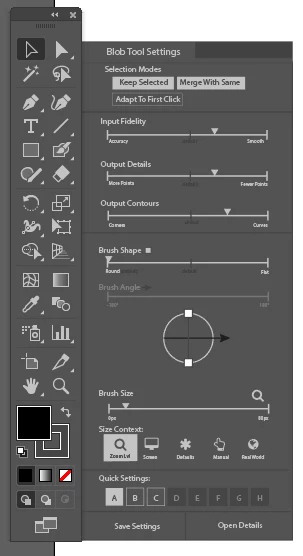 | - Notice that the Selection Modes portion of the panel has three settings. Rather than using checkboxes and adding clutter, I inverted the current selections and boxed the unselected option.
- Also notice that I added the "Adapt to first click" feature that would allow you to automatically extend any shape using the Blob Brush Tool simply by clicking on it with that option selected. It would assure that you got the right color so it could be merged with the results of the blob brush.
- Notice that the second portion of the panel deals only with the dynamics of the brush and how the user interacts with the canvas to produce the final output.
- Notice that no numerical values are listed for the second panel settings as they are largely arbitrary.
- Also notice that no fields exist to enter data using the keyboard. All of these controls are mouse our touch driven only.
- Disable fields that don't make sense. For example when dealing with a round brush, the brush angle does not have any effect on the output, so disable it.
- Notice how next to the two fields that can be addressed using the model brush transformation tool, there are tiny icons (square and arrow) that let the user see that adjusting the squares (either in the model or the slider) and you adjust the brush shape.
- Notice the Brush size shows from 0 to 80px. The maximum brush size you can select currently is 80 px, making it much easier to drag the slider to size your brush. This 80px value is determined by the Zoom size of the current workspace. Presumably, it is only 80 pixels wide, so a brush bigger than 80px seems unreasonable in this context.
- Notice the Size Context field. This presents 5 different kinds of context by which you could size your brush. Selecting a different context changes your maximum size on your brush size selector. (Size Details described next)
- Notice the Quick Settings option allows for 8 quick settings to be saved. Currently option A is being used and B and C have been saved. D-H are not defined yet. This allows you to quickly and temporarily save your settings as you work with the Blob tool.
- The buttons at the bottom of the pallet allow you to save your current settings, or open the default
modal dialog box if you need to define more explicit details. - There is no need for a visual reference for the sizing tool because it should be applied to the actual tool being used in real time. As you change the size and hover off the panel, it shows you the precise size.
- When the size you have selected is bigger than the current viewport, a red X indicating the center of the brush should be displayed.
- Clicking off of the panel causes the panel to close automatically.
|

 AdChoices