
Inspiring
December 22, 2022
Question

Touching adjacent lines with thickness

  • December 22, 2022
  • 5 replies
  • 749 views

Hello everyone!


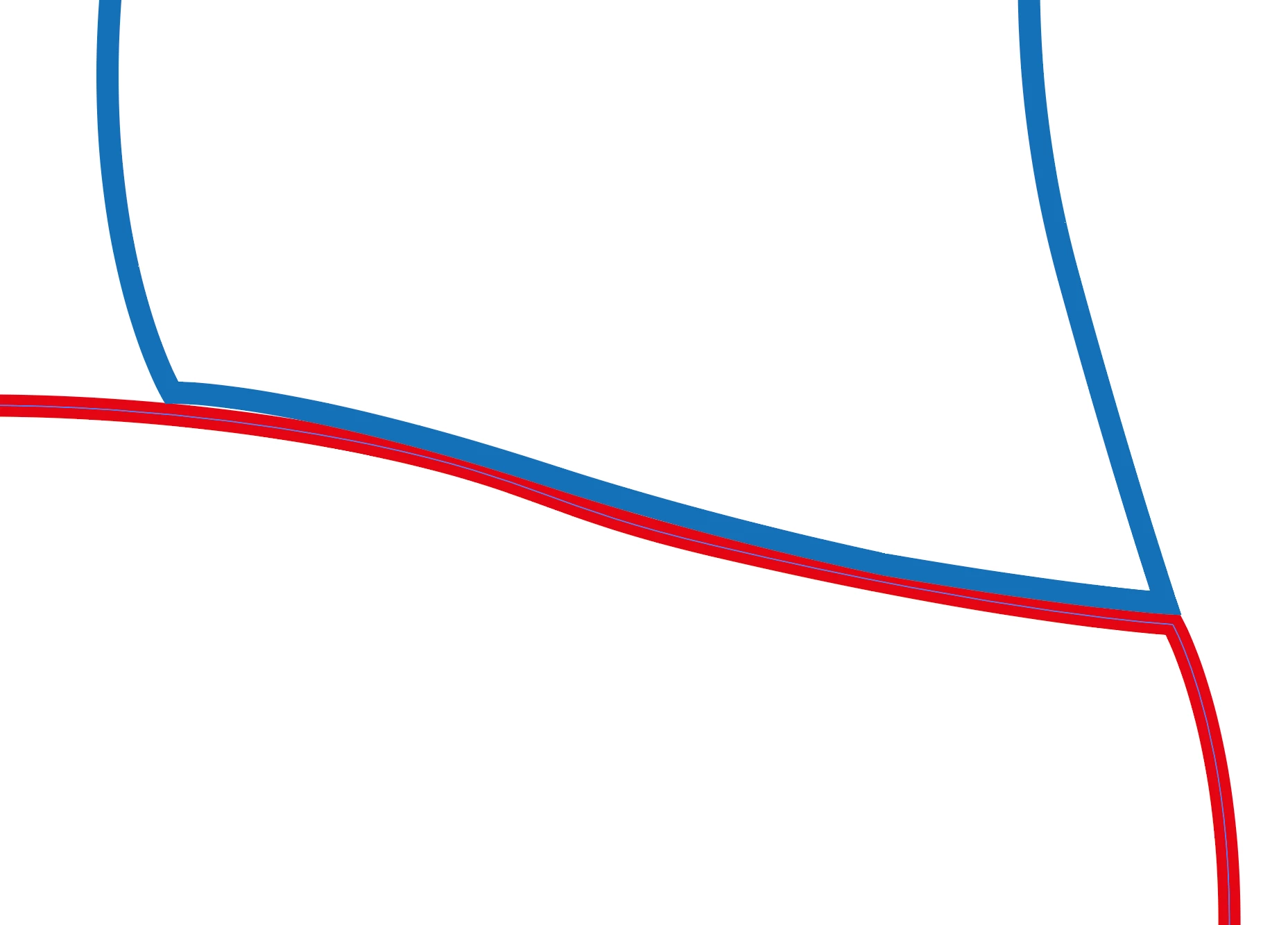
I want to draw adjacent lines with a thickness (say 6pt) that touch each other. It's probably easier to see in the diagram below. I want the red and blues lines to abutt each other without any gaps or overlaps.


I can obviously tweek it until it looks right, but I wondered if there was an easier way?


Many thanks in advance,


Lee

This topic has been closed for replies.

5 replies

Inspiring
January 2, 2023

Happy New Year! Sorry for not replying sooner (Christmas and all that).

Thanks for all your suggestions; the solution for me was a combination of them! In the end I drew the line where needed it with a thickness of 6pt, then I used Object > Path > Outline Stroke and deleted the bits I didn't need, leaving me with two 'parallel' lines. I then applied a thickness of 6pt to each line.

As an aside; When I tried the 'Offset Path' method, it was in mm rather than point size. I assume there is a preference I can set somewhere?


Cheers and thanks again for your help,


Lee

pixxxelschubser
Community Expert
Community Expert
January 2, 2023
quote

… As an aside; When I tried the 'Offset Path' method, it was in mm rather than point size. I assume there is a preference I can set somewhere? …


By @leep40312335


What unit of measurement are your rulers set to?


Met1
Legend
December 22, 2022

Because I don't know any better, I'd just use the transform tool. (It's almost vertical so 6pt up with copy).

If you're doing this 50 times a day then sure, a process would be nice, but for one off, this seems the easiest and quickest.

pixxxelschubser
Community Expert
Community Expert
December 22, 2022

@leep40312335 

Maybe your problem wouldn't exist if you just used contiguous paths and aligned the outline inwards (I know this doesn't work with all path variations, but maybe it works for you).

Eric Dumas
Community Expert
Community Expert
December 22, 2022

Hi,

That is so difficult.

I would turn the problem completely around.

I would try to:

  • start with a large rectangle
  • use a tool to cut the rectangle (scissors or knife tool or the eraser tool> set width= 1/2 stroke size)
  • automatically, the 2 edges of the shapes created would be perfectly against one another
  • either keep your stroke on the inside so the colours do not overlap, or use Object>Path>Ofset to ofset each share of half a stroke width
  • Use the direct selction arrow (white arrow) to remove segments you do not want


Here I used the eraser at 10pts width and strokes at 5pts


pixxxelschubser
Community Expert
Community Expert
December 22, 2022

You could try: Use the object menu --> path --> Offset Path (with 6pt) to create a circumferentially enlarged duplicate of your "red" path. (You may need to touch up a little in the sharp corners). Then drag this duplicate off the "blue" path with the pathfinder.