
Participant
July 23, 2010
解決済み

transform dashed lines into separate (small)lines

  • July 23, 2010
  • 返信数 14.
  • 56803 ビュー

I need to transform a lot of dashed (single) lines into separate lines... Who can tell me how to do this in a few clicks. I don't need an outline of the dashed line. So the black dashes I need, the white in between the dashes I want to loose.

A little complicated to explain... See the example. I need the second lines.
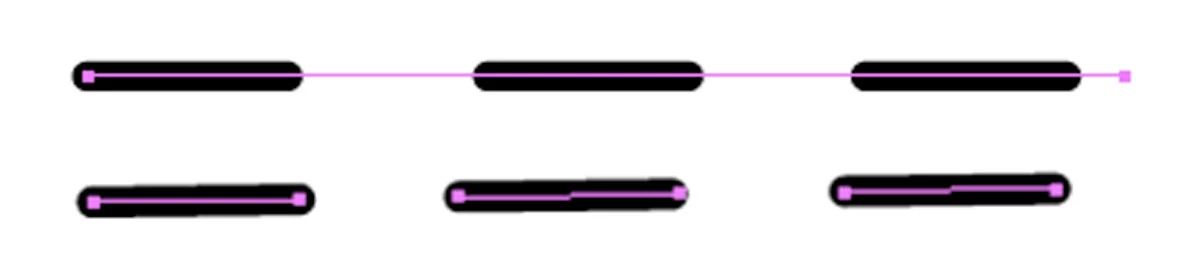
Kind regards, Ellen

    解決に役立った回答 Admirable_imagination01AC

    I had the same problem and I found a (what I think easier) method to convert a dashed line into single dashes:

    1. Set thickness of line to 0.0001 pt
    2. Menu Object > Expand (if greyed out, choose Object Expand Appearance first, as the object has appearance attributes applied to it)
    3. Set thickness back to original value

    Voilà!

    - Andy

    Note: With my Illustrator CS6/Win it only works with setting thickness to 0.0001pt (see above). It does NOT work with a thicker line (like 0.001). Why: If it's too thick, the Expand command converts the single dashes to thin RECTANGLES instead of LINES. But if the line is thin enough, Illustrator thinks "This rectangle is so incredibly thin, I can hardly see it, let's make it a line" ;-)

    返信数 14

    Legend
    February 8, 2026

    Live Paint can be used as a stroke pathfinder and can be useful to extend dashed strokes.

    This script will expand a dashed stroke in that method.


    [sttk3/expandDashedStroke.jsx](https://gist.github.com/sttk3/a087df0d76198e9fe3d5c1c8e76691be)

    Participant
    May 4, 2021

    There is a python script that can do this effortlessly and precise: [breakDashes.jsx]

    [https://github.com/shspage/illustrator-scripts]

    If needed take a few minutes to learn where to paste scripts to the right folder and restart Illustrator. You can now select dashed lines and go file > scripts > BreakDashes


    You might also need to signup to GitHub too in order to download the file package with the script you want.

    Document Geek
    Community Expert
    Community Expert
    December 17, 2021

    The YouTube video linked above works effortlessly, but I also need to have the gaps filled with a different color. I used the gap color function in InDesign, but when I open that exported file into Illustrator, the dashed line is duplicated copy of the gap color. 

    This first image shows the two paths.


    This second image shows the dashed path, see how it was just covered up by the pink path?

    This third image shows how I need the gap to appear. (I did this manually.)

    Document Geek
    Community Expert
    Community Expert
    December 17, 2021

    I was able to use the Art Brush tip demonstrated in the YouTube video. I just butted two different lines (different colors) next to each other, without any overlap. Then I made an art brush, applied it, and expanded the appearance.

    Participant
    October 3, 2018
    Monika Gause
    Community Expert
    Community Expert
    October 3, 2018

      schrieb

    Expand Dashed Line - YouTube

    Awesome.

    Participant
    September 26, 2018

    Kind of amazing that this thread has been open for 8 years and still no *simple* solution to the problem has been found.
    Creating a pattern brush with a short stroke, applying it, and then expanding the appearance seems to be the only workaround at this time.

    Admirable_imagination01AC
    Participant
    August 23, 2018

    I had the same problem and I found a (what I think easier) method to convert a dashed line into single dashes:

    1. Set thickness of line to 0.0001 pt
    2. Menu Object > Expand (if greyed out, choose Object Expand Appearance first, as the object has appearance attributes applied to it)
    3. Set thickness back to original value

    Voilà!

    - Andy

    Note: With my Illustrator CS6/Win it only works with setting thickness to 0.0001pt (see above). It does NOT work with a thicker line (like 0.001). Why: If it's too thick, the Expand command converts the single dashes to thin RECTANGLES instead of LINES. But if the line is thin enough, Illustrator thinks "This rectangle is so incredibly thin, I can hardly see it, let's make it a line" ;-)

    Kurt Gold
    Community Expert
    Community Expert
    August 23, 2018

    Your approach doesn't work for me, Andy.

    Expanding the dashed strokes always produces separate filled paths, not separate stroked paths. They do look like stroked lines, but they aren't.

    What am I missing?

    Admirable_imagination01AC
    Participant
    August 24, 2018

    Sorry to hear it doesn't work for you, maybe you're using another version than my CS6/Win? Maybe you try with even a thinner thickness like 0.000001pt?

    If it doesn't work, try the other solutions using brush pattern.

    Good luck.

    - Andy

    Participant
    June 8, 2018

    I needed much the same when creating a cut file for a Cricut machine.

    In that case I needed to make the dashes into a compound path so it would import correctly.

      To do this:

    Making a dotted single cut using a brush pattern (made with a line)

    1. Object -> Expand appearance
    2. Object -> Compound path -> Make

    OR you can use the dash function:

    Making a dotted single cut using a dashed stroke
    1. Object -> Expand
    2. Object -> Compound path -> Make

    Participant
    March 15, 2018

    only with blend option....after expand.

    Participant
    January 10, 2018

    I know this is an old post. Just to share my method. I found the best solution for this problem :

    1- create a single line i.e. 12pt long 1pt thick

    2- make a pattern brush from the line

    3- In pattern brush options dialog box, put 50% in spacing box.

    4- apply the pattern brush to your desired shape.

    5- you can still adjust the gaps in spacing box and hit apply to stroke

    6- You can also change stroke weight !

    7- go to object -> expand appearance.

    Done !

    Hope this will help.

    - Tolyn

    valeriu28
    Participant
    February 6, 2018

    This is the best solution! Thank you.

    aDuli
    Participant
    January 15, 2016

    Make a line for example 5mm --> make a pattern brush from line. Select the the other line and apply the brush on it. After this at Stroke menu apply a dashed line and last expand appearance.

    Participant
    April 21, 2015

    It's somewhat of a PITA if you have a complex shape with lots of dashes, but I figured out how to do this:

    Start with your dashed line:

    Copy and past the line in front so it's in the exact same spot
    Turn it back into a solid line (I like to change the color to make it easier to see) and send it to the back:

    Outline the stroke of the dashed line only, select both objects, and then in the Pathfinder menu, choose "Outline" (the second to last option):

    Go into isolation mode (or ungroup) and select all the lines you want, cut them, delete the ones you don't need then paste the lines you want back in:

    You now have lots of separate vector lines that form one large dashed line: