Known Participant
October 29, 2017
Answered

Transparant blocks, alligned

  • October 29, 2017
  • 4 replies
  • 422 views

Good evening,

Probabally i have a simple question, but i can not find the solution for this.

I am making a logo and would like to make a line with gaps as in the letter "H" as below in the photo alligned.

I already tried a stroke with gaps, this looks perfect, but i have to print the "blocks", which are on the photo green, transaparant(no fill).

What do you think is the best solution?

I will print the logo only yellow and stick this on a green background.

Can you please help me?

    This topic has been closed for replies.
    Correct answer barbara_a7746676

    I'm going on the assumption that the logo is made up of outlines, that it is not an editable font.

    This is how I'd go about it:

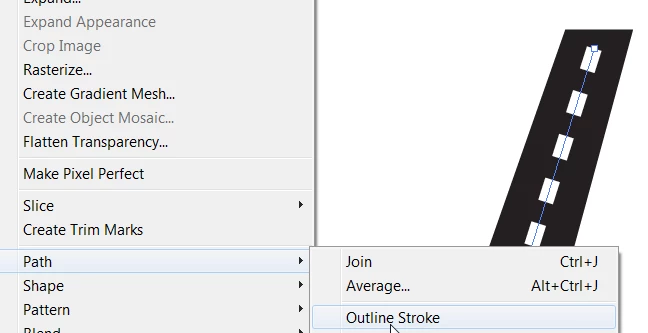
    After drawing the stroke with gaps (dashes), as you've already done, select the line. Choose Object > Path > Outline Stroke.

    You'll end up with a set of grouped dashes.

    Select the dashes and the "H" shape.

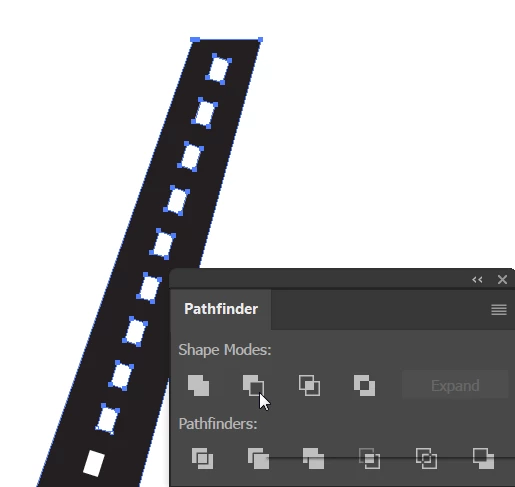
    In Pathfinder panel, choose Minus Front. (It's important that the dashes are on top of the "H".)

    Now you will have holes where the dashed line used to be. Below I put a yellow rectangle behind to make it obvious that the dashes are now holes.

    4 replies

    Known Participant
    October 30, 2017

    Hello,

    I used the solution of Barbara.

    Ray Yorkshire and Barbara Ash, both thanks for your input.

    Below the result. As expected, pretty easy to solve, just had to find the way.

    Thanks,

    Known Participant
    October 30, 2017

    Good morning.

    Thanks you for the quick response.

    Sounds both good.

    I will check out tonight when I am back home.

    I will let you know!

    Thanks!

    barbara_a7746676
    Community Expert
    barbara_a7746676Community ExpertCorrect answer
    Community Expert
    October 29, 2017

    I'm going on the assumption that the logo is made up of outlines, that it is not an editable font.

    This is how I'd go about it:

    After drawing the stroke with gaps (dashes), as you've already done, select the line. Choose Object > Path > Outline Stroke.

    You'll end up with a set of grouped dashes.

    Select the dashes and the "H" shape.

    In Pathfinder panel, choose Minus Front. (It's important that the dashes are on top of the "H".)

    Now you will have holes where the dashed line used to be. Below I put a yellow rectangle behind to make it obvious that the dashes are now holes.

    Ray Yorkshire
    Participating Frequently
    October 29, 2017

    Could you add the stroke with gaps, that you liked, or  just add rectangles with a blend.

    making sure they are black, and above the H

    then select both

    Window > Transparency

    And Make Mask, with Clip and Invert  mask deselected (or whatever works

    to makes the right part transparent)