


Participant
August 20, 2025
Answered

Transparency not applying to all text.

  • August 20, 2025
  • 2 replies
  • 199 views

Hi,

I'm designing some merch for my business and am wanting to have transparent writing on a rectangle shape.

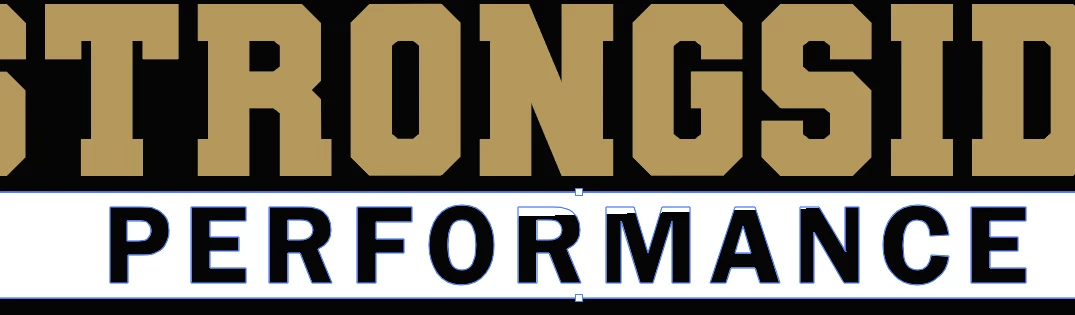
Everything worked well for my first attemps, but the recent one with the font I like the most doesn't seem to apply the transparency to the entire word. 

I created it by 

  • Type Word
  • Create shape
  • Select word and 'create outlines'
  • Go to pathfinder and 'minus front'


You can see above the RMAN that it gets cut off. There is a black background to the black writing is actually transparent.
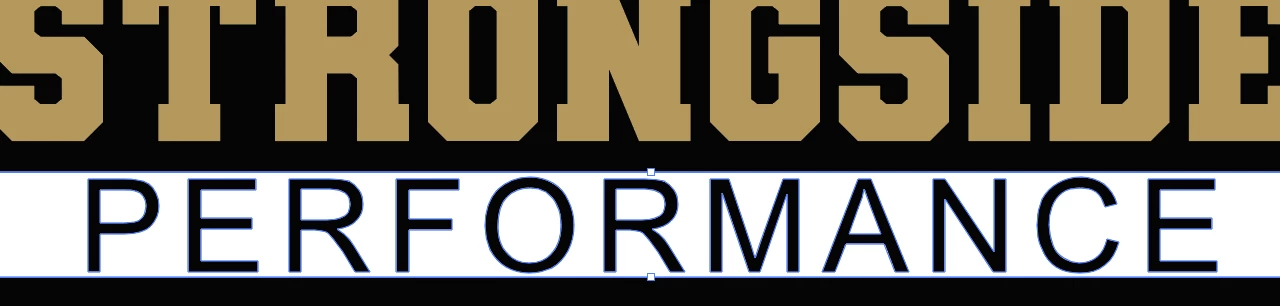
This is how my earlier versions came up with a different font (but all steps followed the same)
 

If anyone can please help fix the issue that would be much appreciated. I'm a newb at this program so laymans terms required. 


Thanks so much

Correct answer Bobby Henderson

What do the "Performance" letters look like in Outline View? The problem looks kind of like a glitch that can happen when more than one copy of the same object is welded together in a Pathfinder operation like Unite (or even Minus Front).


If I'm just wanting to knock some lettering through a rectangular background object in order for objects underneath the rectangle to be visible, I'd just compound the lettering and rectangle together instead of using a Pathfinder effect. A compound object is two or more paths combined together. The interior paths make visual holes through the outer shape. A letter "O" is a compound path; it has an outer shape and then a negative "counter" inside. Anyway, after converting the point text object to outlines the lettering has to be ungrouped. Then the Make Compound command can be applied to the lettering to turn it into a single compound object. Then it can be compounded with the rectangular shape. Or the ungrouped letters and rectangle can be compounded together at once. I tend to be a little more picky as I go, and I can press the Ctrl+8 keyboard shortcut for Make Compound pretty quick.

2 replies

Monika Gause
Community Expert
Community Expert
August 20, 2025

That looks like the typical rendering issue in GPU preview. You could try View > Preview on CPU.

Bobby HendersonCommunity ExpertCorrect answer
Community Expert
August 20, 2025

What do the "Performance" letters look like in Outline View? The problem looks kind of like a glitch that can happen when more than one copy of the same object is welded together in a Pathfinder operation like Unite (or even Minus Front).


If I'm just wanting to knock some lettering through a rectangular background object in order for objects underneath the rectangle to be visible, I'd just compound the lettering and rectangle together instead of using a Pathfinder effect. A compound object is two or more paths combined together. The interior paths make visual holes through the outer shape. A letter "O" is a compound path; it has an outer shape and then a negative "counter" inside. Anyway, after converting the point text object to outlines the lettering has to be ungrouped. Then the Make Compound command can be applied to the lettering to turn it into a single compound object. Then it can be compounded with the rectangular shape. Or the ungrouped letters and rectangle can be compounded together at once. I tend to be a little more picky as I go, and I can press the Ctrl+8 keyboard shortcut for Make Compound pretty quick.

jake1731Author
Participant
August 20, 2025

Hi Bobby, 


Thanks for the reply!


In outline view the outline follows the letters perfectly.  I just opened up a new window and did it from the start again and had the same thing happen.

Will give the compounding option a go. 


Cheers