Participant
March 10, 2020
Answered

Trim the artboard/object

  • March 10, 2020
  • 4 replies
  • 1890 views

Hi,

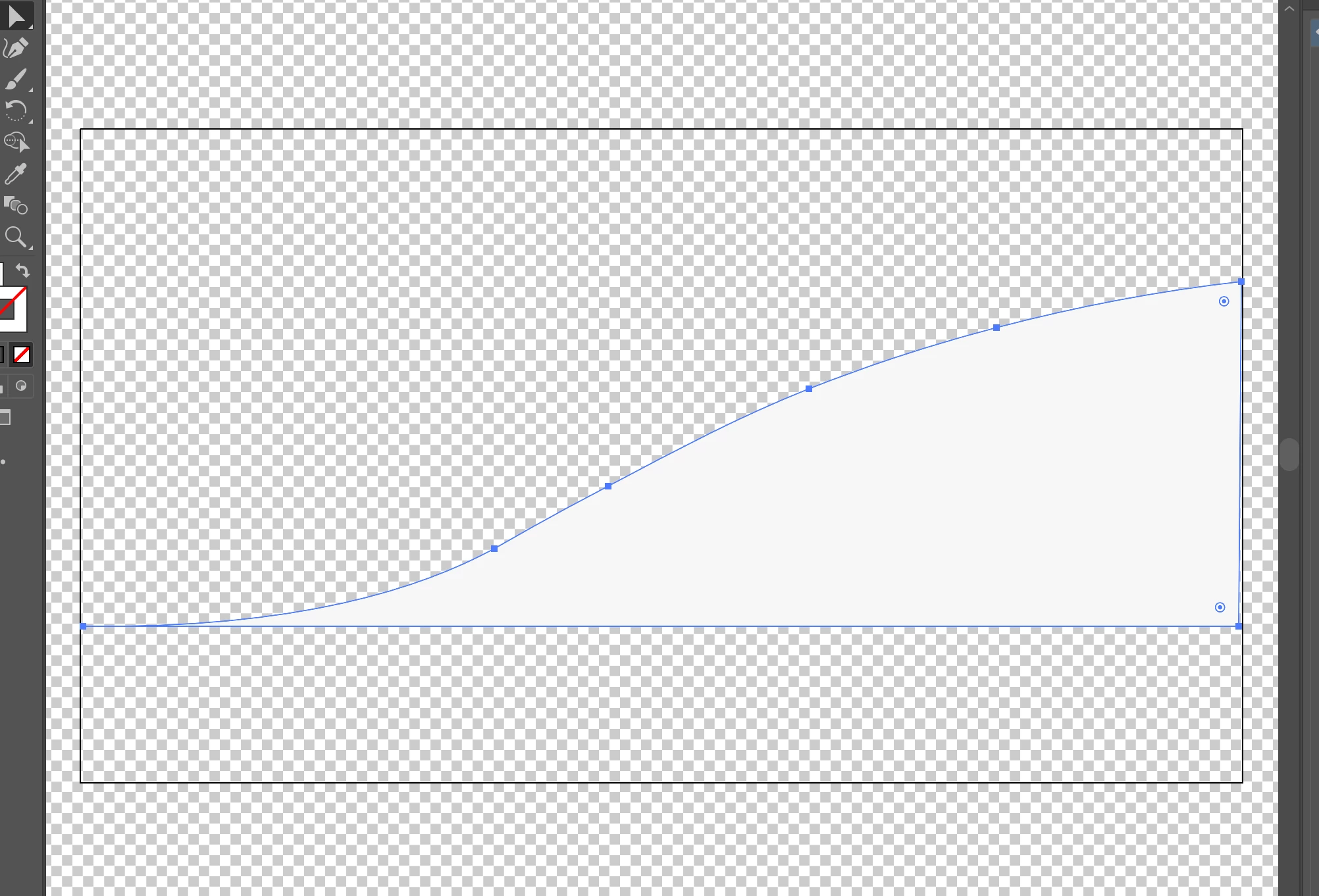
I've got the following object whose boundaries make a rectangle that is bigger than the actual object. See the screenshot. I'd like to save it as .svg but with the size of the object/artwork being a rectangle as small as possible to fit the object (and transparent background). In other words, the black bordered outline should fit the white object as closely as possible. In the view below, the "Show Transparency Grid" is enabled. Please advise. I'm new to Illustrator. Thank you.
 

    This topic has been closed for replies.
    Correct answer Ton Frederiks

    Maybe it is not the boundaries you are seeing, but the artboard.

    You can check that with View > Hide Artboards.

    The bounding box of objects is visible when selected with the Selection Tool (V) and when View > Hide Bounding Box is visible.

    4 replies

    Jacob Bugge
    Community Expert
    Community Expert
    March 10, 2020

    For my part you are welcome, mherda.


    Kenneth Kawamoto
    Community Expert
    Community Expert
    March 10, 2020

    This is crucial for SVG - just realised you can do Object > Artboards > Fit to Selected Art (thanks Ton!)

    Participant
    March 10, 2020

    Thank you all for your replies. It was actually an artboard boundary, as suggested in the first reply.

    Jacob Bugge
    Community Expert
    Community Expert
    March 10, 2020

    mherda,


    What Ton said.


    You can fit the artboard to the artwork or make it anew based on ClickDragging with the Rectangle Tool between the lower leftmost and the upper rightmost Anchor Points, Smart Guides being your friends.


    Ton Frederiks
    Community Expert
    Ton FrederiksCommunity ExpertCorrect answer
    Community Expert
    March 10, 2020

    Maybe it is not the boundaries you are seeing, but the artboard.

    You can check that with View > Hide Artboards.

    The bounding box of objects is visible when selected with the Selection Tool (V) and when View > Hide Bounding Box is visible.