
Participant
April 19, 2019
Answered

Trouble with Clipping Mask

  • April 19, 2019
  • 1 reply
  • 1186 views

Hi All.. I'm fairly new to Illustrator and am having an issue I can't seem to solve.

I'm using some overlapping geometric shapes as a frame. I'd like to completely fill the inside of the frames with the background color, but can not seem to figure out how to get it to work. Screenshots below to describe what I mean.

When I apply the clipping mask, it doesn't fill all of the shapes that are created by the overlapping frames and it makes the gradient path disappear.

The frames are a compound path. I'm sure there's an easy fix for someone who knows what they are doing, but I am stumped. Thanks in advance!
This topic has been closed for replies.
Correct answer Rob de Winter

Hmm, maybe you can try this:

  1. First remove the pink background
  2. Then, select all the shapes and copy them (Edit > Copy)
  3. Paste the shapes (Edit > Paste, or Edit Paste in Place), make sure you keep them selected, but don't select the other shapes
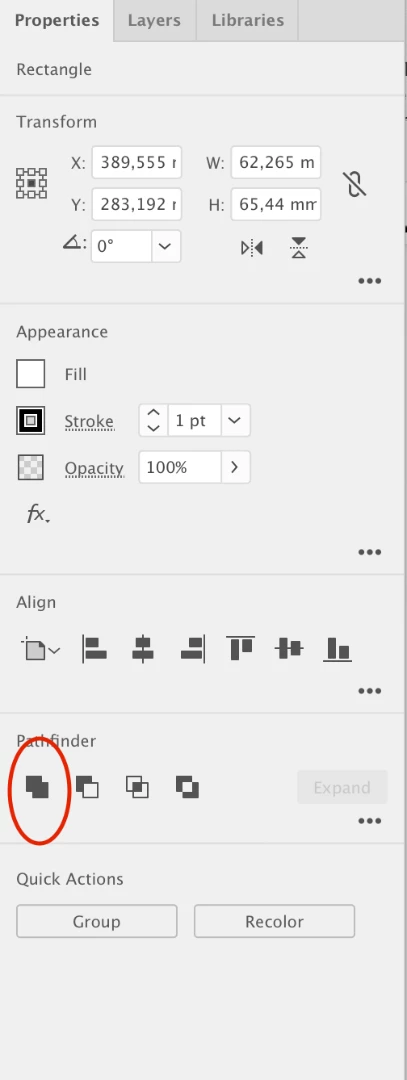
  4. Click this pathfinder option from the Properties Panel (or from Window > Pathfinder):
  5. Now fill this shape with the color you like
  6. Place this shape behind the other objects.

I think this might be the solution :-D Hope this helps!

1 reply

Rob de WinterCommunity ExpertCorrect answer
Community Expert
April 19, 2019

Hmm, maybe you can try this:

  1. First remove the pink background
  2. Then, select all the shapes and copy them (Edit > Copy)
  3. Paste the shapes (Edit > Paste, or Edit Paste in Place), make sure you keep them selected, but don't select the other shapes
  4. Click this pathfinder option from the Properties Panel (or from Window > Pathfinder):
  5. Now fill this shape with the color you like
  6. Place this shape behind the other objects.

I think this might be the solution :-D Hope this helps!

pixxxelschubser
Community Expert
Community Expert
April 21, 2019

Hi Rob de Winter​,

unfortunately this way is "destructive" (the result is not "simple editable" any longer, you always have to edit more objects at once ).

IMO better try the following steps.

draw your shapes with no fill and a small stroke

group them

give this group in the Appearance Panel a new (gradient) stroke in the wished width

give this group in the Appearance Panel a new fill

Ready and all is editable: stroke and strokewidth, fil and all anchorpoints

draw your shapes and group them

select the group  |  open the Appearance Panel

add your final stroke

add your final fill

Ready

Moving anchorpoints with White Arrow (Selection Tool) - the appearance is preserved

Have fun

Participant
April 22, 2019

Thanks so much!!! Both ways actually worked for me. I really appreciate all the help!!!!