
johnm82806023
Inspiring
March 4, 2023
Answered

Trouble with Clipping Mask

  • March 4, 2023
  • 2 replies
  • 1643 views

I have three vector files I created in AI:

• one is a gradient box 

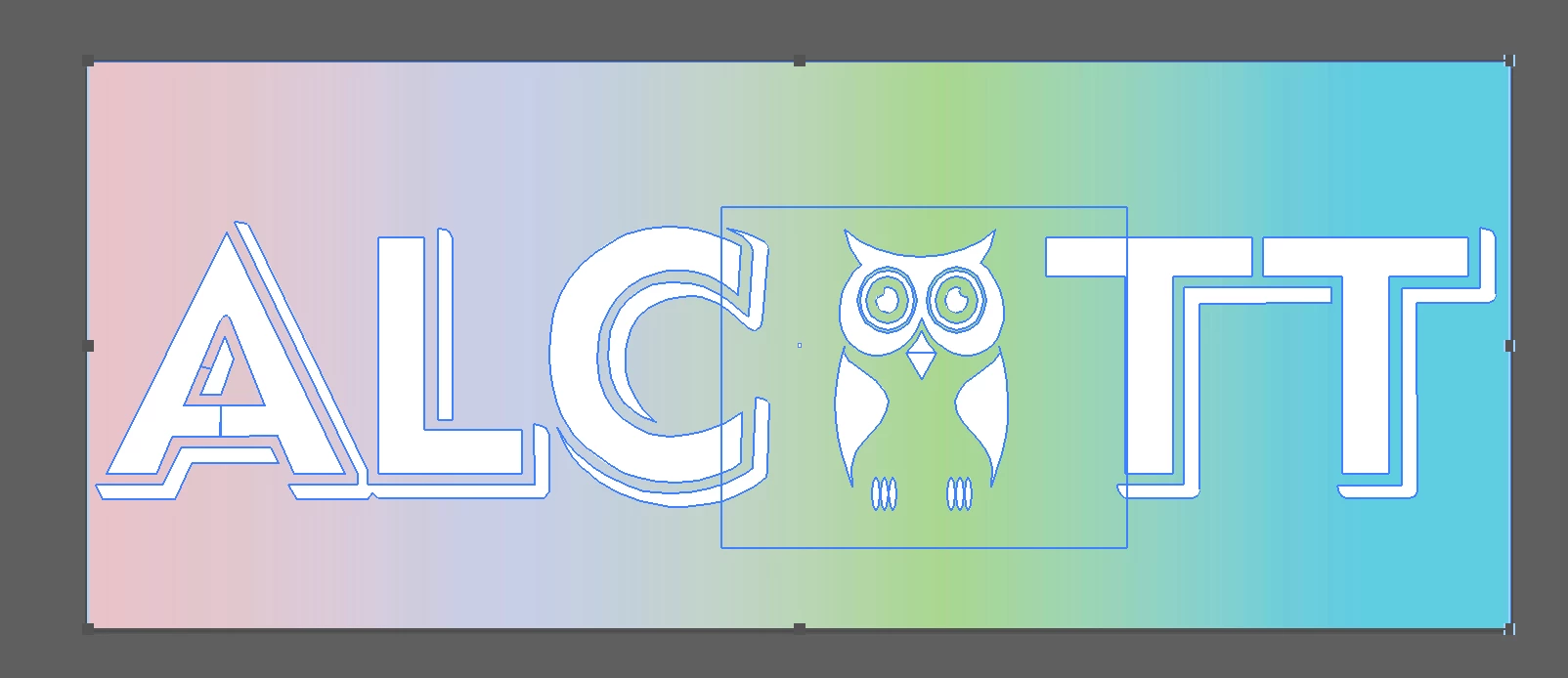
• the other a redraw of a client supplied photo of their rough logo

  (I removed the client image Layer from Layers after redraw)

I am trying to fill the logo with the gradient.

I am receiving the following message:

"Can't make clipping mask. A path used as a clipping mask must contain at least two connected anchor points"

I have searched solutions for this, none have worked.

Yes, my redrawn logo is on top in the same group.

I am unable to create a compound path of all pieces of redrawn logo... compound path option does not show.

I can make compound path of each individual piece of the overall logo.

Images attached.

I would greatly appreciate any help.


Thank you


This topic has been closed for replies.
Correct answer Myra Ferguson

Try grouping your text shapes and the owl. Then select that group and the gradient to make the opacity map.

2 replies

Jacob Bugge
Community Expert
Community Expert
March 4, 2023

John,


The opacity/transparency mask is much more forgiving, because it is all about appearance, so anything can work as the mask, group with multiple paths, and consist of live type and/or (other) vector artwork and/or and raster image(s). The clipping mask requires a single instance of live Type or a single (possibly compound) path of vector artwork (which can be made by multiple independent paths).


Is the type live? If it is, you cannot use for a clipping mask together with the owl vector artwork because they cannot be turned into a compound path..


johnm82806023
Inspiring
March 5, 2023

Hi Jacob,


Thank you for your reply. 

ALL of the art is a redraw I did in AI, no live text. The "text" and owl were done separately.

Once I grouped the "text" and owl I brought it back in on top of the gradient and the Transparency Mask worked perfectly.

Monika Gause
Community Expert
Community Expert
March 5, 2023

Clipping masks don't work with grouped objects when there is more than one path in the mask. They need to be compound paths. But also: there should not be effects or live objects or strokes.

Myra Ferguson
Community Expert
Community Expert
March 4, 2023

Try making a opacity mask. Here's how:

  1. Select both the text/icon group and the gradient
  2. In the Transparency panel (Window > Transparency), click Make Mask
johnm82806023
Inspiring
March 4, 2023

Thank you, that partially worked.

If I selected all 3, only the owl shows. If I select the text and gradient, the owl is hidden.


Myra Ferguson
Community Expert
Myra FergusonCommunity ExpertCorrect answer
Community Expert
March 4, 2023

Try grouping your text shapes and the owl. Then select that group and the gradient to make the opacity map.