
Inspiring
December 7, 2023
Answered

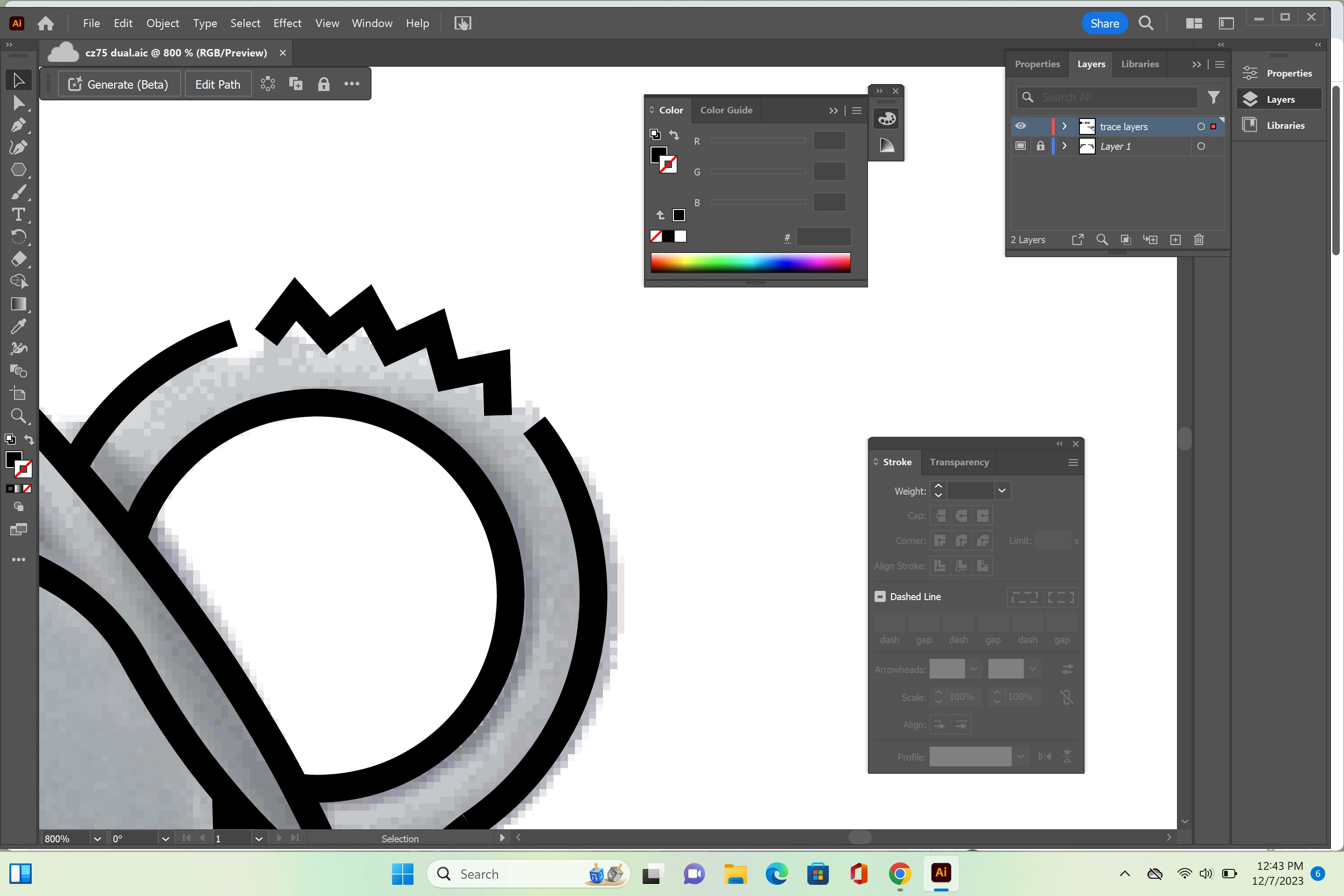
Trying to connect to points without changing stroke

  • December 7, 2023
  • 3 replies
  • 936 views

Hi I am trying to connect the zigzag part to each end of the other strokes but everytime i try doing tis with the direct selection tool it does not look right. Or if i use the joing tool the whole stroke will turn into a zigzag
This topic has been closed for replies.
Correct answer joshs13509895

Obviously you did not expand the appearance.


Currently on the train - I hope this will upload: https://youtu.be/1gA9UTuuHio 


that worked thanks!

3 replies

Jacob Bugge
Community Expert
Community Expert
December 8, 2023

Josh,


One way to make the whole thing completely accurately in one go from the start (if both ends of the whole Zig Zag part are within the same segment, no circle Anchor Point between them as in your case) is to:


1) Create the circle (in the image set made W = H = 100, you can insert the W = 100 and Ctrl/Cmd+Enter), then Object>Transform>Reflect vertically to reverse the path direction, then Click with the Scissors Tool where you wish to have the ends of the Zig Zag part which will split the closed circle into two open circle parts, the one to become the ZigZag shown with a red stroke;

2) Select both parts and use the Transform panel to create a copy set where the W and H values are increased by the Size of your Zig Zag (in the image set the Size is 6, you can add + 6 in the W box so it says 100+6 and Ctrl/Cmd+Enter);

3) Apply the Effect>Distort&Transform>Zig Zag (in the image set the Size is 6 and the Number of Ridges per segment is 7), the visual ends coincide with the end Anchor Points of the original Zig Zag part;

4) Delete the original Zig Zag part and the copy of the larger part of the circle;

5) Join the parts, the one closed path is now shown with a red stroke because the ZigZag part was on top in the stacking order;

6) Click with the Scissors Tool where you wish to have the ends of the path (aligned with the artwork) and delete the unwanted part, this step is not shown.


Click to see in full, Click again to get closer


Inspiring
December 8, 2023

ok where is the image set? I tried doing the +6 in the transform panel and all it did was make the circle into a oval

Jacob Bugge
Community Expert
Community Expert
December 8, 2023

Josh,


The image set is the 1) - 5) image that you can click to see in full.


If you add +6 in the W box and just press Enter, only the W value will change and you will have an oval, but if you Ctrl/Cmd+Enter, in other words hold Ctrl/Cmd and press Enter, you will keep the proportions and get a circle that is increased by 6 for both W and H.


I apologize for any inconvinience caused by unintelligible ways of expressing shortcuts and whatnot.


Jacob Bugge
Community Expert
Community Expert
December 7, 2023

Josh,


Luckily, the zig zag effect is still live, so I believe you can (Smart Guides being your friends):


1) Select the the zig zag effect path and copy it, then hide the copy (so you have it as a backup);

2) Create a new full circle fitting on top of the circle parts (and on top of the zig zag effect path);

3) Select the the zig zag effect path and bring it to the top in the stacking order, then move one of its end Anchor Points to snap to the circle from 2) at the desired joining position (Smart Guides will say path when you are within snapping distance);

4) Switch to the Rotate Tool and Click the positioned end Anchor Point to make it the centre of rotation, then ClickDrag the other end Anchor Point to snap to the circle from 2) so both end Anchor Points are exactly on top of the circle from 2);

5) With the zig zag effect path still selected, Object>Expand Appearance (you can make and hise another copy first as a backup in place);

6) Select the circle from 2), then with the Scissors Tool Click exactly on top of each end of the expanded zig zag path (Smart Guides will say anchor when you are within snapping distance);

7) Delete the part of the circle beneath the expanded zig zag path and also the unwanted part beyond the original circle parts, and those as well;

😎 Join the expanded zig zag path and the remaining circle parts from 7).


Inspiring
December 7, 2023

I am lost

Monika Gause
Community Expert
Community Expert
December 7, 2023

The zigzag effect is still live? You can try and Object > Expand appearance.