
yjunjung
Participating Frequently
December 26, 2018
Answered

Two different results from "Make Compound Shape" option
  • December 26, 2018
  • 4 replies
  • 1529 views

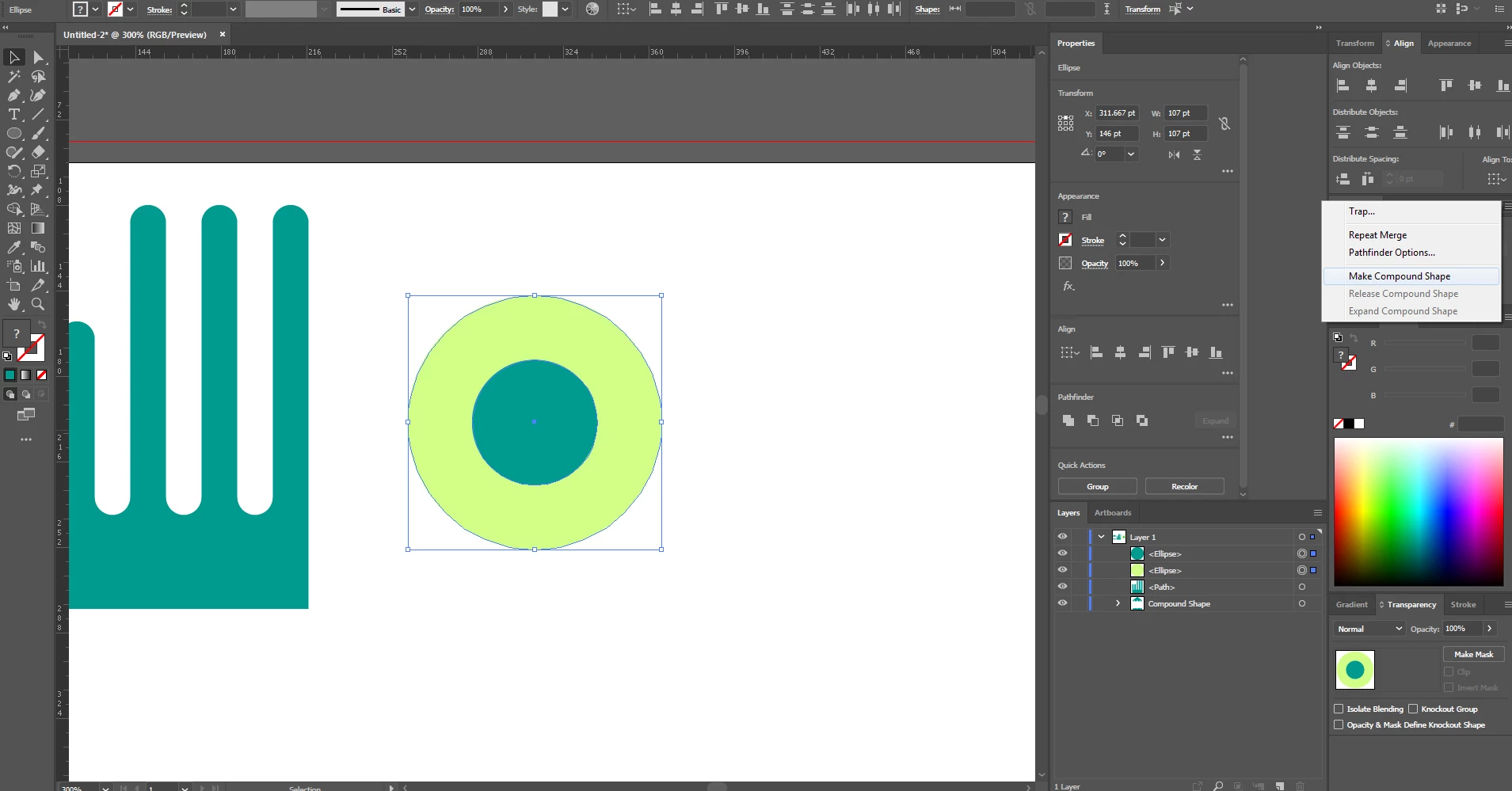
Hi, I am getting two different results from "Make Compound Shape" option from Pathfinder Tool.

As you can see if I right-click on the Pathfinder panel, I get to "Make Compound Shape" and the result I am trying to get is
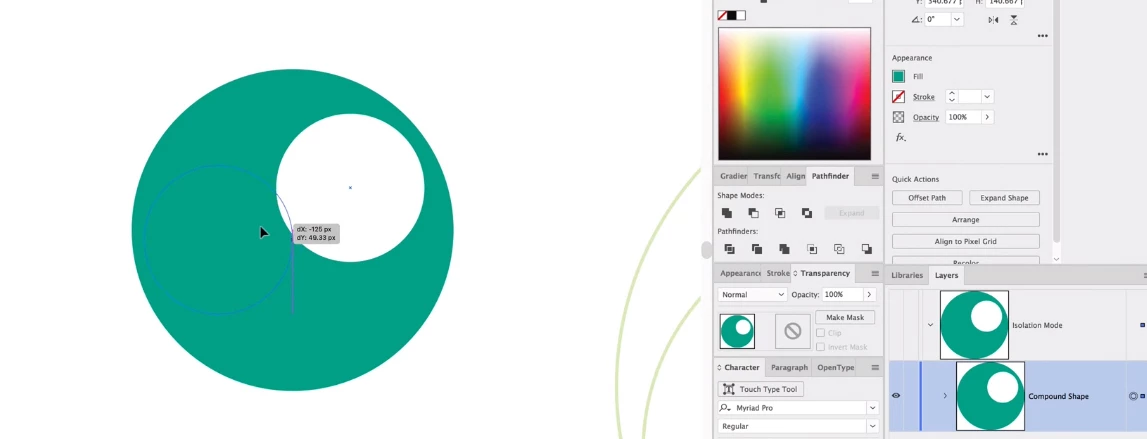
But I keep getting this instead.
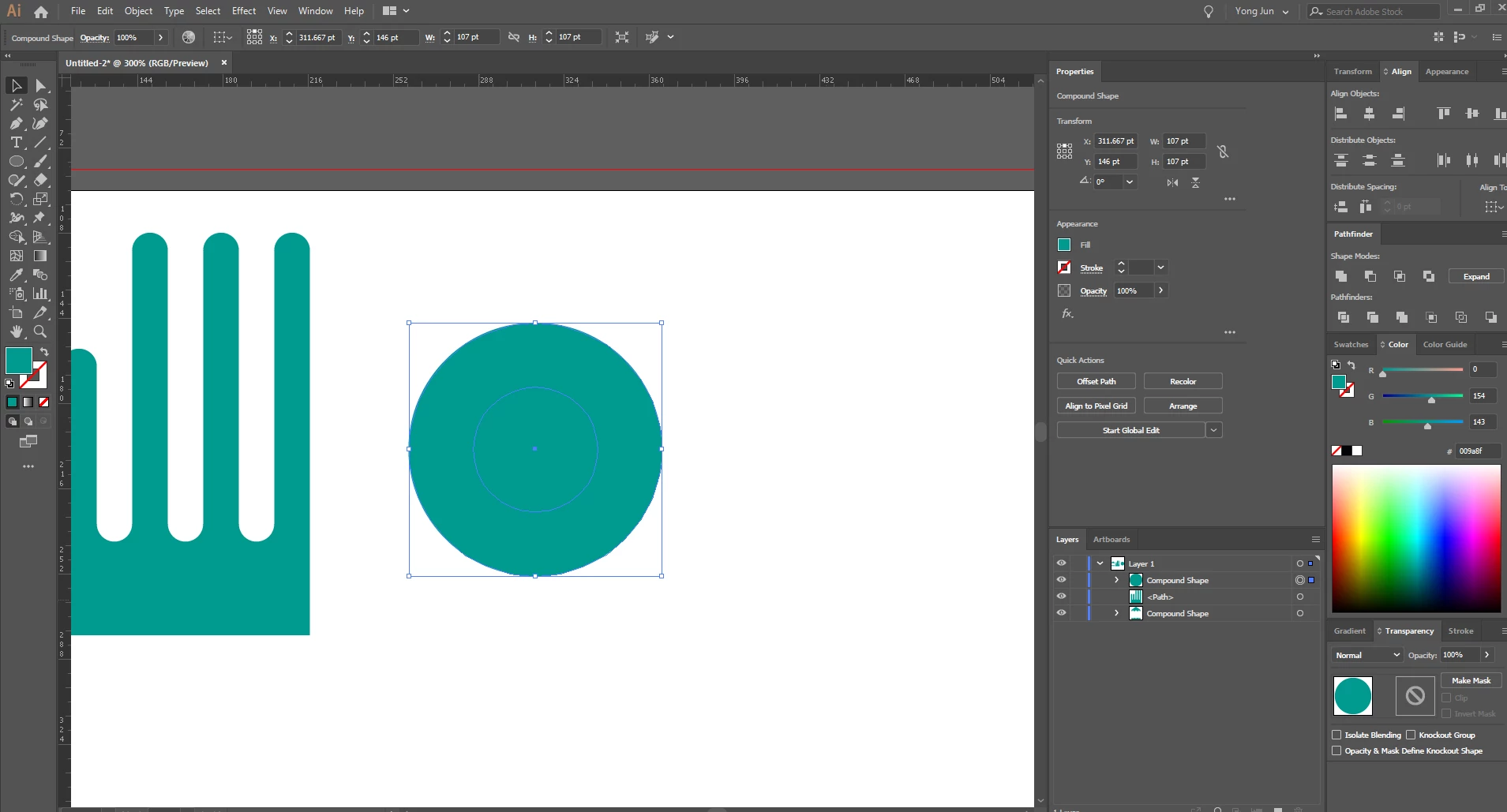
I appreciate if you can tell me the origin of this problem. Thank you!

This topic has been closed for replies.
Correct answer Monika Gause

What probably happened: video guy prepared his file. Made a compound shape, set to "subtract front". Then released compound shape. Then in the video recording made compound shape again. When you do that, the single shapes seem to remember the formerly applied shape mode.

4 replies

Ray Yorkshire
Participating Frequently
December 27, 2018

it doesnt make sense to me either:

5 Must Know Pathfinder Tricks in Adobe Illustrator CC - YouTube

Video - selected both, and in Pathfinder panel's flyout menu,

make compound shape

Result:

When I do it, it just seems to create  the Shape Mode  - Unite,  everything in centre circles colour.

Jason, in comments isn't getting it either..

and the uploaders reply, doesn't help.

Maybe it  just works different on a Mac ?

Probably best to go with simple Alt clicking in the Pathfinder panel shape modes instead.

Monika Gause
Community Expert
Monika GauseCommunity ExpertCorrect answer
Community Expert
December 27, 2018

What probably happened: video guy prepared his file. Made a compound shape, set to "subtract front". Then released compound shape. Then in the video recording made compound shape again. When you do that, the single shapes seem to remember the formerly applied shape mode.

Ton Frederiks
Community Expert
Community Expert
December 27, 2018

Did you try to apply it to a group (I see Isolation mode)?

try to ungroup it and apply the Compound Shape option.

yjunjung
yjunjungAuthor
Participating Frequently
December 27, 2018

I tried both (ungrouped and grouped) but still produces the unwanted result. I will link a video that shows what I was following to achieve. 5 Must Know Pathfinder Tricks in Adobe Illustrator CC - YouTube

The result shows at 4:50.

Monika Gause
Community Expert
Community Expert
December 26, 2018

Compound shapes can have different shape modes applied. If you want to subtract, then select both your shapes, press Alt and click on "Subtract" in the pathfinder panel.

How to combine objects in Illustrator

yjunjung
yjunjungAuthor
Participating Frequently
December 27, 2018

The only problem for subtract/Minus Front method is I cannot select/move around the inner ellipse.

Monika Gause
Community Expert
Community Expert
December 27, 2018

  schrieb

The only problem for subtract/Minus Front method is I cannot select/move around the inner ellipse.

Of course you can. As I said: Alt+click the pathfinder button. And to edit the thing, go into isolation mode as the video guy shows. BTW: of course you could do that with compound paths as well.

Larry G. Schneider
Community Expert
Community Expert
December 26, 2018

Have you tried making a compound path instead? Select both circles and use Object>Compound Path>Make.

yjunjung
yjunjungAuthor
Participating Frequently
December 26, 2018

Yes I have. It does give me a similar result but not exactly what I want.

I just creates a hole in the ellipse but does not allow me to select and move around.