
Riley@beckerglove
Participating Frequently
June 3, 2019
Answered

Type on a path with

  • June 3, 2019
  • 3 replies
  • 2153 views

I'm having difficulties dictating what I need here exactly, so here's the best I can do:

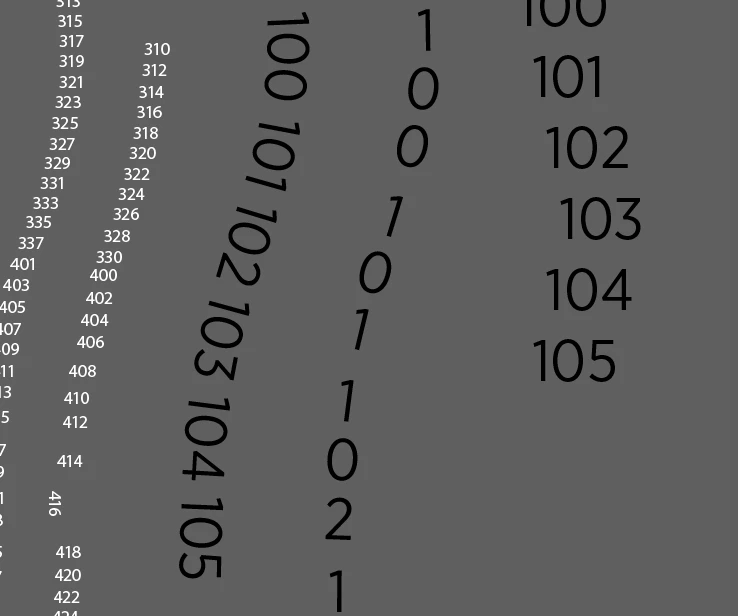
I need to list a group of numbers vertically along a path, as pictured in the white text in the image below. I can't really figure out how to do this quickly and efficiently. The text in white was arranged with each number on its own path, and then changed incrementally by hand. This seems like a massive pain in the glutes, and I feel like there's got to be a better way. Any options? The other lines of text in the image are my attempts with various iterations of the type tool and my brain is officially broken.
This topic has been closed for replies.
Correct answer Jacob Bugge

kcshoess,

The one and only Tate-chu-yoko:

1) Create your path and Click it with the Vertical Type Tool where you wish to start,

2) In the Character palette click the arrow to see the flyout options and tick Tate-chu-yoko,

3) Enjoy.

You may set the desired overall Align option in the Paragraph palette, and you may set path alignment adjustments in the Tate-chu-yoko Settings in the flyout options.

3 replies

kphotopage
Legend
July 26, 2019

Tried as I may, I never could get that Tate-chu-yoko to work on a curved vertical path.

Plan B:

2 lines, Blend Steps. Replace Spine (curved vertical path).

Expand Blend Steps.

Type>Thread Text>Create.

Paste your text.

EZ edits.

Can do similar with a Pattern Brush.

EZ edits once again.

Edit your Pattern Brush

Edit your live text using Character and Paragraph attributes.

K

Riley@beckerglove
Participating Frequently
June 3, 2019

Oh. Em. Gosh. I had no idea that that existed. Yet again Japan's writing systems swoops in to save the day.

Thanks a ton, you're my personal hero.

Steve Werner
Community Expert
Community Expert
June 3, 2019

For those who are trying this out, wondering where this wondrous feature exists, there is one more step: Go to Illustrator preferences > Type and turn on Show East Asian options:

Jacob Bugge
Community Expert
Jacob BuggeCommunity ExpertCorrect answer
Community Expert
June 3, 2019

kcshoess,

The one and only Tate-chu-yoko:

1) Create your path and Click it with the Vertical Type Tool where you wish to start,

2) In the Character palette click the arrow to see the flyout options and tick Tate-chu-yoko,

3) Enjoy.

You may set the desired overall Align option in the Paragraph palette, and you may set path alignment adjustments in the Tate-chu-yoko Settings in the flyout options.

Jessica@54Brands
Inspiring
July 24, 2019

Ugh, this is not working for me and I'm so frustrated! I'm trying to create a series of numbers around a circle, and need the 2 and 3-digit numbers to stay together as one number (e.g. 103 on its own line). But if I put returns between the numbers, only one number shows on my path along with an overset text icon. Why, oh why?

Monika Gause
Community Expert
Community Expert
July 25, 2019

  schrieb

Ugh, this is not working for me and I'm so frustrated! I'm trying to create a series of numbers around a circle, and need the 2 and 3-digit numbers to stay together as one number (e.g. 103 on its own line). But if I put returns between the numbers, only one number shows on my path along with an overset text icon. Why, oh why?

So is this about Tate-chu-yoko?

If not, please create a new thread and show us a screenshot where we can see something.