


Participant
June 10, 2025
Answered

Type on a path with background

  • June 10, 2025
  • 4 replies
  • 414 views

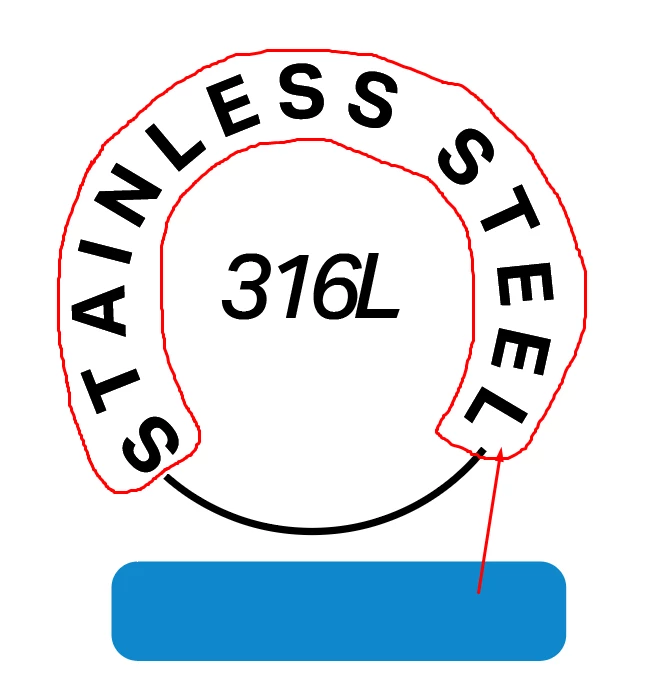
Hi guys, **see image below for what I am trying to achieve"
Im looking to have a rounded rectangle follow text which is on a path 
So essentially I want the text to have a background.

Is there a way to achieve this?
 

Correct answer Kurt Gold

Type on Path combined with an art brush works pretty well with rounded corners if one uses an appropriate Stretch Between Guides setting in the Art Brush Options. There should be no or only minor distortions.


Sample Illustrator file: Stainless Steel


A drop of bitterness is that you'll get a rather scruffy object with many superfluous anchor points as soon as you expand its appearance. Object menu > Path > Simplify (probably a couple of times) may then be desired to clean it up.

4 replies

Kurt Gold
Community Expert
Kurt GoldCommunity ExpertCorrect answer
Community Expert
June 10, 2025

Type on Path combined with an art brush works pretty well with rounded corners if one uses an appropriate Stretch Between Guides setting in the Art Brush Options. There should be no or only minor distortions.


Sample Illustrator file: Stainless Steel


A drop of bitterness is that you'll get a rather scruffy object with many superfluous anchor points as soon as you expand its appearance. Object menu > Path > Simplify (probably a couple of times) may then be desired to clean it up.

Monika Gause
Community Expert
Community Expert
June 10, 2025

Technically it can be built by having text on a path and then assigning an art brush to the path (by selecting it with the direct selection tool).

But since the artbrush will get distorted, the reounded corners do suffer.


So I would continue as Bobby described to get a clean result.

Community Expert
June 10, 2025

If I follow correctly what you want to make you'll need to build it using multiple objects. I attached an example of something I built based on your concept.


I stroked all the source objects used to build up the graphic that way the construction can be more clear. It's just a series of spheres aligned together. I sized all the spheres precisely in order for the lettering to be vertically center-aligned with the blue background shape. The blue shape can be created by compounding two spheres into one object and then using the Minus Front Pathfinder to cut away part of the object. Corners on the end of the object can be rounded after that.


I sized the letters according to cap letter height; this can be set in font height options. The text object can be positioned precisely using the Align to Glyph Bounds setting or just manually moving it with Smart Guides. The text is just getting wrapped around a different sphere than the blue background object.


I like Dave's suggestion of using an Art Brush for certain tasks, but it will create some distortion in the letters. The distortion can be minimized by creating the art brush graphic where it matches the path length of the target path where the brush would be applied. The Document Info panel can show the path length of a selected object.

Dave Creamer of IDEAS
Community Expert
Community Expert
June 10, 2025

My goal was to make it as one object but I like @Bobby Henderson results better. I would make his version a symbol. Then one could detach it from the original and drill-down to edit the text. 


David Creamer: Community Expert (ACI and ACE 1995-2023)
Dave Creamer of IDEAS
Community Expert
Community Expert
June 10, 2025

I don't think you can use an Effect on type on a path, since you can't select the text as a separate object anymore.

Here are a couple of ideas: envelope distort and art brush.


Greater minds than mine might have a better idea.

David Creamer: Community Expert (ACI and ACE 1995-2023)