
Participant
January 31, 2021
Answered

Unable to Align Text Flush Right

  • January 31, 2021
  • 3 replies
  • 1145 views

Hello 🙂  I'm new to Illustrator and have a little problem. Any help is greatly appreciated! 
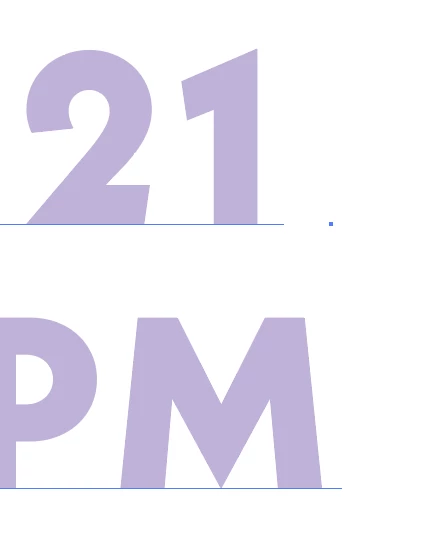
I tried to align them (see above) to the right in the paragraph panel, but there's always a misalignment. For some reason, the baselines/tiny blue lines marking the bottom aren't aligned to the right. I'm not too familiar with all the tools in Illustrator (I'm using CC 2021). Is there a way to align this without expanding the text? 


Cheers,

Zoe


This topic has been closed for replies.
Correct answer tromboniator

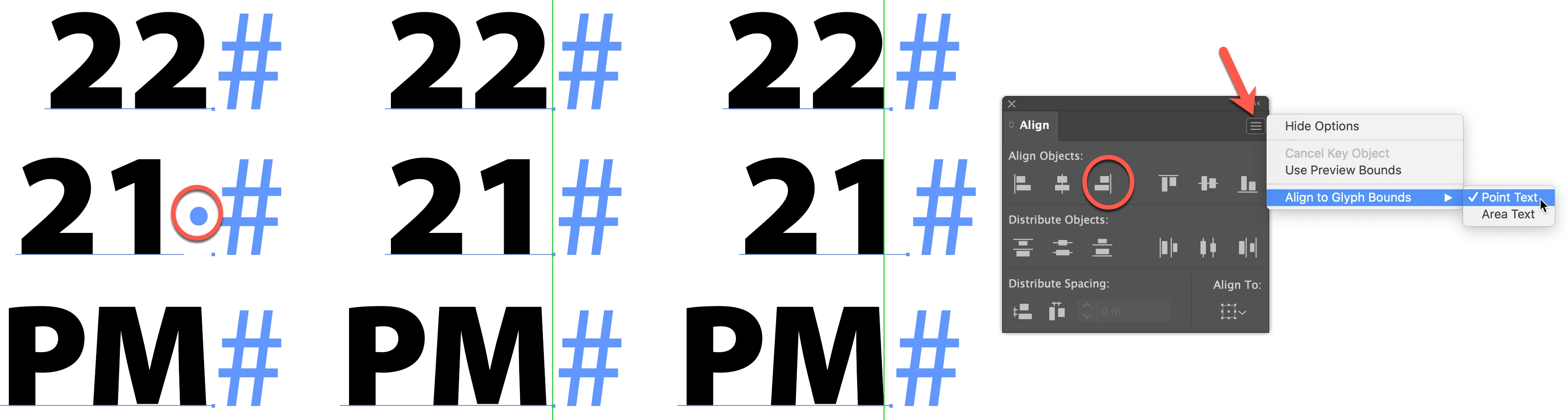
On the assumption that Monika is correct, I would guess that you have a space after the 1. Removing the space will properly align the 2 and bring the baseline fully to the right. If you actually want the 1 to right-align with the M, go to the Align panel flyout menu, choose Align to Glyph Bounds > Point Type, then choose Horizontal Align Right. If the hidden character turns out to be the problem, please mark Monika's answer as correct.


Peter


3 replies

tromboniator
Community Expert
tromboniatorCommunity ExpertCorrect answer
Community Expert
February 1, 2021

On the assumption that Monika is correct, I would guess that you have a space after the 1. Removing the space will properly align the 2 and bring the baseline fully to the right. If you actually want the 1 to right-align with the M, go to the Align panel flyout menu, choose Align to Glyph Bounds > Point Type, then choose Horizontal Align Right. If the hidden character turns out to be the problem, please mark Monika's answer as correct.


Peter


Monika Gause
Community Expert
Community Expert
February 1, 2021

Can you try and turn on the Hidden characters in the Type menu? This will show you if there's some character in the line.

Also: it will help us to see the complete picture: the complete text object with all formatting in the panels.

Omar.Fathy
Community Expert
Community Expert
January 31, 2021

You can use the Create Outline Command  Ctrl+Shift+O to edit it easily.
Or to go professionally, you can use the Touch Type Tool to edit letters separately and manually: